Bit-for-Bit Copy Hard Drive: What It Is and How to Do It 

Affiliate Disclosure: This post may include affiliate links. If you click and make a purchase, I may earn a small commission at no extra cost to you.

What Is a Bit-for-Bit Copy of a Hard Drive?

A bit-for-bit copy hard drive (also known as a sector-by-sector clone or forensic clone) is a process that duplicates an entire disk at the lowest possible level.

Unlike standard file copying or basic disk cloning, this method does not interpret data. Instead, it copies every disk sector, regardless of whether it contains active files.

That means a bit-for-bit copy includes:

  • All user files and folders
  • Deleted data that has not yet been overwritten
  • File system structures (such as NTFS or FAT32 metadata)
  • Unallocated (free) space
  • Boot information, including MBR or GPT partition data

👉 In simple terms: A bit-for-bit copy creates an exact replica of a drive, including all hidden and unused sectors. As a result, the output is a perfect one-to-one disk image, identical to the original at the sector level. Most users don’t need a bit-for-bit copy for system migration or SSD upgrades. In most cases, standard cloning is faster, safer, and more practical, while bit-for-bit cloning is reserved for specialized use cases where absolute disk accuracy is required.

When Do You Need a Bit-for-Bit Copy Hard Drive?

A bit-for-bit copy is not required for everyday disk cloning or system upgrades, but it becomes essential in specific technical or high-precision scenarios where every sector of a drive must be preserved exactly. In these cases, even unused or hidden data can be important, making a full sector-by-sector copy the most reliable option.

Typical use cases include:

  • Digital forensics and evidence preservation, where the entire disk state must be kept unchanged for legal or investigative purposes.
  • Data recovery from failing drives, where bad sectors or corrupted areas need to be captured as completely as possible.
  • Copying encrypted or special file systems that cannot be correctly interpreted by standard cloning tools.
  • Advanced system duplication, where an identical disk structure and configuration are required across multiple machines or environments.

💡If you need a 100% identical copy of a drive at the sector level, bit-for-bit cloning is the right choice.

Limitations of Bit-for-Bit Copy

While a bit-for-bit copy is useful for creating an exact replica of a hard drive, it also comes with several important limitations. Understanding these drawbacks is essential before choosing this method, especially for general users who only need system migration or backup.

1. Requires Equal or Larger Target Drive

A bit-for-bit copy requires the destination drive to be at least as large as the source drive. Even if the source drive has a lot of free space, the total capacity still matters, which can limit flexibility when cloning larger drive to smaller drive or cheaper SSDs.

2. Much Slower Than Regular Cloning

Because this method copies every single sector, including empty and unused space, the process is significantly slower than standard cloning. Larger drives can take a long time to complete, especially over HDD or external connections.

3. Cannot Resize or Optimize Partitions

Bit-for-bit copying does not allow any adjustments during the process. You cannot shrink, expand, or reorganize partitions, and the final disk layout will be an exact replica of the original structure.

4. May Fail on Bad Sectors

If the source drive has physical damage or bad sectors, the cloning process may slow down, skip data, or fail completely, depending on the severity of the issue.

💡This method prioritizes accuracy over efficiency, making it suitable for specialized use cases but less practical for everyday disk cloning tasks.

How to Do a Bit-for-Bit Copy (Step-by-Step)

A bit-for-bit copy is more technical than a standard disk clone, but the overall process is straightforward if you follow the correct steps. The key is to ensure the entire drive is copied at the sector level without interruption or configuration mistakes. 

Step 1. Prepare Your Drives

Before starting, make sure both drives are properly prepared.

  • Connect the target drive to your computer. If your laptop has only one USB port, use an external USB adapter instead.
  • Ensure the target drive has a capacity equal to or greater than that of the source drive. Go to Disk Management. Locate your source disk (usually Disk 0) and target disk. View the capacity (e.g., 500GB, 1TB) listed on the left.
  • Back up any important data on the target drive, as it will be completely overwritten.
check total hard drive size disk management

Step 2. Choose a Tool That Supports Sector-by-Sector Copy

You will need disk cloning or imaging software that explicitly supports sector-by-sector (bit-for-bit) copying.

Most modern tools include this option, but it is usually not enabled by default and must be selected manually in the settings or advanced options.

Step 3. Enable Sector-by-Sector or Forensic Copy Mode

At this stage, you need to switch the cloning mode to a full-disk copy option, often labeled as a sector-by-sector clone or forensic copy.

This setting is important because:

  • It is usually turned off by default to make cloning faster
  • It must be manually enabled before starting the process
  • It forces the software to copy every single sector instead of only the used data

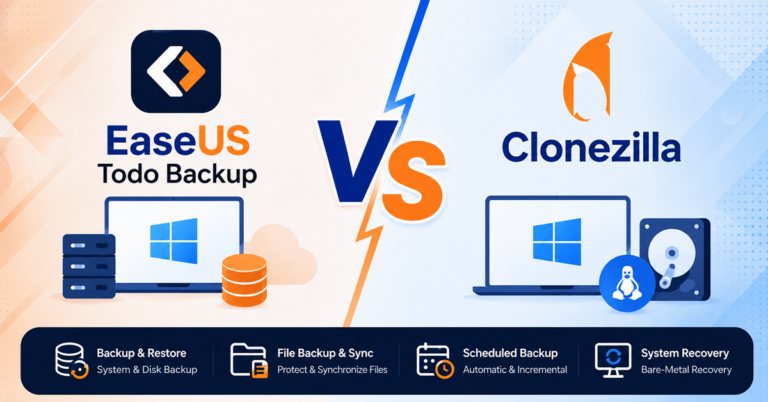
For example, in tools like Clonezilla, use Expert Mode during the device-to-device wizard and select the -q1 option, which forces dd to copy every sector, including free space and deleted files.

Once enabled, the software will no longer skip empty or unused space and will create a complete bit-for-bit replica of the source drive.

clonezilla

Step 4. Start the Copy Process

Once everything is set, begin the cloning process.

  • The operation may take a long time, depending on the drive size (the amount of actual data) and its speed. E.g., it usually takes 15 to 45 minutes to clone a 500GB M.2 SSD using modern internal NVMe-to-NVMe connections.
  • All sectors, including empty space, will be copied.
  • Do not interrupt the process, as stopping it can result in an incomplete or unusable disk image. 

Step 5. Verify the Cloned Drive

After the process is completed, it is important to confirm that the copy is usable.

  • Check whether the cloned drive is readable
  • Verify that files, partitions, and system structure are intact
  • If it is a system drive, test booting from the new disk

Best Tools for Bit-for-Bit Disk Copy

Different tools support bit-for-bit disk copying in different ways. Some are designed for advanced technical users, while others provide a simpler graphical interface for everyday users. The table below helps you quickly compare the most common options.

🚩Advanced vs General Tools Comparison 

CategoryToolKey FeaturesEase of Use
Advanced UsersClonezillaOpen-source, full disk imaging supports sector-by-sector cloning, a bootable environment is requiredDifficult
Advanced UsersddLow-level byte-by-byte copying, maximum control, command-line basedVery Difficult
General UsersMacrium ReflectSupports sector-by-sector mode, GUI interface, reliable for system cloningEasy
General UsersAcronis True ImageFull disk backup and cloning, user-friendly interface, guided workflowEasy
General UsersEaseUS Disk CopyStep-by-step cloning wizard, supports full disk copy mode, beginner-friendlyEasy

Conclusion

A bit-for-bit copy hard drive is the most complete form of disk cloning, but it is also the most resource-intensive and least flexible option. It works at the sector level, meaning every part of the drive is duplicated exactly as it is, including unused and hidden data.

This makes it highly valuable in specific scenarios such as digital forensics and data recovery, where preserving the exact state of a drive is critical.

However, it is not well-suited to everyday use cases such as system upgrades or general disk migration, where standard cloning is faster and more practical.

Use it only when you truly need an exact, sector-level replica.

Similar Posts

Subscribe
Notify of
guest
0 Comments
Oldest
Newest Most Voted
Inline Feedbacks
View all comments