

Affiliate Disclosure: This post may include affiliate links. If you click and make a purchase, I may earn a small commission at no extra cost to you.
Cloning a larger drive to a smaller drive may seem tricky, but it’s actually a common and practical upgrade scenario, especially when moving from an HDD to a faster SSD.
If done correctly, you can transfer your entire system, including Windows, applications, and files, without reinstalling anything. This guide will walk you through exactly how to clone larger drive to smaller drive, with detailed steps and tips to avoid failure.
Benefits of Cloning a Larger HDD to a Smaller SSD
Cloning a larger HDD to a smaller SSD is one of the most effective ways to upgrade your system without starting over. Even though the target drive has less total capacity, the performance and efficiency gains can be significant. Here are the key benefits:
1. Dramatically Faster Performance
Traditional HDDs rely on spinning disks, while SSDs use flash memory. This results in:
- Much faster boot times (often 3–5x faster)
- Quicker application launches
- Improved overall system responsiveness
Even a smaller SSD can feel significantly faster than a larger HDD.
2. Instant System Migration
Cloning allows you to transfer:
- Operating system
- Installed programs
- User settings and files
This means:
- No need to reinstall Windows
- No need to reconfigure software
- No downtime
You get a fully working system immediately after cloning.
3. Reliable Backup and Data Protection
Cloning a larger HDD to a smaller SSD is not just about upgrading performance. It can also serve as a practical backup strategy.
When you clone your drive, you create a complete copy of your system, including:
- Operating system
- Applications
- Personal files
- System settings
This means if your original drive fails, you can immediately switch to the cloned SSD and continue working without data loss.
Can You Clone a Larger Drive to a Smaller Drive?
Yes, but with one strict requirement:
The used space on the source drive must be smaller than the total capacity of the target drive.
This is because cloning tools copy actual data, not just disk size.
For example:
| Source Drive | Used Space | Target Drive | Result |
| 1TB HDD | 400GB | 500GB SSD | ✅ |
| 1TB HDD | 700GB | 500GB SSD | ❌ |
Even if your used space fits, cloning may still fail due to:
- Partitions being too large
- Hidden system partitions not resized
- File system errors
- Locked or fragmented data
2 Methods to Clone Larger Disk to Smaller Disk
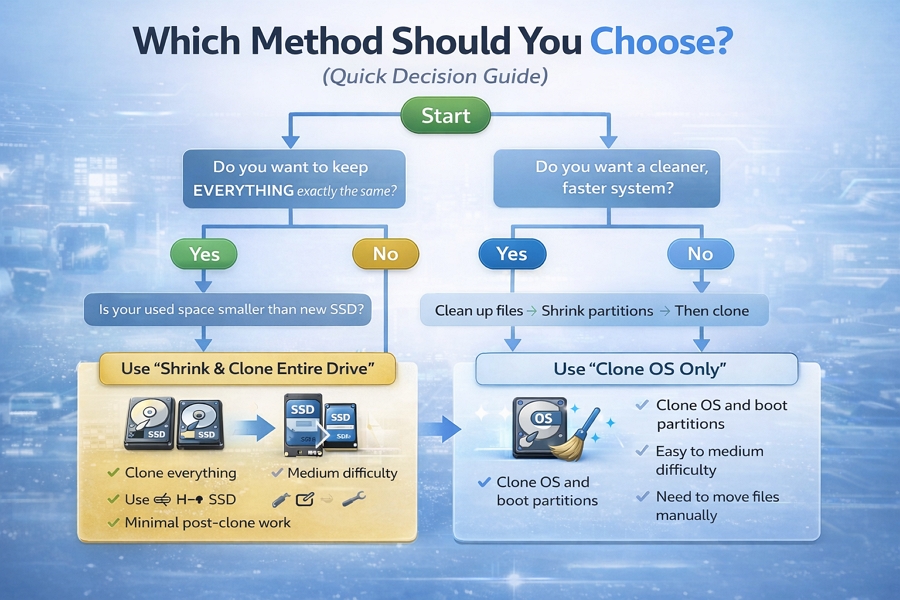
When cloning to a smaller SSD, you generally have 2 practical approaches. Choosing the right one depends on how much data you want to keep and how clean you want your system to be.
Method 1. Shrink and Clone the Entire Drive
This is the most common approach. You reduce (shrink) the size of your existing partitions so that all data fits within the smaller SSD, then perform a full disk clone.
What gets cloned:
- Operating system
- All installed programs
- Personal files
- System partitions
When to use this method:
- You want to keep everything exactly as it is
- Your current system is clean and stable
- Your used space can be reduced to fit the smaller SSD
Key steps involved:
- Clean up unnecessary files
- Shrink partitions using Disk Management
- Use cloning software that can adjust the disk partition
- Adjust partitions to fit the target disk
| Pros | Cons |
| Complete system migration No need to reinstall or reconfigure anything Fast and convenient | Requires careful preparation May fail if partitions are not resized correctly |
Method 2: Clone OS Only
This approach focuses on transferring only the operating system and essential system partitions. Instead of cloning the entire disk, you migrate only:
- Windows OS
- Boot partitions
Other files can be moved manually or left behind.
What gets cloned:
- Operating system
- Boot loader
- System-required partitions
When to use this method:
- Your current drive has too much data
- You want a cleaner system
- You plan to reorganize files manually
Key steps involved:
- Select cloning software with “System Mode”, OS Migration, or “Migrate OS” option
- Choose the target SSD
- Transfer only system-related data
- Manually move personal files later
| Pros | Cons |
| Requires less space Cleaner system after migration Lower chance of cloning failure | Requires manual file transfer afterward Some applications may need reconfiguration |
Before You Clone Larger Drive to Smaller Drive
This is the most important part of the entire process.
# 1. Check Actual Used Space
Make sure the used space is smaller than the target SSD capacity. Go to:
- This PC → Right-click C drive → Properties
# 2. Free Up Space (If Needed)
If your used space is too large, you can:
- Delete unnecessary files
- Empty recycle bin
- Remove large media files
- Move files to external storage
Tip: Use disk cleanup tools to quickly free space.
# 3. Shrink Partition on Larger Drive
Even if your used space fits, partitions may still exceed the target size.
How to shrink partition:
- Press Win+R to open Disk Management
- Right-click your main partition (usually C:)
- Select Shrink Volume
- Enter the amount to shrink
- Confirm changes
After shrinking, the total partition size must fit the new drive.
# 4. Check Disk Health
Open Command Prompt as admin and run chkdsk /f /r to detect and repair file system errors and scan for bad sectors. Third-party tools like CrystalDiskInfo (Windows) or Hard Disk Sentinel provide detailed SMART data, including temperature, reallocated sectors, and overall health status (Good, Caution, Bad).
# 5. Backup Important Data
Never skip this step. Even though disk cloning is safe, issues can occur:
- Power failure
- Wrong disk selection
- Software crash
You’d better back up important data on your disk before cloning. Most importantly, if your target disk contains data that matters to you, back it up before cloning, because cloning will wipe all data on the target disk.
How to Clone Disk to Smaller SSD (Step-by-Step)
Cloning a larger drive to a smaller one requires careful preparation, since the target SSD has less capacity. The key is to ensure your data fits and to choose the right cloning method.
Method 1. Shrink Partition & Clone Drive
This method creates an exact copy of your current system, including all files, programs, and settings.
Step 1: Shrink Partitions
You need to reduce partition sizes so they can fit the SSD.
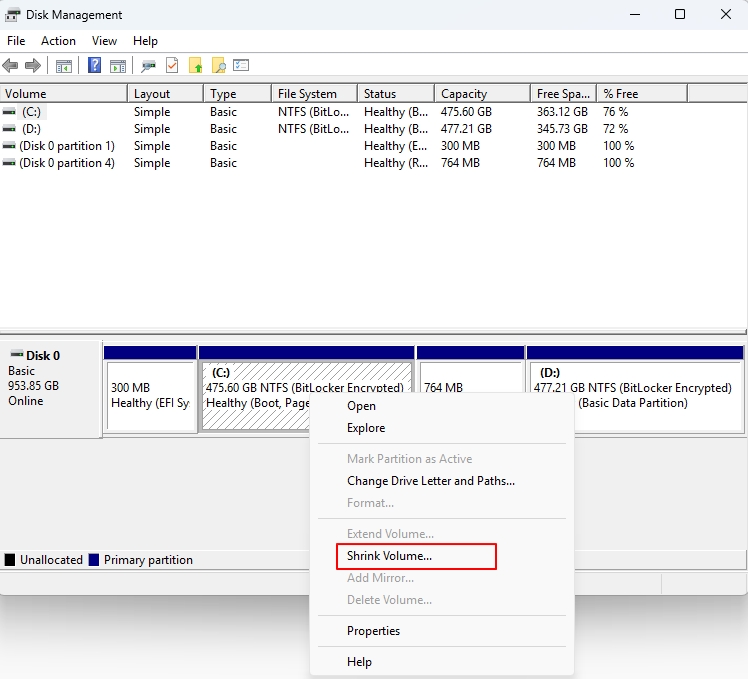
- Open Disk Management (Windows + X → Disk Management)
- Right-click the main partition (usually C:)
- Select Shrink Volume
- Reduce it to fit within the SSD capacity
Step 2: Connect the Target SSD
- Install the SSD internally or via USB to SATA/M.2 adapter or an external disk enclosure
- Make sure it is detected by your system in File Explorer
Step 3: Run Disk Cloning Tools
- Download the disk cloning software and launch it
- Select source disk (larger drive)
- Select target disk (smaller SSD)
- Enable cloning options like:
- Sector-by-sector copy/clone
- Auto-fit disk or resize partitions automatically
Step 4: Start Cloning Process
- Double-check source and target disks
- Confirm the data overwritten on the target disk message
- Start cloning
This may take 20 minutes to a few hours, depending on the data size.
Step 5: Boot from the New SSD
If your computer has only one slot, you will need to turn off your computer after cloning, remove the old disk, and install the new drive in its place.
If your computer has 2 or more slots, you do not need to remove the old drive; you can reboot your PC, enter the BIOS/UEFI settings (The BIOS key is often F2, F10, F12, Esc, or Delete during startup), and set the SSD as the first boot device.
Method 2. Migrate OS to Smaller Drive Only
This method transfers only the operating system and essential partitions, making it ideal for smaller SSDs. Here is how to migrate OS to smaller drive.
Step 1: Connect the SSD
- Install or connect your new SSD
- Ensure it’s recognized by your system
Step 2: Launch Cloning Software
- Choose the “Migrate OS to SSD”, “System Mode”, or similar option
- This mode focuses only on system-related data
Step 3: Select Target SSD
- Choose the smaller SSD as the destination
- The tool will automatically select the required system partitions
Step 4: Adjust Partition Layout
- Resize the disk partition if needed
- Ensure it fits within the SSD
Step 5: Start OS Migration
- Begin the cloning process
- Only the system and system data will be transferred
- This is usually faster than full disk cloning.
Step 6: Boot from SSD
- Restart your computer
- Set SSD as the first boot drive in BIOS
Step 7: Transfer Remaining Files
After booting successfully:
- Manually copy personal files (Documents, Videos, etc.)
- Move large files to external storage if needed
Common Problems When Cloning to a Smaller Drive
Cloning a larger drive to a smaller SSD is not always straightforward. Because of the size difference, users often encounter errors related to space, partitions, or boot configuration. Here are the most common issues and how to fix them.
| Issue | Fixes |
| #1 Cloning Fails Due to Size Mismatch | Reduce used space further Shrink partitions more Ensure used space is at least 10–15% smaller than SSD capacity |
| #2 Cannot Shrink Partition Enough | Disable hibernation: powercfg -h off Turn off system protection temporarily Run disk defragmentation Use third-party partition tools if needed |
| #3 Missing Space After Clone | Extend the partition manually in Disk Management |
| #4 Cloned SSD Won’t Boot | Enter BIOS and set SSD as the first boot device Ensure partition style matches: GPT → UEFI/MBR → Legacy BIOS Run Windows Startup Repair Rebuild bootloader using command prompt |
| #5 SSD Not Showing Up | Open Disk Management Initialize disk (MBR or GPT) Assign a drive letter Reconnect SSD or try another port/adapter Update storage drivers |
FAQs: Clone Larger Drive to Smaller SSD
1. Is it better to have 1TB HDD or 512GB SSD?
It depends on your needs. A 1TB HDD offers more storage, but a 512GB SSD delivers significantly faster speed, better reliability, and improved system performance. For most users, an SSD provides a much better overall experience, even with less capacity.
2. Can you clone two different size hard drives?
Yes, you can clone drives of different sizes, such as cloning a smaller disk to a larger one or cloning a larger disk to a smaller one. The key requirement is that the used space on the source drive must be smaller than the target drive capacity. Many cloning tools also support resizing partitions automatically during the process.
3. Can I clone a 2TB HDD to a 1TB SSD?
Yes, but only if the data stored on the 2TB HDD is less than 1TB. You may need to delete unnecessary files or shrink partitions before cloning. Alternatively, you can clone only the operating system rather than the entire disk.
4. Why does cloning fail even if space is enough?
Cloning can fail due to several reasons beyond space limitations, such as:
- Unmovable system files preventing partition shrinking
- Bad sectors on the source drive
- Incorrect partition alignment
- Software or connection issues
Ensuring a clean disk and using reliable cloning settings usually resolves the problem.
5. Will I lose data when cloning?
Cloning itself does not cause data loss on the source drive. However, the target disk will be fully overwritten during the process. It’s always recommended to back up important data before starting to avoid unexpected issues.
6. Migrate OS to SSD or reinstall Windows: which is better?
Migrating the OS is faster and keeps your system, apps, and settings intact. Reinstalling Windows provides a cleaner system but requires more time and setup. If your current system is stable, OS migration is usually the better choice. If your system is cluttered or problematic, a fresh install may be worth considering.
Conclusion
Cloning a larger drive to a smaller SSD is a practical way to upgrade performance without reinstalling your system. As long as your used space fits the target drive, you can choose between full-disk cloning and OS-only migration based on your needs. With proper preparation and the right method, the process is fast, safe, and highly effective.
Hope this article helps!