For years, Windows users were told to install antivirus software immediately after setting up a PC. That advice made sense: Windows used to be an easy target. If you’ve just set up a new Windows 11 PC, one question probably comes up right away:
Is Windows Defender good enough, or do you still need antivirus software for Windows 11?
The short answer is: Yes, Windows Defender is good enough for most Windows 11 users. In a post published in April 2026, Microsoft says, “You don’t need extra antivirus on Windows 11.”
This guide will break down exactly what Windows Defender can (and can’t) do, how it performs in real-world scenarios, and when you should consider additional protection.
Is Windows Defender Built into Windows 11?
Yes. Windows Defender (also known as Microsoft Defender Antivirus) is built directly into Windows 11 and enabled by default.
Unlike older versions of Windows:
- No installation is required
- No setup is needed
- Protection starts immediately
As soon as you turn on your PC, your system is already protected. This is one of the biggest reasons Microsoft now says most users don’t need additional antivirus.
Windows Defender is built into Windows 11 and found in Settings > Privacy & security > Windows Security. You can quickly access it by clicking the shield icon in the corner of the taskbar or by searching for “Windows Security” in the Start menu.
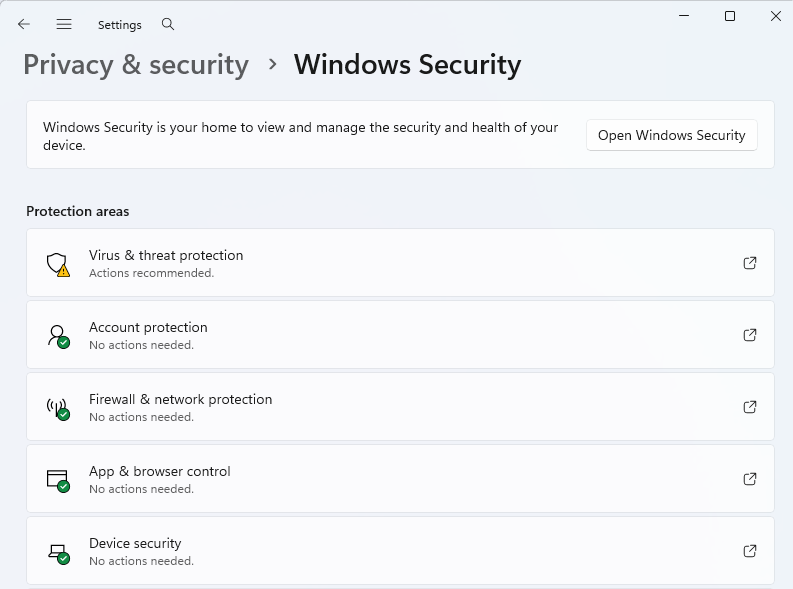
How to Access Windows Defender (Security) in Windows 11:
- Via Settings: Open Settings > Privacy & security > Windows Security > Virus & threat protection.
- Via Search: Click the Start menu, type “Windows Security,” and select Windows Security settings.
- Via Taskbar: Click the shield icon in the bottom right corner (system tray). If hidden, click the up arrow to show hidden icons.
What Does Windows Defender Offer in Windows 11?
Windows Defender is no longer just a simple antivirus tool; instead, it’s a full security system integrated into Windows 11. Here is what you can benefit from it:
1. Real-Time Antivirus Protection
- Detects and removes malware instantly
- Scans, downloads, and files automatically
- Uses cloud-based threat intelligence
2. Phishing & Web Protection (SmartScreen)
- Blocks malicious websites
- Warns about unsafe downloads
This is especially effective when using Microsoft Edge.
3. Windows Firewall
- Monitors network traffic
- Blocks unauthorized connections
4. Ransomware Protection
- Prevents unauthorized file changes
- Protects important folders
- Protects your data on PC
5. System-Level Security Features
Windows 11 enhances Defender with:
- Secure Boot
- TPM (Trusted Platform Module)
- Isolation-based security
These features make Windows 11 significantly more secure than older versions.
How Good Is Windows Defender? (Community Voice)
From my perspective, Windows Defender has reached a point where it’s no longer something you “tolerate”, and it’s something you can realistically rely on.
A few years ago, recommending built-in protection would’ve felt risky. Today, that’s changed. For everyday use, Defender is not just “acceptable”; it’s genuinely sufficient.
But what makes this conclusion more convincing isn’t just test results. It’s how people actually use it in real life. Across communities (Reddit & other tech communities), a consistent pattern shows up:
- Many users have stopped installing third-party antivirus software.
- Defender is often described as “good enough” for daily use.
- People rely more on safe browsing habits than on extra security tools.
At the same time, the community isn’t blindly positive either. There are recurring concerns:
- Some users feel Defender is weaker against very new or targeted threats.
- Others mention that protection outside certain browsers isn’t as strong.
- Advanced users still prefer layered security or backup tools.
What’s interesting is that both sides agree on one thing: “Defender works, as long as you use your system responsibly.” In other words, the conversation has shifted. It’s no longer about: “Which antivirus is the best?” It’s about: “Is built-in protection enough for how you actually use your computer?”
And for most people, based on both experience and community feedback, the answer is yes.
Windows Defender vs Third-Party Antivirus
Windows Defender has evolved dramatically, rivaling top-tier paid software in many independent lab tests. Here’s a clear comparison:
| Feature | Windows Defender | Paid Antivirus |
|---|---|---|
| Price | Free | $25–$100/year |
| Independent Lab Ratings (AV-Comparatives 2025) | Strong ‘Advanced+’ and ‘Advanced’ ratings | Top-Rated Product Awards (Bitdefender, ESET, Kaspersky, AVG, Norton) |
| Zero-Day Block Rate (AV-TEST Apr 2025) | Excellent 99.9% | Top-tier scores (often ≥99.9%) |
| System Performance Impact | Minimal to None (built to be lightweight) | Many optimized (gamer mode), some may slow older PCs |
| Extra Features | Base-level (firewall, family options, optional app) | Comprehensive (VPNs, password managers, parental controls, identity protection, cloud backups) |
| Malware detection | High | Very High |
| Ease of use | Seamless – built into Windows, zero setup | Simple – typical install, many are ‘set and forget.’ |
Conclusion:
- Defender = strong, free, built-in protection
- Paid antivirus = extra features + slightly better detection
Is Windows Defender Good Enough for Windows 11?
Yes, Windows Defender is good enough for Windows 11 for most users.
It provides built-in protection, including real-time antivirus, firewall, phishing protection, and ransomware defense. However, users with higher security needs or riskier online behavior may still benefit from third-party antivirus software.
When Windows Defender Is Enough
You can safely rely on Defender if you:
- Use your PC for normal tasks
- Keep Windows updated
- Avoid suspicious downloads
- Don’t install pirated software
This applies to most home users.
When You Still Need Third-Party Antivirus Software
Defender may not be enough if:
1. You Take Higher Risks Online
- Torrenting
- Cracked software
- Unknown downloads
2. You Want Extra Features
- VPN
- Password manager
- Identity monitoring
3. You Manage Multiple Devices
- Family computers
- Small business environments
4. You Want Maximum Protection
- Defender = “good enough”
- Paid tools = “maximum protection”
How to Make Windows Defender More Effective
Windows Defender is powerful out of the box, but most users don’t realize it’s not fully optimized by default. If you want the best protection with Windows 11, you need to go beyond the basic settings. Here’s how to significantly improve your security.
1. Turn On All Core Protection Features
Even though Defender is enabled by default, some important protections may not be fully configured. Make sure you enable:
- Real-time protection
- Cloud-delivered protection
- Automatic sample submission
These features enable Defender to detect new and unknown threats more quickly, especially zero-day malware.
2. Enable Ransomware Protection
Ransomware protection is one of Defender’s strongest features, but it’s not always fully utilized.
Turn on:
- Controlled Folder Access
This prevents unauthorized apps from modifying important files like documents, photos, and backups.
3. Keep Windows 11 Fully Updated
No antivirus can protect an unpatched system.
Make sure:
- Windows Update is enabled
- Security patches are installed automatically
Many real-world attacks exploit known vulnerabilities, not antivirus weaknesses.
4. Use a Standard User Account for Daily Work
Running as an administrator increases risk.
Instead:
- Use a standard account for daily tasks
- Only switch to admin when needed
This limits what malware can do-even if it gets in.
5. Enable Tamper Protection
Tamper Protection prevents malware from disabling Defender.
You can find it in:
- Windows Security > Virus & Threat Protection > Manage Settings
This ensures your protection cannot be silently turned off.
6. Strengthen Browser-Level Protection
Most threats today come from the web.
To improve protection:
- Keep your browser updated
- Enable built-in phishing and safe browsing features
- Be cautious with extensions
Even the best antivirus software can’t fully protect against malicious websites or fake downloads.
7. Schedule Regular Scans
Real-time protection is not enough on its own.
Add:
- Weekly full system scans
- Periodic offline scans (for more serious threats)
This helps detect hidden or dormant malware.
8. Use Backup as a Security Layer
No security system is perfect.
Set up:
- Regular backups (external drive or cloud)
If ransomware or data loss happens, backups are your last line of defense. Follow the 3-2-1 backup rule to create solid protection for your important data.
To Sum Up
Windows Defender is good enough for most Windows 11 users, but no security tool can guarantee 100% protection. Cyber threats and unexpected failures can still lead to data loss. That’s why, beyond relying on built-in security, it’s essential to regularly back up your important files. A simple backup strategy can be the difference between a minor inconvenience and a major loss.