When you are trying to download and install a program on Windows, you may suddenly encounter a warning message: “Windows Defender SmartScreen prevented an unrecognized app from starting.” This can be confusing, especially when you are sure the file is safe.
This guide explains what the SmartScreen warning means, why it appears, whether it is safe to bypass it, and how to resolve it properly without compromising your system security.
Overview: What Is Windows Defender SmartScreen
Windows Defender SmartScreen is a built-in security feature in Windows 10 and Windows 11 designed to protect users from potentially harmful applications. It is part of the broader Microsoft Defender SmartScreen system, which uses cloud-based reputation analysis to evaluate files, websites, and applications.
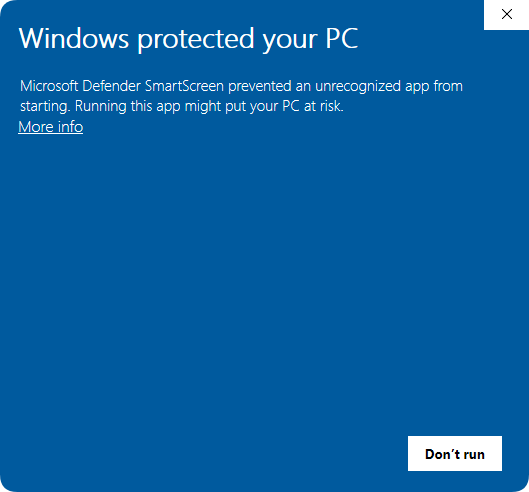
Unlike traditional antivirus tools that rely primarily on malware signatures, SmartScreen focuses on:
- Application reputation (how widely the file is used)
- Digital signature validation
- Microsoft cloud-based trust signals
If an app is unknown or lacks sufficient reputation data, SmartScreen may block it-even if the file is not actually malicious.
Why Windows Defender SmartScreen Prevents an Unrecognized App
The warning “Windows Defender Smartscreen prevented an unrecognized app from starting” does not necessarily mean the file is dangerous. Instead, it indicates that Windows cannot verify its trust level. There are several common reasons this happens:
- Low or No Reputation: Newly released applications often do not have enough download history or usage data. Since SmartScreen relies heavily on reputation scoring, unknown apps are flagged automatically.
- Missing Digital Signature: Applications without a valid code-signing certificate are more likely to be flagged. Windows cannot verify the publisher identity, so it treats the file as untrusted.
- Rare or Niche Software: Tools that are not widely distributed-such as developer utilities, open-source builds, or internal enterprise tools-may trigger SmartScreen warnings simply due to low exposure.
- Download Source Unknown: Files downloaded from unofficial websites, email attachments, or file-sharing platforms are more likely to be blocked compared to Microsoft Store apps or verified publishers.
- Heuristic or Behavior-Based Detection: Even if a file is clean, SmartScreen may flag it based on patterns that resemble potentially harmful behavior, especially for executables.
Is It Safe to Bypass the SmartScreen Warning?
Before bypassing SmartScreen, it is important to evaluate the risk. Disabling or ignoring the warning blindly can expose your system to malware or unwanted software.
It is generally safe to proceed if:
- The application is downloaded from an official or trusted website
- The developer is well-known or verifiable
- The file has a valid digital signature
- You can confirm its safety via tools like VirusTotal
You should NOT bypass the warning if:
- The file comes from an unknown or suspicious source
- It is a cracked, pirated, or modified application
- There is no clear publisher information
- You were not expecting the file
SmartScreen exists to protect you from exactly these uncertain scenarios, so it should not be disabled lightly.
How to Bypass or Unblock Windows Defender SmartScreen Warning
If you are confident that the application is safe, there are several ways to proceed.
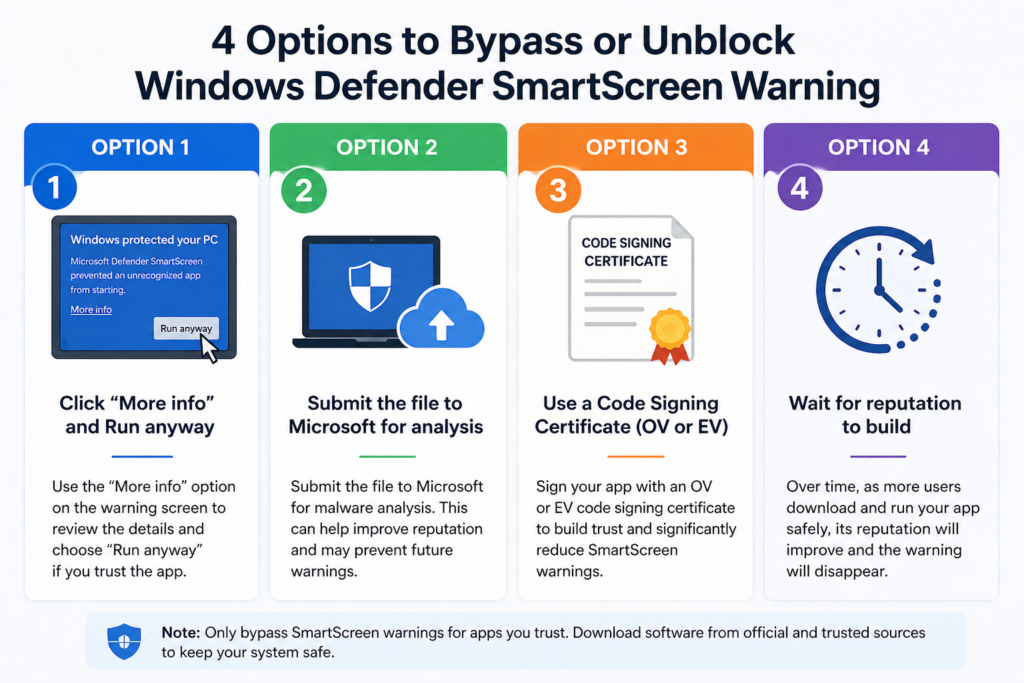
Option 1: Click “More info” and Run Anyway
In many cases, SmartScreen hides the execution option by default. You can:
1. Click “More info” on the warning screen
2. Review the publisher information
3. Click “Run anyway“
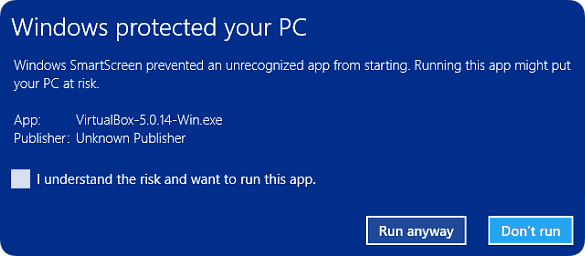
This is the simplest and most common method.
Option 2: Submit the File for Malware Analysis
If you believe the file is incorrectly flagged, you can submit it to Microsoft for review using Microsoft Defender submission tools. This helps improve SmartScreen’s reputation system and may remove the warning in future detections.
Option 3: Use a EV/OV Code Signing Certificate
Developers can prevent SmartScreen warnings by signing their applications. There are two main certificate types:
- EV (Extended Validation) code: Provides higher trust and faster reputation building in SmartScreen
A reliable way to eliminate Microsoft SmartScreen warnings, especially for software distribution at scale, is to obtain an Extended Validation (EV) code signing certificate from a Microsoft-recognized Certificate Authority (CA) and use it to sign your application.
EV certificates provide a higher level of trust compared to standard signing certificates. Because of this, applications signed with an EV certificate can build SmartScreen reputation much faster, and in many cases, avoid the “unrecognized app” warning altogether.
- OV (Organization Validation): Verifies company identity and improves trust
Another option is to use an Organization Validation (OV) code signing certificate, often referred to as a standard or non-EV certificate. While it is more affordable than EV certificates, it can still help reduce SmartScreen warnings over time by gradually building your application’s reputation.
Unlike EV certificates, OV certificates do not provide immediate trust recognition. Instead, SmartScreen learns to trust your app as more users download and run it without issues. This means the warning may persist initially but should diminish as reputation increases.
Using a valid certificate significantly reduces false positives and improves user trust.
Option 4: Wait for Reputation to Build
SmartScreen relies on cloud-based reputation scoring. If your application is new, the warning may disappear over time as more users download and run it safely. This process is automatic and requires no user action.
What to Do If “Run Anyway” Option Is Missing
In some cases, users report that the “Run anyway” option is not visible. This can happen due to system configuration or security policies. Common reasons include:
- Enhanced SmartScreen protection in Windows 11
- Group Policy restrictions set by an organization
- Microsoft Defender settings are blocking execution entirely
You can fix it with these possible solutions:
Step 1. Right-click the file > Properties > Unblock (if available).
Step 2. Check Windows Security settings under App & Browser Control.
Sept 3. If on a managed device, contact the system administrator.
Why Legitimate Apps Get Flagged (False Positives Explained)
It is important to understand that SmartScreen is not perfect. Legitimate software can be flagged for several reasons:
- Newly released applications with no reputation history
- The vendor’s Microsoft account was blocked by Microsoft
- Open-source tools distributed outside the Microsoft Store
- Small developer projects without code signing
- Rare or region-specific software
This is why even well-known tools may occasionally trigger warnings at first.
How to Avoid SmartScreen Prevent App Issues in the Future
If you frequently develop or distribute software or often encounter SmartScreen warnings, there are several ways to reduce friction:
1. Use Code Signing Certificates: Signing your application establishes identity and builds trust with Windows security systems.
2. Distribute Through Trusted Channels: Publishing software through platforms like Microsoft Store or GitHub Releases increases credibility.
3. Build Download Reputation: Higher download volume and user engagement improve SmartScreen trust scoring over time.
4. Avoid Suspicious Packaging: Compressed or unsigned executable distributions (especially from unknown sources) are more likely to be flagged.
Final Thoughts
The message “Windows Defender SmartScreen prevented an unrecognized app from starting” is not an error-it is a security safeguard designed to protect your system from unknown or untrusted applications.
In most cases, the warning appears because the software is new or lacks reputation, not because it is harmful.
Before bypassing the warning, always evaluate the source, check for digital signatures, and confirm the file’s legitimacy. When used correctly, SmartScreen adds an important layer of protection without blocking trusted software.
Articles You May be Interested: Windows Update Something Went Wrong
![Hard Disk Not Detected in BIOS [2026 Effective Troubleshooting Guide]](https://storedbits.com/wp-content/uploads/2026/02/ssd-not-detected-in-bios-768x540.png)