

Affiliate Disclosure: This post may include affiliate links. If you click and make a purchase, I may earn a small commission at no extra cost to you.
On the hardware level, storage upgrades have become pretty easy. However, most people find cloning to be complex and stressful because their important data is involved in the whole process. If something goes wrong, your precious data could be at risk. So, this isn’t just a list of the best software, but also how to use it safely to move your data from one drive to another. You can migrate the OS after a drive upgrade or perform any other critical data move. This article will provide you with the best possible solution.
There are specific criteria for choosing the best cloning software, and they are straightforward to identify. For me, it is always ease of use, hot cloning, OS Cloning, and bad sector support. However, some people may prioritize pricing, encryption, or operational speed. I have evaluated all the programs and given their pros and cons.
To be honest, Macrium Reflect is my favorite, but I have tried most of the popular disk cloners and this is the list that I can suggest to anyone. So, here it is for you.
Software like Samsung Magician, Acronis True Image for Crucial, and Kingston offer free cloning functions with their SSDs. However, not all SSD software has this feature. So, below is a list for you.
1. Macrium Reflect X (Best Overall and Free)

I have been a regular user of Macrium Reflect (now Macrium Reflect X) for the last 8 years. I have done so many SSD upgrades and OS migrations using this program. It is easy to use, quick, and offers a backup option. It comes with a 30-day trial period, which is enough for most users because most people use drive cloners once and then forget about them. All the important features are available in the trial version, and with the professional version, you get complete access to all these features for $49.99/year for one computer.
Macrium Reflect is built for fast bare-metal recovery, disk cloning, and continuous protection of PCs and servers. So, it isn’t just a cloner but a full-fledged data protection software. It offers Resumable Imaging, checkpoint image creation, and write-failure retry.
Reflect X performs sector-intelligent cloning, meaning it copies only used file system blocks rather than raw sectors, drastically reducing clone time compared to forensic or sector-by-sector methods. This can be really helpful when migrating from SATA SSDs or hard drives to modern NVMe drives. With this method, Reflect X automatically handles partition alignment and ensure optimize performance and longevity of your SSD.
Reflect X is its continued use and refinement of Rapid Delta Clone (RDC) technology. This is helpful when re-cloning a disk that already contains a related file system. Reflect X analyzes block-level differences and copies only changed data, allowing subsequent clone operations to complete in minutes rather than hours.
Read Full Macrium Reflect X Review
Key features of Macrium Reflect include removable media imaging and cloning, OS image creation, restoration, bootable media creation, direct disk cloning, backup scheduling, and ransomware protection. You can check all the features and download Macrium Reflect X right here. It is available for Windows and Linux.
| Pros ✅ | Cons ❌ |
|---|---|
| Uses block-level imaging with intelligent sector mapping which minimizes unnecessary read/writes. | Doesn’t perform real-time deduplication |
| Fully file-system aware (NTFS, FAT, exFAT) and handles metadata accurately. | Limited optimization for APFS or EXT4 |
| Multithreaded read pipeline efficiently saturates SATA/NVMe bandwidth. | No adaptive throttling |
| Uses CRC32 and optional MD5 verification per block | Verification adds significant overhead on slower SSDs or USB interfaces. |
| Supports WinPE-based rescue media and UEFI boot repair. | Windows-only. |
For some people, Macrium Reflect can be complex to use, and I believe this is because Macrium Reflect X offers many other features beyond cloning. The cloning process is explained below.
How to clone the drive using Macrium Reflect Free?
1. Open Macrium Reflect
- Launch Macrium Reflect and wait for it to detect all drives.
2. Select the Source Disk
- Under the “Create a backup” tab, locate your current system drive (the one you want to clone).
- Click “Clone this disk…” under the selected drive.
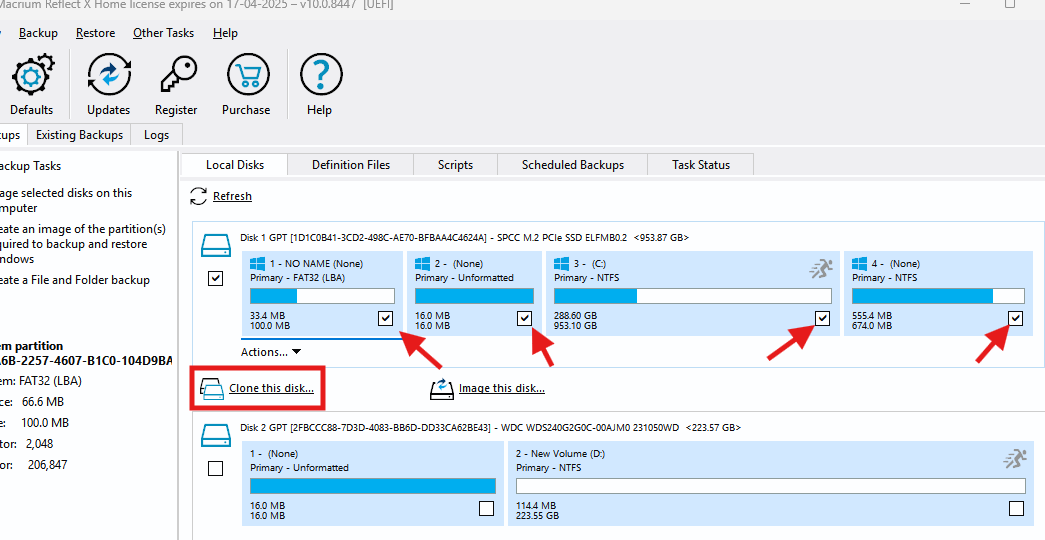
3. Choose the Target Disk
- Click “Select a disk to clone to” and pick your new SSD/HDD.
- If there’s existing data on the target disk, Macrium will erase it.

4. Adjust Partition Sizes (Optional)
- If the new drive is larger, you can resize partitions by dragging them to adjust space. You can also choose to copy the partitions as they are or delete the existing partitions on the target drive. However, you can choose to leave everything to copy the partitions from the source to the target drive.

5. Start Cloning
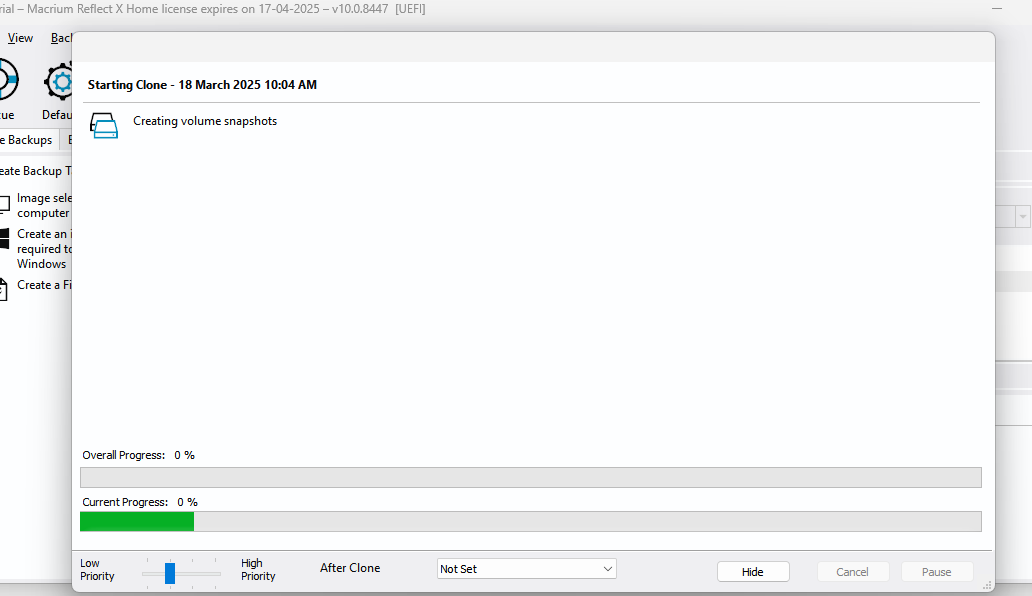
- Click “Next” → “Finish” → “OK” to begin cloning. Then, you can choose the backup during the cloning process or refuse.

- The process may take minutes to hours, depending on disk size.
6. Swap the Drives (For OS Migration)
- If cloning your system drive, power off your PC and swap the old drive with the new one.
- Enter BIOS (F2/F12/DEL at boot) and set the new drive as the boot disk.
2. DiskGenius (Free)

DiskGenius is an all-round tool for storage drives, and I have discussed its bad-block feature in this article. But, it has a dedicated OS migration tool, which is great if you don’t want to spend money on paid tools like EaseUS ToDo Backup and AOMIE Backupper. The tool might look outdated, but it does the job perfectly. The trial version is enough for cloning any drive.
Its approach and limitations clearly position it as a basic migration and duplication tool rather than a full-scale system cloning solution. The free edition allows users to clone entire disks or individual partitions using an intelligent sector-based copy, meaning it copies only used sectors instead of performing a raw sector-by-sector duplication by default.
I found DiskGenius to be slower than Macrium Reflect X, but not by huge margins. You do not get backup options and limited automation features. However, it offers sector-by-sector cloning and SSD alignment, although this feature can slow down the process even more.
In the free version, system disk cloning is restricted because you can clone a Windows system disk only under specific conditions, and many advanced features required for guaranteed boot success are either limited or unavailable.
You can choose hot migration and also customize or delete the existing partitions and create a new one. All in all, DiskGenius is a good
| Pros ✅ | Cons ❌ |
|---|---|
| Sector-by-sector and file-level cloning options | Free version lacks multi-threaded copy path |
| Deep understanding of NTFS, FAT32, exFAT, EXT2/3/4 | No APFS or BitLocker-aware optimization |
| Direct disk I/O bypasses Windows caching for accurate sector reads. | No I/O queue optimization |
| Can retry bad sectors and verify copied regions byte-for-byte. | Verification isn’t checksummed |
| Preserves GPT, MBR, and partition alignment | No TRIM awareness |
Step-by-Step Guide to Cloning using DiskGenius
1. Open DiskGenius
- Launch DiskGenius Free and wait for it to detect all connected drives.
2. Select the Cloning Option
- Click “Tools” in the top menu and choose “OS Migration” option.

- Now, because you are choosing the OS migration, the source drive is automatically selected, and you’ll be asked to select the target disk directly. Make sure it is connected to the motherboard or USB.

3. Choose the Cloning Method or edit the partition
- If you want, you can remove the existing partitions or create new ones.

- “Copy all sectors” (Sector-by-Sector) – Exact copy (even empty space is cloned).
- Also, you’ll be asked to choose between “Hot Migration” and “Reboot to WinPE”. Choose hot migration if you want to clone without restarting Windows. Choose Reboot to PE if you are cloning a system drive (recommended for OS migration).
- Click “Start” and confirm to begin the cloning process. Wait for the process to complete
4. Swap the Drives (For OS Migration)
- If cloning your system drive, shut down your PC, remove the old drive, and replace it with the new one. Then you can boot into the BIOS/UEFI and change the boot priority.
3. Clonezilla (Best Free & Open-Source)

Clonezilla is the best free and open-source program that I occasionally use for mass deployment via multicast, which allows me to clone multiple systems simultaneously. However, I would say this software is not for beginners. It is an entirely text-based program that runs through the command-line interface without a GUI. While it is powerful, it demands a level of technical knowledge. There are many guides on YouTube, but I will provide you with one here as well.
Once you master Clonezilla, you will save a lot of time by cloning multiple disks at once. Also, it supports various file systems, encryption, and unattended operations through scripts. Clonezilla is widely used in enterprises as well for deploying software and virtual machines. Clonezilla is commonly used in Linux operating systems because some people find it a good alternative to DD and GParted. However, we will just explore its capabilities for simple disk cloning.
You’ll need the Clonezilla ISO file (downloaded from the official website) and a USB flash drive. You can boot Clonezilla just like any other live USB. You get into the boot menu and choose the Clonezilla flash drive.
| Pros ✅ | Cons ❌ |
|---|---|
| Uses block-level differential imaging | Falls back to raw sector copy if it can’t detect filesystem |
| Supports NTFS, EXT, XFS, Btrfs | No APFS or BitLocker native support |
| Offers SHA1 or CRC checks after clone | Verification is manual and not integrated in every mode |
| Maintains GPT, EFI, and alignment properly; works well for mixed SSD/HDD systems. | No TRIM command issued on target SSD |
| Runs on any hardware via Linux boot | Falls back to raw sector copy if it can’t detect the filesystem |
Here is a detailed guide to using Clonezilla to clone and restore the operating system as an image file.
4. AOMEI Cloner (Easy to use/paid)

I am updating this article and adding AOMEI Cloner to 4th place for its speed and ease of use. Additionally, it comes with SSD Alignment and Sector-by-Sector clone features. Using the program is really easy, and it includes Disk clone, Partition clone, and Full System clone. You can also create a Windows PE bootable disk.
It supports disk-to-disk cloning, meaning you can replicate the contents of one physical drive onto another, including files, partitions, and boot information. I found it great because it helps when migrating from an older HDD to a faster SSD or a larger capacity disk
One major strength is intelligent used-sector cloning. So, instead of copying every physical sector, it copies only the sectors that contain actual data while optionally skipping known bad sectors. Compared with comprehensive cloning/imaging suites like Macrium Reflect X or Clonezilla, AOMEI Cloner’s interface is generally more user-friendly and straightforward, focusing solely on cloning rather than broader backup strategies.
There aren’t many features in it, but it does the job it is made for. The yearly professional plan costs $39.95, while the professional lifetime plan costs $59.95.
| Pros ✅ | Cons ❌ |
|---|---|
| Performs intelligent sector-level cloning | EXT and APFS are handled only via raw mode |
| Fully aware of NTFS, FAT, exFAT; preserves GPT/UEFI structures cleanly | Windows-only core; Linux and macOS clones fall back to raw sector copy mode |
| Optional post-clone checksum verify; consistent sector mapping avoids silent corruption | |
| Windows GUI and WinPE boot media |
Step-by-step cloning process using EaseUS Todo Backup
Make sure to have a paid version before you proceed.
- Download and Open AOMEI Cloner
- Click the option System Clone for full system clone. Otherwise, choose another suitable option
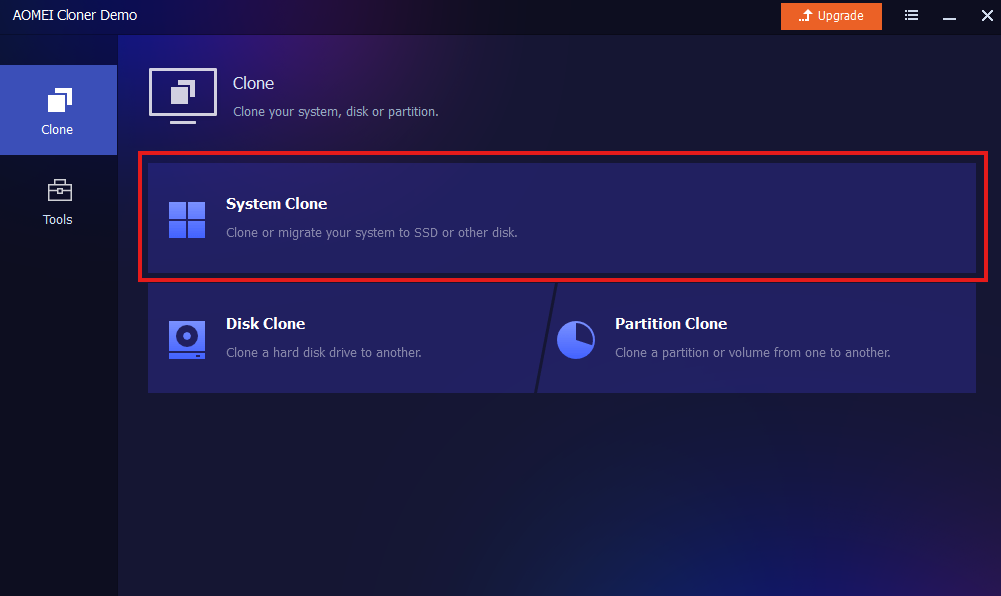
- Next, choose the target drive where you want to clone the primary OS.
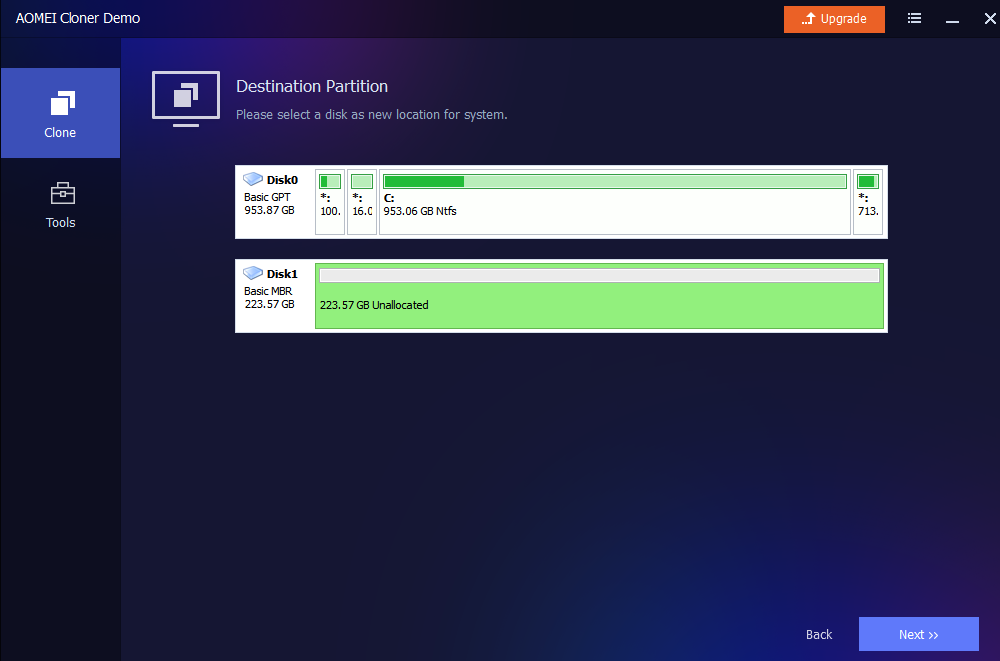
- Confirm the clone and choose additional options.
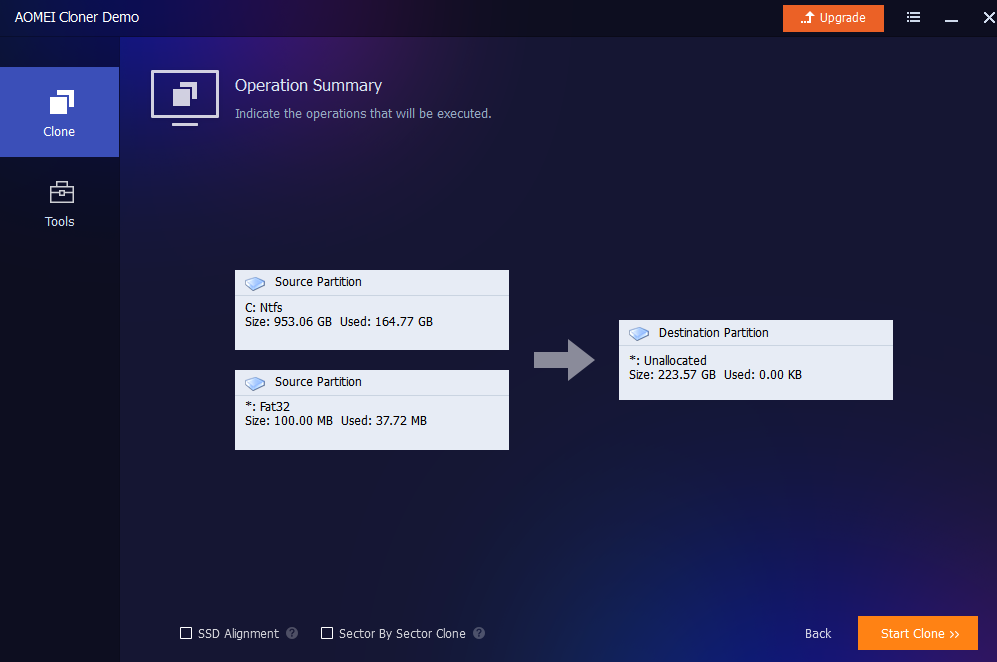
Wait for the clone to complete.
5. EaseUS Todo Backup (Another Great paid cloner)

This is perhaps the easiest software that I have ever used for cloning any drive. Although the cloning feature is paid, it is worth giving a chance if you can afford it. Within just a few clicks, you can clone one drive to another. You can choose to clone the entire disk, the operating system, or just the specific partitions. When I am writing this article, the EaseUS Todo Backup Home version is available for $39.95 for one computer for a year with 1TB of cloud storage. The lifetime variant is available for $79.95.
Disk cloning isn’t as complicated as people might think, and paying these amounts isn’t necessary. However, some people want the easiest way out, and this program is made for those people. So, if you can purchase, go for it and easily clone your drive without any hassles.
| Pros ✅ | Cons ❌ |
|---|---|
| Performs intelligent sector-level cloning | Compression and encryption layers add CPU latency |
| Fully aware of NTFS, FAT, exFAT; preserves GPT/UEFI structures cleanly | EXT and APFS handled only via raw mode |
| Optional post-clone checksum verify; consistent sector mapping avoids silent corruption. | No continuous CRC per block |
| Maintains 4 KB alignment and issues TRIM to the target after clone | Doesn’t preserve host-protected areas or NVMe metadata namespaces. |
| Windows GUI and WinPE boot media | Windows-only core; Linux and macOS clones revert to raw sector copy mode. |
Step-by-step cloning process using EaseUS Todo Backup
Make sure to have a paid version before you proceed.
1. Open EaseUS ToDo Backup
- Launch EaseUS ToDo Backup and go to the “Clone” feature. Again, without the paid version, you can’t use this feature, but you can back up the data and OS if you want.

- Select the type of clone you want to do, i.e., Disk clone, system clone, or partition clone.
2. Select the Source Disk and Target Disk
If you choose OS cloning, the program will automatically pick the source drive and source files for you. You just have to select the destination drive where you want to move the file.

3. Start Cloning
- Click Proceed to begin the cloning process and wait for it to complete.
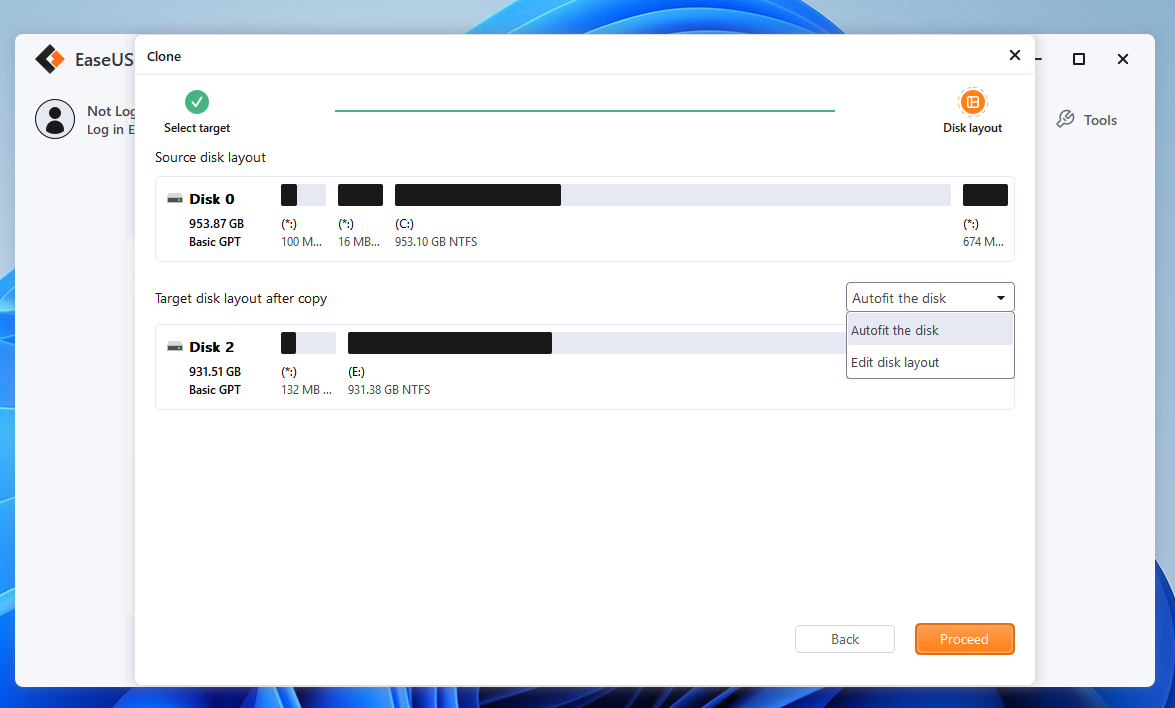
- If cloning your system drive, shut down the PC and replace the old drive with the new one.
- Boot into BIOS (F2/F12/DEL at startup) and set the new drive as the boot disk.
6. MiniTool ShadowMaker (Another Paid but Great Tool)

MiniTool ShadowMaker is another great paid software for cloning Hard drives or SSDs. It gives you the benefit of a monthly plan at 12.99/month for 1PC. The free version only gives you simple options like external backup, restore, sync, etc. However, the paid plan will offer features such as cloning and image restoration. The user interface isn’t as interesting as the EaseUS ToDo Backup, but it does the job perfectly. So, again, if you want to spend a little less amount for a single clone or some clones for a month, you can take its monthly plan and cancel later.
| Pros ✅ | Cons ❌ |
|---|---|
| Uses intelligent sector copy; skips free space and supports differential imaging. | No delta-tracking or changed-block cloning |
| Handles NTFS, FAT32, exFAT correctly and preserves partition layout and alignment. | No EXT or APFS awareness |
| Optional image verification with CRC | Verification is file-level, not per-block |
| Maintains 4K alignment, GPT, and UEFI boot data; TRIM-safe for SSD targets. | Doesn’t preserve device-specific NVMe metadata |
| Windows and WinPE environments supported; simple GUI for local or network clones. | No Linux-based clone engine |
Step-by-step guide for drive cloning using MiniTool ShadowMaker
1. Install and Open MiniTool ShadowMaker
First, install the software from the official website and obtain its paid version, called ShadowMaker Pro or Pro Ultimate. Open the program.
2. Go to the Clone Menu
Inside the Tools tab, click the Clone Disk option.

3. Choose the Source Drive
On the next page, you’ll see all your drives connected to your computer. Choose the drive from where you want to clone the operating system. Once the drive is selected, hit Next.

4. Choose the Destination Drive
Now, you’ll select the drive where you want to clone your data. Make sure to have a drive capacity similar to or greater than the data stored on the main drive.

5. Proceed for cloning
Once you have selected both source and target drives, you can click Start and then wait for the cloning to complete.

Wait until the process is completed and then install the new drive with the cloned operating system.
What to do after cloning?
I want to make this article more than just a list; I want to provide a guide on how to run your system using the new drive with the cloned operating system.
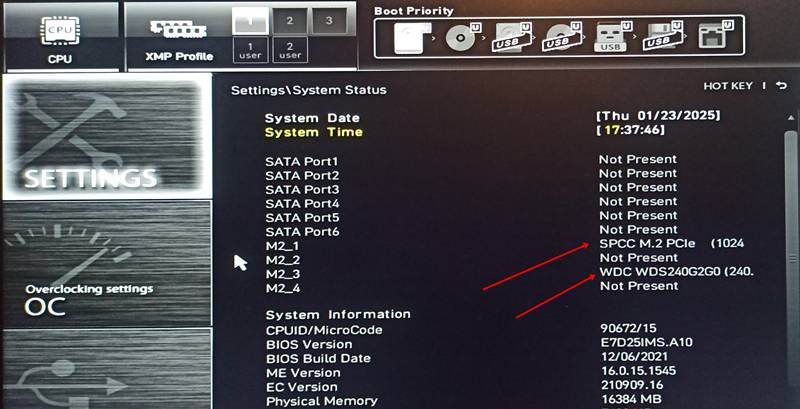
1. Enter the BIOS or UEFI
Depending on your motherboard, there will be a special key like Esc, Del, F11, F12, etc, which you’ll have to press repeatedly when the system is booting up. You will then enter the BIOS or UEFI menu of your computer. It can look something like this.

2. Change Boot Order
Make sure the drive is connected to the computer. Now, find the boot option, which is easy to locate in the older BIOS menus. In the modern UEFI menus, you can find them in the Advanced folders. You move your new drive (where the OS is installed) to the top of the list.

If you don’t find the option, you can see the BIOS/UEFI guide for your motherboard model on the internet. Once you have changed the boot order, you just save the settings and reboot. You’ll now boot into your system from the new or upgraded drive with the same files and operating system. However, if you face any issues, the comment section is always open for you.
I hope this helps!
DiskGenius is great.
Definitely.
SSD Cloning is really tough for beginners. SSD manufacturers should try to involve and make things easier for the end user. This article is a real help. Macrium Reflect saved me.
Glad it helped. Most popular SSD brands have their own or partenered cloning programs. Some SSD might come without any software at all or the program without cloning features. But, you got your solution. That is the biggest win.
I use easeus clone, easy and excellent.