If you’re seeing “There were some problems installing updates (0x80080005)“, you’re not alone. This error is one of the more stubborn Windows Update failures-often tied to permission issues, broken services, or corrupted system components.
Based on official guidance, technical blogs, and real-world troubleshooting from forums and Reddit, this guide consolidates what actually works in practice for the issue Windows Update error 0x80080005, not just theory.
What Is Windows Update Error 0x80080005?
Error 0x80080005 typically indicates a “CO_E_SERVER_EXEC_FAILURE” or “Access Denied” issue, meaning Windows Update something went wrong, and its services can’t execute properly. Common root causes:
- Permission issues/access denied
- Corrupted system files
- Broken Windows Update components (BITS, wuauserv)
- Antivirus or security software interference
- Misconfigured COM+ / DCOM services
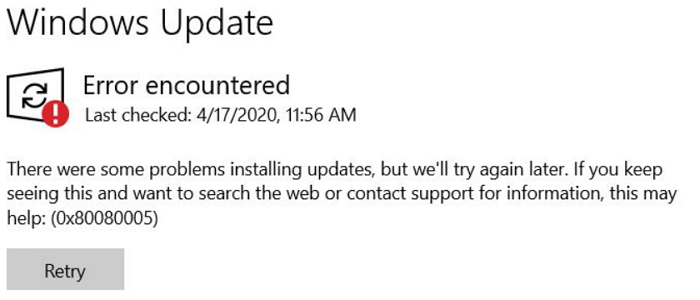
Windows Update is trying to run, but something is blocking or breaking the process internally.
The Symptoms of Windows Update Error 0x80080005 (From Real User)
Here’s what users actually report:
“Windows Update, Microsoft Store, and language packs all fail with the same error.”
“The Windows Update service starts but immediately stops.”
“Troubleshooter, SFC, nothing works.”
Insight:
- If multiple system features break together, it’s usually deep system corruption.
- If only the update fails, it’s often a permissions or service issue.
Proven 8 Fixes for Windows Update Error 0x80080005
Below are 8 working and proven fixes based on my tests and real-world experiences.
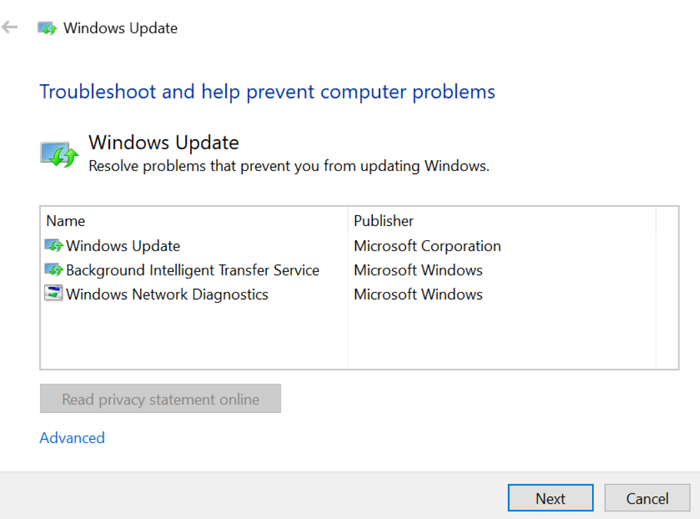
Fix 1. Run Windows Update Troubleshooter
Before trying advanced fixes, it’s best to start with the built-in troubleshooter. This tool can automatically detect and repair common issues like misconfigured services, permission errors, and update glitches.
Steps:
- 1. Press “Windows + I” to open Settings
- 2. Go to System > Troubleshoot
- 3. Click Other troubleshooters
- 4. Find Windows Update, then click Run
- 5. Wait while Windows scans for issues (usually 1–3 minutes)
- 6. If prompted, click Apply this fix
- 7. Restart your PC and check for updates again
Fix 2. Restart Windows Update Services
In many cases, Windows Update isn’t broken; it’s just stuck. Restarting the core update services can quickly restore normal functionality.
Steps:
- 1. Type “cmd” in the search bar
- 2. Right-click Command Prompt and select Run as administrator
- 3. Enter the following commands one by one:
net stop wuauserv
net stop bits
net stop cryptSvc
net stop msiserver
- 4. Wait until all services are fully stopped
- 5. Restart them with these commands:
net start wuauserv
net start bits
net start cryptSvc
net start msiserver
- 6. Close the Command Prompt and restart your PC
- 7. Go back to Windows Update and try again
Fix 3. Repair System Files with SFC and DISM
Corrupted system files are one of the most common causes of this error. Running SFC and DISM can repair critical Windows components and restore update functionality.
Steps:
- 1. Open Command Prompt as Administrator
- 2. Run the following command: sfc /scannow
- 3. Wait for the scan to complete (10–20 minutes)
- 4. Then run: DISM /Online /Cleanup-Image /RestoreHealth
- 5. Wait for DISM to finish (15–30 minutes)
- 6. Restart your computer
- 7. Try updating again
Fix 4. Clear Windows Update Cache
Windows stores update files in a local cache. If these files become corrupted, updates may fail repeatedly. Clearing the cache forces Windows to download fresh update files.
Steps:
- 1. Open Command Prompt as Administrator
- 2. Stop update services:
net stop wuauserv
net stop bits
- 3. Open File Explorer and navigate to: C:\Windows\SoftwareDistribution
- 4. Select all files inside and delete them
- 5. Restart services:
net start wuauserv
net start bits
- 6. Restart your PC and check for updates again
Fix 5. Temporarily Disable Third-Party Antivirus
Some antivirus or firewall programs may block Windows Update from accessing system files. This can trigger “Access Denied” errors like 0x80080005.
Steps:
- 1. Locate your antivirus icon in the system tray
- 2. Right-click and select Disable or Pause Protection
- 3. Choose a temporary duration
- 4. Disable firewall if necessary
- 5. Run Windows Update again
- 6. Re-enable your antivirus after updating
Fix 6. Repair System Volume Information Permissions
This error can also occur when system-level permissions are broken. In particular, the System Volume Information folder must be accessible to Windows services.
Steps:
- 1. Open Command Prompt as Administrator
- 2. Run the following command:
icacls “C:\System Volume Information” /grant SYSTEM:F /T
- 3. Press Enter and wait for the process to complete
- 4. Restart your PC
- 5. Check for updates again
Fix 7. Manually Install Windows Updates
If automatic updates keep failing, you can bypass the update system and install updates manually. This method is commonly recommended by advanced users and forums.
Steps:
- 1. Open a browser and go to the Microsoft Update Catalog
- 2. Search for the failed update
- 3. Choose the version that matches your system (Windows 10/11, x64)
- 4. Click Download
- 5. Run the downloaded .msu file
- 6. Follow the installation prompts
- 7. Restart your PC
Fix 8. Perform an In-Place Repair Upgrade
If nothing else works, your system may be deeply corrupted. An in-place upgrade reinstalls Windows without deleting your files or apps, making it the most effective fix.
Steps:
- 1. Download the Windows ISO from Microsoft’s official website
- 2. Mount the ISO file and run setup.exe, click Next
- 3. Select Keep personal files and apps
- 4. Follow the on-screen instructions
- 5. Wait for the installation to complete
- 6. Your PC will restart several times
- 7. After completion, check for updates again
Final Takeaway
Windows Update error 0x80080005 is not random; it’s usually a sign of a deeper system-level issue. In most cases, the root cause falls into one of three categories: broken permissions, corrupted system files, or malfunctioning update services.
If you’re encountering this error, start with basic fixes like running the troubleshooter or restarting services. If the issue persists, move on to repairing system files or clearing the update cache. For stubborn cases, advanced solutions like fixing permissions or performing an in-place repair are far more effective than repeated trial-and-error.
The key is escalation, not repetition. Don’t keep retrying the same fix, identify the likely cause and move to the next level. In real-world scenarios, users who resolve this error successfully are those who switch strategies early, especially when signs point to deeper system corruption.