Affiliate Disclosure: This post may include affiliate links. If you click and make a purchase, I may earn a small commission at no extra cost to you.
If you want to clone an SD card on Windows for backup, Raspberry Pi migration, retro gaming setups, or duplicating bootable cards, Win32 Disk Imager is still one of the simplest free tools available. This guide explains how Win32 Disk Imager clone SD card, including common errors, limitations, and better alternatives for large or frequently used cards.
What Is Win32 Disk Imager?
Win32 Disk Imager is a lightweight Windows utility designed to:
- Create image backups from SD cards or USB drives
- Write image files back to removable storage
- Clone Raspberry Pi SD cards
- Duplicate bootable SD cards
- Create exact sector-by-sector copies
Unlike simple file copy methods, Win32 Disk Imager copies the entire card structure, including:
- Boot partitions
- Hidden partitions
- File systems
- Operating system data
- Unallocated space
This makes it useful for bootable SD cards where drag-and-drop copying usually fails.
When Should You Clone an SD Card?
Cloning an SD card is useful anytime you want an exact copy of the entire card — not just the visible files. Unlike normal copy-and-paste methods, cloning preserves the operating system, boot sectors, hidden partitions, settings, and file structure.
Here are the most common situations where SD card cloning makes sense:
| Use Case | Why Cloning Helps |
|---|---|
| Raspberry Pi backup | Preserve a fully configured system in case the SD card fails |
| Steam Deck/handheld setups | Create backup copies of portable gaming environments |
| Camera or drone footage backup | Preserve card structure and recover deleted media if needed |
| Retro gaming systems | Duplicate emulator setups, ROM libraries, and custom configurations |
| SD card upgrade | Move everything from a smaller card to a larger one without reinstalling |
| Preserve the working system | Preserve boot configuration |
| Disaster recovery | Restore systems quickly after corruption or accidental formatting |
One major reason people clone SD cards is reliability. SD cards have limited write cycles and can suddenly become corrupted, especially in devices that constantly read and write data, such as:
- Raspberry Pi systems
- Dash cams
- Security cameras
- Nintendo Switch consoles
- Drones
- 3D printers
Creating a clone gives you a complete backup that can be restored within minutes instead of rebuilding the entire setup from scratch.
How to Clone SD Card Using Win32 Disk Imager
Now that you understand why SD card cloning is important, the next step is actually creating the clone. Fortunately, Win32 Disk Imager makes the process fairly straightforward, even for beginners. Here is how to clone SD card using Win32 Disk Imager:
Step 1: Download and Install Win32 Disk Imager
Download the software from the official page, then install it normally on Windows 10 or Windows 11 (64-bit).
Step 2: Insert the Original SD Card
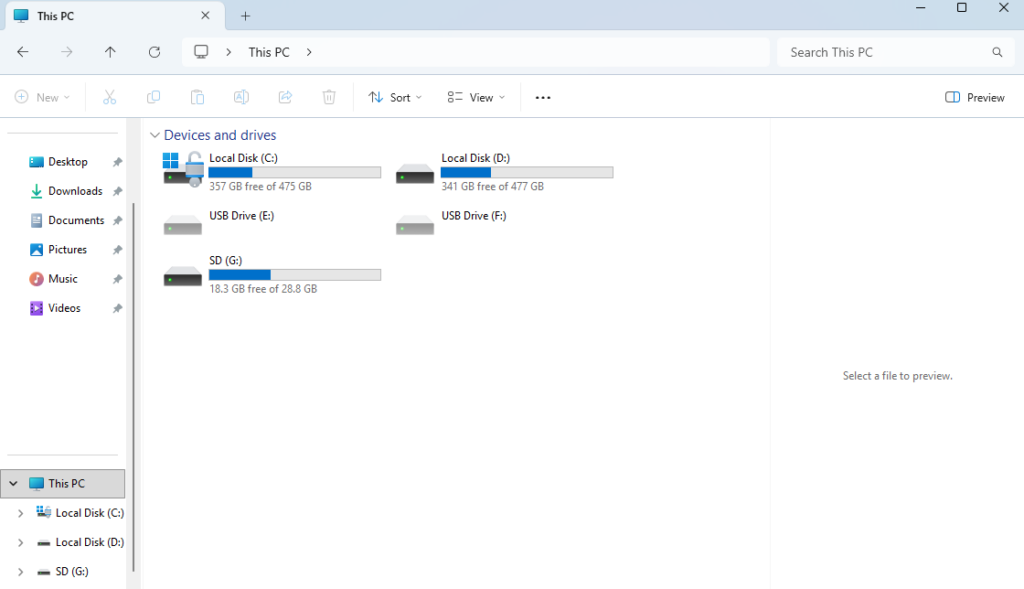
Insert the SD card you want to clone. Check the drive letter carefully in Windows Explorer.
For example: SD card = G
Step 3: Create an Image File
Open Win32 Disk Imager, and go to:
- Device and select your SD card drive letter
- Image File, and choose where to save the
.imgfile - Click: Read
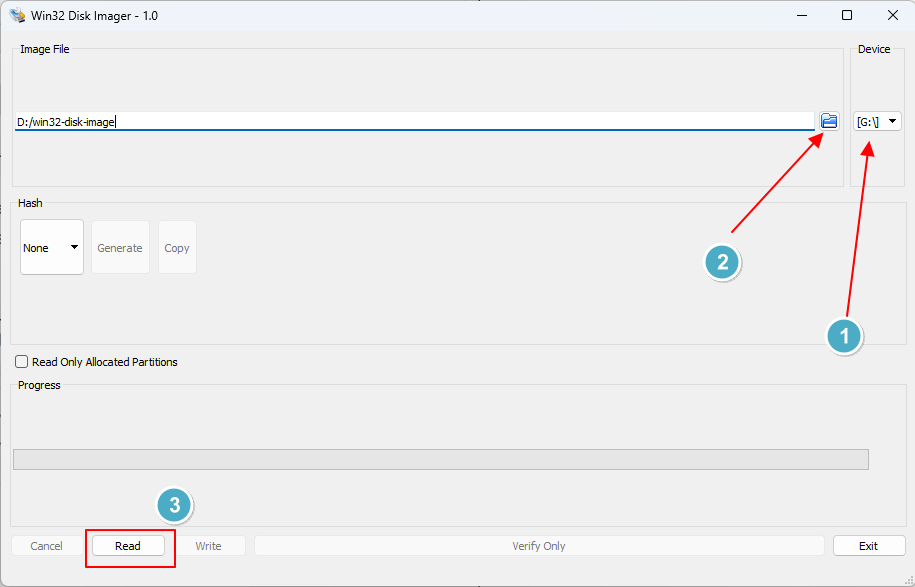
The software will now create a full image backup of the SD card. The time to image the SD card depends on how much data is on it.
Step 4: Insert the New SD Card
After the image is created:
- Remove the original SD card
- Insert the new SD card
- Select the new drive letter in Win32 Disk Imager
Step 5: Write the Image to the New SD Card
- Choose the
.imgbackup file you created earlier. - Click Write
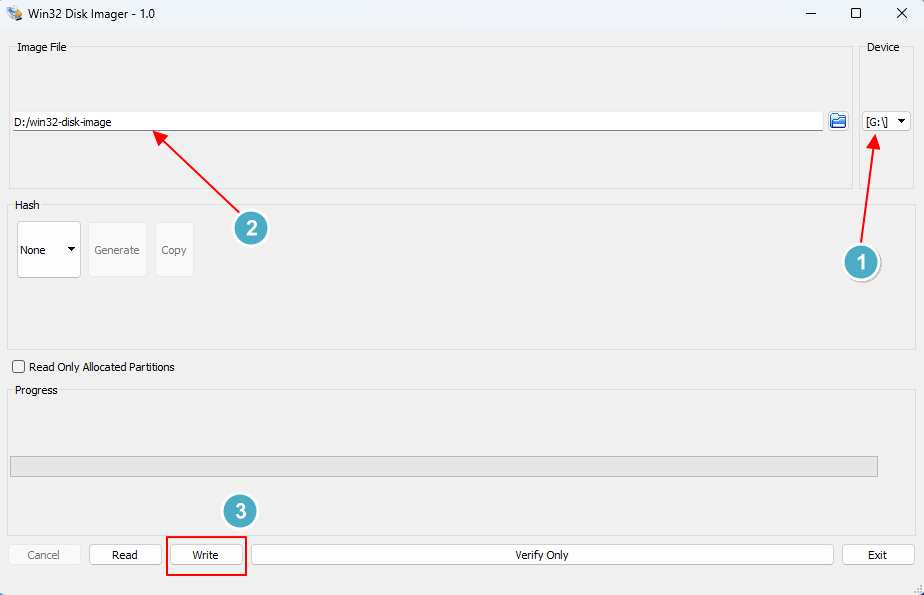
This restores the cloned image onto the new SD card.
After cloning:
- Reinsert the new SD card
- Check whether partitions appear correctly
- Test bootability if it’s a Raspberry Pi
- Open files to confirm data integrity
For Raspberry Pi users: insert the cloned card into the Pi and verify it boots normally.
Common Win32 Disk Imager Errors & Limitations
Although Win32 Disk Imager is widely used for SD card cloning, certain errors can still occur due to SD card condition, system permissions, or hardware compatibility.
Common Win32 Disk Imager Cloning SD Card Errors
When using Win32 Disk Imager to clone or write SD card images, users may encounter several common errors. Below are the typical causes and corresponding solutions.
#1. Access Denied
Usually caused by:
- SD card write protection
- Antivirus interference
- Insufficient administrator permissions
How to fix:
- Run Win32 Disk Imager as Administrator
- Unlock the SD card’s physical write-protection switch
- Temporarily disable antivirus software
#2. Not Enough Space
This error may appear even when both SD cards are labeled with the same capacity. In most cases, the issue is due to differences in the actual usable storage space among manufacturers. This is because different SD card brands may report slightly different usable sector sizes, even if both cards are advertised as “64GB.”
For example:
- Source card = 64GB Samsung
- Target card = 64GB generic brand
- Actual usable sectors on the target card may be smaller
How to fix:
- Use a slightly larger target SD card
#3. Clone Is Not Bootable
Even after the cloning process completes successfully, the cloned SD card may fail to boot properly. This usually indicates that the image or storage media encountered issues during the cloning process.
Possible causes
- Corrupted source SD card
- Interrupted write process
- Bad sectors on the target SD card
How to fix:
- Recreate the image file
- Test with another SD card
- Use SD Card Formatter before cloning
Win32 Disk Imager Limitations
Although popular for cloning SD cards, Win32 Disk Imager has several limitations.
1. No Smart Resize
It performs raw sector cloning. That means:
- 32GB card will create 32GB image
- Even if only 5GB is used
2. Slow for Large Cards
Large SD cards can take significant time because the tool also copies unused sectors.
3. No Incremental Backup
Every backup is full-size. No synchronization or differential imaging support exists.
4. Limited Error Recovery
Damaged or unstable SD cards may fail during imaging.
Best Alternatives to Win32 Disk Imager
While Win32 Disk Imager is a lightweight and reliable imaging tool, some users may prefer alternatives that offer faster performance, better compatibility, or a more beginner-friendly interface.
If you need faster or smarter cloning, the following tools are commonly used for SD card imaging, backups, and disk cloning.
| Tool | Best For | Key Features |
|---|---|---|
| Raspberry Pi Imager | Raspberry Pi users | Official Raspberry Pi tool with built-in OS downloads |
| BalenaEtcher | Easy image writing | Simple UI, multi-platform support, image validation |
| USB Image Tool | USB/SD backups | Portable utility for creating and restoring USB images |
| EaseUS Disk Copy | All-in-one disk cloning | Sector-by-sector cloning, disk migration, SSD upgrade |
| Clonezilla | Advanced disk cloning | Powerful partition and full-disk cloning features |
Choosing the right disk cloning software depends on your experience level and use case.
- Raspberry Pi Imager is ideal for Raspberry Pi projects and for installing official OS images.
- Beginners usually prefer BalenaEtcher for its clean, user-friendly interface.
- USB Image Tool is suitable for users who want a lightweight and portable solution for backing up and restoring USB drives or SD cards.
- EaseUS Disk Copy is a good choice for users who need full-disk migration, SSD upgrades, or sector-by-sector cloning, with a more intuitive interface.
- Advanced users often choose Clonezilla for large-scale backups and partition management.
- If you only need simple raw image reading and writing, Win32 Disk Imager remains a lightweight and effective option.
Conclusion
Win32 Disk Imager remains one of the most popular free tools for cloning SD cards on Windows because it is simple, lightweight, and reliable for exact disk imaging. For users who need:
- Raspberry Pi backups
- Bootable SD card duplication
- Retro gaming card copies
It still does the job extremely well. Its biggest strength is simplicity:
- Insert the SD card
- Create an image
- Write the image to another card
No advanced configuration is required.
That said, the software also shows its age in certain areas. Since it performs raw sector cloning, large cards can produce massive image files and slower backup times. Users who frequently clone storage devices or migrate between different card sizes may eventually prefer more modern tools with features like:
- Smart resizing
- Compression
- Incremental backups
- Faster transfer optimization
Still, for straightforward SD card cloning — especially bootable media — Win32 Disk Imager remains one of the easiest and most trusted solutions available for Windows users.
FAQs on Win32 Disk Imager Clone SD Card
1. Can Win32 Disk Imager clone bootable SD cards?
Yes. Win32 Disk Imager copies the entire SD card structure, including:
- Boot sectors
- File systems
- Hidden partitions
- Operating system files
- Configuration data
That’s why it works well for:
- Raspberry Pi cards
- Retro gaming systems
- Embedded devices
The cloned SD card should boot exactly like the original if the process completes successfully.
2. Can I clone a larger SD card to a smaller one?
Usually, no, if you clone it with Win32 Disk Imager. Win32 Disk Imager performs a sector-by-sector clone, meaning it copies the original card layout exactly as-is. Even if only 10GB of data is used on a 64GB card, the software may still require:
- A destination card with equal or greater sector capacity
This is one of the biggest limitations of raw imaging tools. If you need flexible resizing or migration to smaller drives, tools like Macrium Reflect, DiskGenius, EaseUS Disk Copy, and Acronis True Image may work better.
3. Can Rufus clone an SD card?
No, Rufus cannot directly “clone” an SD card in a single step (device-to-device), but it can achieve the same result through imaging. You can use Rufus to create an image file (.iso or .img) of your current SD card, then write that image to a new SD card.
4. How to clone a micro SD card on Windows?
To clone a micro SD card on Windows, use free software like Win32 Disk Imager to create an exact, bit-for-bit copy of the source card and write it to a new card with equal or larger capacity. This process ensures all partitions, including hidden boot files for devices like Raspberry Pi, are copied.


![SSDs with Highest TBW [Gen 5.0, 4.0, and 3.0]](https://storedbits.com/wp-content/uploads/2024/08/TBW-1-768x432.png)