If you’re comparing EaseUS Todo Backup vs Clonezilla, the first thing to know is that they are built for somewhat different purposes.
Clonezilla focuses on disk cloning and imaging. It’s free, open-source, and works well if that’s all you need. EaseUS Todo Backup is more of an everyday backup tool for Windows, with scheduled backups, incremental and differential backups, file backup, and file-level recovery.
That difference is probably the most important thing to keep in mind. Clonezilla makes more sense for straightforward disk imaging and cloning, while EaseUS Todo Backup is better suited to regular backups and day-to-day recovery.
Here’s how they compare in actual use.
EaseUS Todo Backup vs Clonezilla: Quick Comparison
| Feature | EaseUS Todo Backup | Clonezilla |
|---|---|---|
| System backup | Yes | Yes |
| Disk/partition backup | Yes | Yes |
| File backup | Yes | No |
| File synchronization | Yes | No |
| Incremental backup | Yes | No |
| Differential backup | Yes | No |
| Scheduled backup | Yes | No built-in scheduling |
| System recovery | Yes | Yes |
| Individual file recovery | Yes | No |
| Bootable recovery | Yes | Yes |
| GUI | Yes | No traditional Windows GUI |
| Open source | No | Yes |
| Free | Free/Paid edition | Yes |
| Disk imaging | Yes | Yes |
| Disk cloning | Yes | Yes |
Clonezilla is built mainly for disk imaging and cloning. It’s free and open-source, supports a wide range of file systems and operating systems, and can handle bare-metal backup and recovery.
EaseUS Todo Backup takes a broader approach, with system, disk/partition, and file backups, plus scheduled, incremental, and differential backups. It also supports file synchronization and individual file recovery.
That design difference matters more than the number of features.
Backup Features: The Biggest Difference
Let’s start with the obvious question: what kind of backup do you actually need?
If you want to image an entire drive and keep it somewhere safe in case the drive fails, Clonezilla is very good at that. Clonezilla Live can save a disk as an image and restore it later, making it useful for system recovery and bare-metal backup.
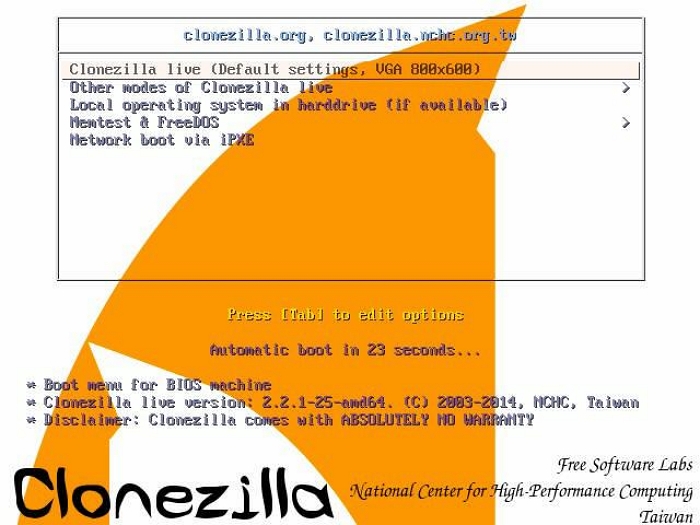
It’s particularly appealing if you’re comfortable booting from a USB drive and working outside Windows.
EaseUS Todo Backup is more flexible for everyday backup jobs. You can back up an entire system, a disk or partition, or just selected files and folders. You can also set up a recurring backup schedule instead of creating an image manually each time.
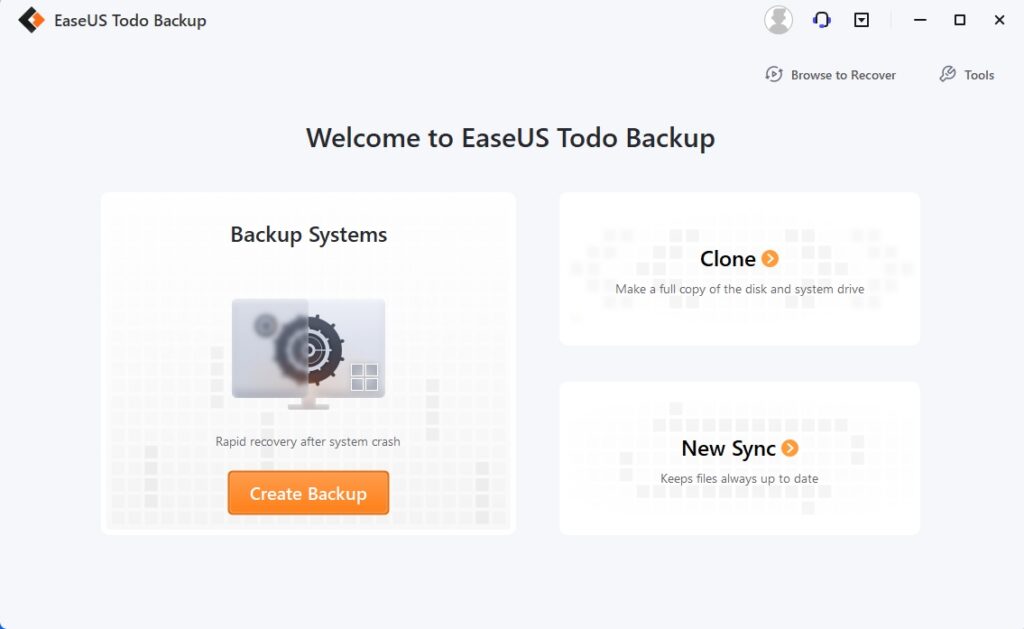
That’s a meaningful distinction.
For example, if your goal is:
“I want a complete image of my PC before I replace the SSD.”
Clonezilla makes plenty of sense.
If your goal is:
“I want my Documents and Pictures folders backed up every day, plus a system backup every week.”
EaseUS is much closer to what you’re looking for.
Incremental and Differential Backups
This is another area where the two products take different approaches.
A full backup copies everything selected. Doing that every time can take longer and use more storage, especially when only a small amount of data has changed.
Incremental and differential backups reduce that overhead by backing up changed data rather than creating a completely new full backup each time.
EaseUS Todo Backup supports full, incremental, and differential backup modes. Incremental backups contain changes since the previous backup, while differential backups contain changes since the last full backup.
Clonezilla doesn’t work this way. Its official feature list states that it doesn’t support differential or incremental backups.
That doesn’t make Clonezilla a bad backup tool. It’s simply a different kind of tool.
Clonezilla is very good at: Create an image → Store it → Restore it later
EaseUS is better suited to: Set up a backup plan → Run backups regularly → Keep a series of backup points → Restore when needed
For someone backing up a Windows PC regularly, that difference matters.
File Backup and File Sync
This is probably the area where EaseUS has the clearest advantage.
Not everyone needs to back up an entire hard drive. Sometimes you just want to protect a few folders.
Maybe it’s your work documents, a photo library, or a folder containing years of personal files. In those cases, creating a complete disk image every time can be overkill.
EaseUS Todo Backup supports file and folder backups, so you can choose what you want to protect. It also offers Smart Backup for frequently changing files and folders.
It also has a separate synchronization feature. That distinction matters because backup and sync aren’t the same thing.
A backup creates another copy that you can use for recovery. Synchronization keeps files or folders in sync between two locations.
EaseUS supports scheduled, event-triggered, and real-time synchronization. It can also trigger a sync when you connect a USB device.
Clonezilla isn’t really designed for this type of job. It focuses on disk and partition imaging rather than keeping folders synchronized between two locations.
So if your main requirement is something like:
“Keep this folder on my PC synchronized with another drive.”
Clonezilla probably isn’t the tool I’d reach for.
Scheduled Backup and Automation
This is where EaseUS Todo Backup starts to feel more like a traditional backup application.
You can schedule backups to run automatically and choose full, incremental, or differential backup methods. EaseUS also provides retention and cleanup options, so it can remove old backup images automatically when they are no longer needed.
Smart Backup is also designed for frequently changing files and folders. It checks the selected data every 30 minutes and creates a backup when it detects changes.
Clonezilla is more hands-on. That’s not necessarily a criticism. For someone who knows exactly what they are doing, booting Clonezilla and creating an image when needed can be perfectly reasonable.
But if you’re looking for something you configure once and then let run in the background, EaseUS is the more natural fit.
Restore and Recovery
Backup is only useful if you can actually get your data back when something goes wrong.
Both programs can restore an entire system or disk from an image. Clonezilla is particularly strong here. Its whole workflow is built around saving and restoring disk images, and it supports bare-metal recovery.
The difference becomes more obvious when you don’t want to restore everything. Suppose you accidentally delete one folder.
With EaseUS, you can recover individual files or folders from a backup instead of restoring the entire image. EaseUS supports both disk/partition recovery and file-level recovery.
Clonezilla is less convenient for this. Its official documentation notes that its image format cannot simply be explored or mounted, so you can’t normally browse an image and pull out a single file directly.
This is one of those differences that doesn’t look important on a feature list but becomes very noticeable when you actually need your backup.
If your backup strategy is mostly about recovering an entire machine, Clonezilla works well. If you expect to occasionally recover individual files, EaseUS makes more sense.
Ease of Use
This is probably the biggest practical difference between the two backup tools.
EaseUS Todo Backup runs as a conventional Windows application. You select what you want to back up, choose a destination, set a schedule if necessary, and let it do the work.
Clonezilla generally requires you to boot into its dedicated environment. Its official documentation provides workflows for saving disk images, restoring them, and performing disk-to-disk operations.
The interface is functional rather than friendly.
If you’re comfortable with partitions, disks, and boot menus, this isn’t a major problem. In fact, the amount of control Clonezilla provides is part of its appeal. For someone who just wants to protect a Windows PC, though, it can feel like considerably more work than necessary.
I’d put it this way: EaseUS is easier to live with. Clonezilla is easier to appreciate once you know what you’re doing.
Disk Imaging and Cloning
This is the one area where Clonezilla deserves a lot of credit.
It supports disk and partition imaging across a wide range of file systems, including NTFS, FAT, ext2/3/4, XFS, HFS+, and APFS. It also supports Btrfs, which is currently in testing, and works with Windows, Linux, macOS, and other supported environments.
EaseUS Todo Backup also includes disk and system cloning, but cloning isn’t really the reason I’d choose between these two products.
If you’re only looking for a disk cloning tool, plenty of comparisons focus specifically on that. For this comparison, the more useful question is what happens after you’ve cloned or backed up your system.
Do you want scheduled backups? File synchronization? Multiple recovery points? Easy access to individual files?
That’s where EaseUS starts to separate itself from Clonezilla.
Performance and Compatibility
It’s difficult to say that one is simply faster than the other. Backup speed depends on things like the source and destination drives, the connection between them, compression, and how much data needs to be copied.
Clonezilla works well for disk imaging and cloning, and it only copies the used blocks of supported file systems. It also supports compression, so it’s a good fit for large, one-off imaging jobs.
EaseUS gives you more options when you’re running backups regularly. You can adjust compression and backup priority, and incremental or differential backups mean you don’t have to create a full backup every time.
The bigger difference is compatibility. Clonezilla supports a much wider range of file systems and isn’t limited to Windows. EaseUS is mainly aimed at Windows users, which is unlikely to be an issue if that’s where your backups will live.
For a typical Windows PC, either one can handle system and disk backups. Clonezilla is more interesting when you need to work with different operating systems or file systems.
Pricing
Clonezilla doesn’t cost anything. It’s free and open source, and there’s no paid version to unlock additional features.
EaseUS Todo Backup has a free version and paid plans. At the time of writing, the Windows Home plan is listed at $39.95 for one year or $79.95 for lifetime upgrades. Prices can change, so check the current pricing before buying.
If all you need is disk imaging or cloning, Clonezilla is difficult to beat on price. EaseUS costs more, but it also covers the everyday backup tasks that Clonezilla doesn’t try to handle.
EaseUS Todo Backup vs Clonezilla: Pros and Cons
EaseUS Todo Backup
Pros
- Easier for typical Windows users
- File, system, and disk backup
- Incremental and differential backups
- Scheduled backups
- File synchronization
- Easier file-level recovery
- Better suited to an ongoing backup routine
Cons
- Some features and advanced options require a paid edition
- Not open source
- More than you need if all you want is basic disk imaging
Clonezilla
Pros
- Completely free
- Open source
- Excellent for disk imaging and cloning
- Strong bare-metal recovery
- Wide file-system support
- Useful for advanced users and system deployment
Cons
- Steeper learning curve
- Less convenient for everyday file backup
- No incremental or differential backup
- No direct individual file recovery from an image
- Usually requires booting into a separate environment
EaseUS vs Clonezilla: Which One Should You Choose?
There’s no need to treat these as direct replacements for each other.
Choose EaseUS Todo Backup if you want an everyday Windows backup tool. It’s a better fit for scheduled backups, file and folder protection, incremental or differential backups, synchronization, and easier file recovery.
Choose Clonezilla if you mainly want a free and capable disk imaging and cloning tool. It’s particularly useful for technical users, system administrators, or anyone comfortable working from a bootable environment.
If you only need to create an occasional image of a computer, Clonezilla may be all you need.
If you want something that can handle regular backups as well as individual file recovery, EaseUS is the more practical choice.
In short: Clonezilla is excellent at imaging a machine. EaseUS Todo Backup is better suited to managing backups as an ongoing task.
The real difference isn’t the number of features. It’s whether you need a disk imaging and cloning tool or an everyday backup and recovery application.
Hope this article helps!