If you’re comparing the Crucial MX500 and BX500 for an old PC or laptop upgrade, the short answer is:
The Crucial MX500 is the better overall SSD, especially as a Windows system drive or for heavier workloads. The BX500 is a more budget-focused option that can still be a significant upgrade from an HDD for everyday use.
However, there is an important factor to consider in 2026: the MX500 is no longer a current-generation consumer SSD (The Crucial MX500 SATA SSD line was officially discontinued in December 2024 after a seven-year production run that began in 2018), and availability can be limited. That means the MX500 is not automatically the better buy at any price.
If the MX500 is reasonably priced and available from a reliable seller, it remains the stronger choice. If it is significantly more expensive than the BX500, or you can only find a used drive with an uncertain history, the BX500 or another current SATA SSD may offer better value.
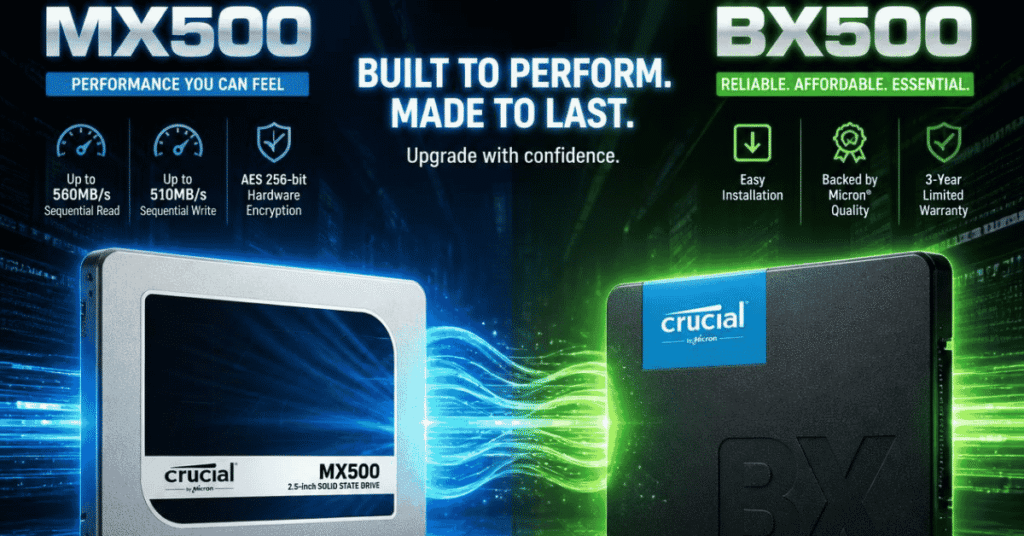
Crucial MX500 vs BX500: Quick Comparison
| Feature | Crucial MX500 | Crucial BX500 |
| Interface | SATA III (6 Gb/s) | SATA III (6 Gb/s) |
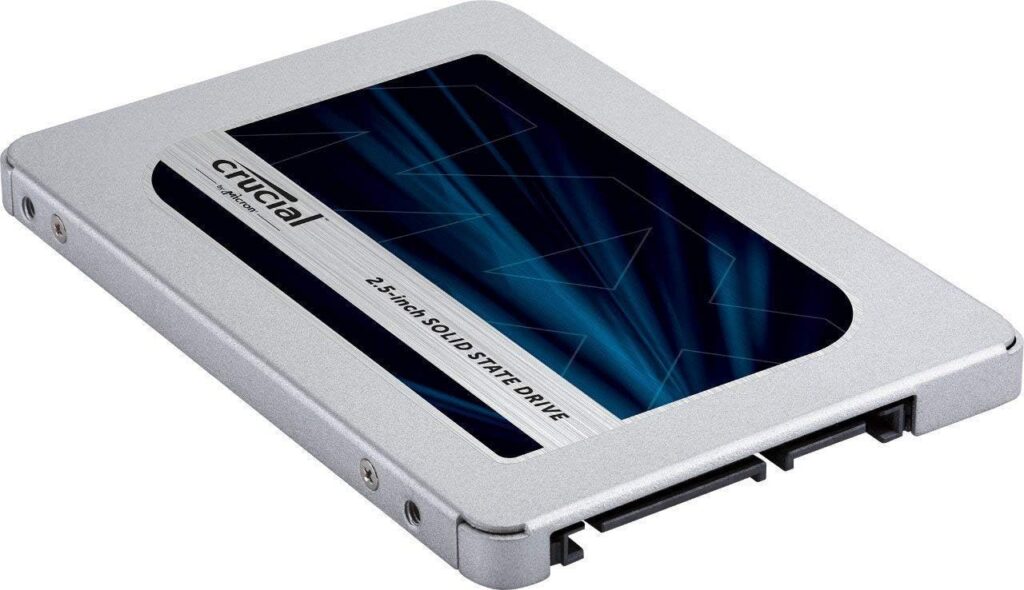
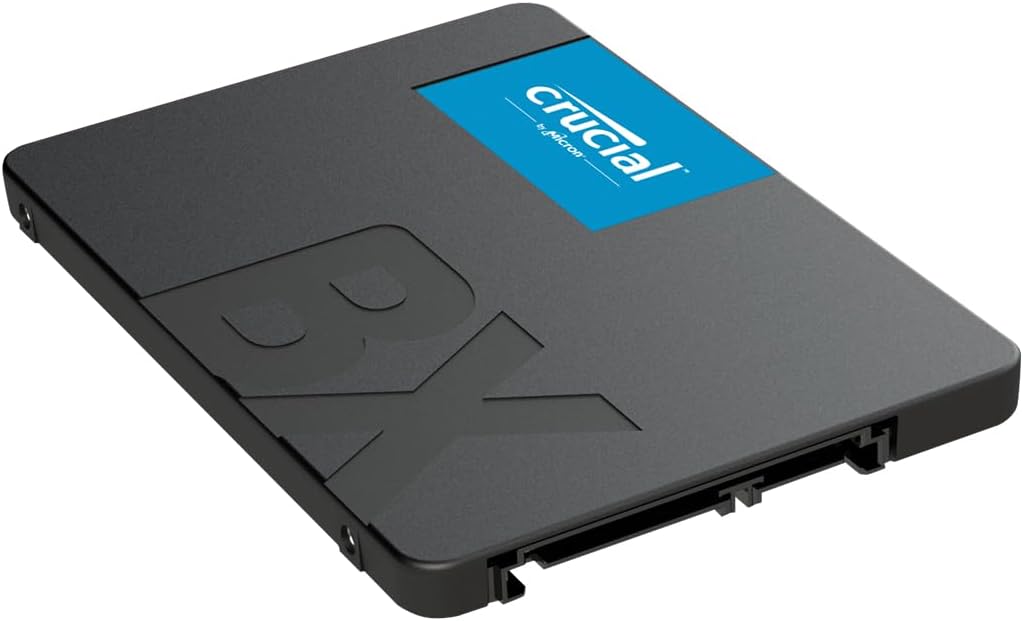
| Form factor | 2.5-inch, 7 mm | 2.5-inch, 7 mm |
| Sequential read speed | Up to 560 MB/s | Up to 540 MB/s |
| Sequential write speed | Up to 510 MB/s | Up to 500 MB/s |
| Warranty | 5 years | 3 years |
| DRAM | Yes | No |
| Best suited for | System drives and heavier workloads | Budget upgrades and everyday use |
On paper, the speed difference looks small. Both drives are SATA SSDs, so neither can approach the sequential speeds of modern PCIe NVMe SSDs. For many everyday tasks, the difference between 560 MB/s and 540 MB/s will not be noticeable.
The more meaningful differences are the MX500’s DRAM, higher endurance ratings at comparable capacities, and longer warranty. The BX500, meanwhile, focuses more on keeping the purchase price down.
💡In simple terms: the MX500 is the more capable drive, while the BX500 is the more budget-oriented option.
MX500 vs BX500: Which One Should You Buy?
Choose the Crucial MX500 if:
- You want a primary Windows or system drive.
- You frequently write or move large amounts of data.
- You plan to keep the SSD for many years.
- You want a higher-end SATA SSD rather than a basic budget model.
- The MX500 costs only a little more than the BX500.
The MX500 is the better fit when the SSD will be doing more than simply storing files. As a system drive, it handles frequent background activity, application installs, updates, and other everyday writes. Its DRAM and higher endurance ratings also make it a more appealing choice for long-term use.
That does not mean that every user will see a dramatic difference in day-to-day speed. If you mainly browse the web, open office documents, and launch a few applications, both drives can feel very responsive compared with a traditional hard drive.
The main reason to choose the MX500 is its better overall drive design and long-term positioning, rather than a small difference in peak sequential speed.
Choose the Crucial BX500 if:
- You want the lowest-cost way to upgrade from an HDD to an SSD.
- You mainly use the computer for browsing, office work, and light applications.
- You need a secondary storage drive.
- The MX500 is substantially more expensive.
- You are upgrading an older PC or laptop where SATA performance is already the main limitation.
For a basic HDD replacement, the BX500 can make a lot of sense. Moving from a mechanical hard drive to any decent SATA SSD can make a computer feel much faster, with shorter boot times and more responsive application launches.
In that situation, the question is often not whether the MX500 is technically better. It is. The more useful question is:
Will the MX500’s advantages justify the extra cost for the way you use your computer?
For light everyday use, the answer may be no.
Our recommendation
- Best overall: Crucial MX500
- Best for a tight budget: Crucial BX500
- Best for a Windows system drive: Crucial MX500
- Best for replacing an HDD: Either, depending on the price
- Best value when the MX500 is heavily overpriced: BX500 or another reasonably priced SATA SSD
Is the Crucial MX500 Still Worth Buying?
It can be, but the price and condition matter more than they used to.
The MX500 has long been a popular SATA SSD, but it is no longer a current product in the same way as newer SSD models. As a result, you may encounter remaining stock, older inventory, or used drives rather than a straightforward new purchase from a major retailer. The broader Crucial consumer business is also being wound down, with support for existing products continuing after sales end.
If you find a new MX500 at a reasonable price, it can still be a good choice. Its official specifications include sequential read/write speeds of up to 560/510 MB/s, a five-year limited warranty, and endurance ratings ranging from 100 TBW for the 250GB model to 1,000 TBW for the 4TB model.
But buying an MX500 simply because it has a better reputation is not always the best decision today.
Before buying, compare:
- The actual price of the MX500
- Whether the drive is new, refurbished, or used
- The remaining warranty
- The seller’s return policy
- The price of newer SATA alternatives
If a used MX500 costs more than a new, reasonably priced SATA SSD, its older age may not be worth the premium. Similarly, if the MX500 is substantially more expensive than the BX500 and you only need a drive for basic everyday use, the BX500 may be the more sensible purchase.
The MX500 is still technically the better drive. But in 2026, “better SSD” and “better buy” are not always the same thing.
MX500 vs BX500 for Windows, Gaming, and Everyday Use
The best choice depends heavily on what you plan to do with the SSD.
| Use case | Better choice | Why |
| Windows system drive | MX500 | Better suited to frequent system activity and long-term use |
| Gaming | Either | Both are SATA SSDs and can significantly outperform an HDD |
| HDD upgrade | Either | The biggest improvement comes from moving to an SSD |
| Heavy file transfers | MX500 | Better suited to more demanding workloads |
| Secondary storage | BX500 | Lower cost may matter more |
| Older SATA-only laptop | Either | Check compatibility, capacity, and price |
For Windows
The MX500 is the preferable choice if the price difference is reasonable. A system drive deals with more than simply reading large files. Windows constantly performs background reads and writes, updates files, and accesses many small files.
That is where the MX500’s overall design makes it the more comfortable choice for long-term system use.
The BX500 can still run Windows perfectly well, especially when replacing an HDD. The difference is that the BX500 is more clearly positioned as a budget drive, so the MX500 is the better choice when you want a more capable primary drive, and the price gap is not large.
For gaming
Both drives can work well for gaming.
If you are upgrading from an HDD, the improvement will usually be much more noticeable than the difference between the MX500 and BX500. Game loading times depend on the game, the system, and the workload, so the MX500 should not be treated as a guaranteed dramatic upgrade over the BX500.
For a new gaming PC with an available NVMe slot, an NVMe SSD may be a more natural choice. But if your computer only supports SATA storage, either the MX500 or BX500 can still be a practical upgrade.
For everyday use
For web browsing, office applications, media playback, and light software, both SSDs should provide a much more responsive experience than an HDD.
This is where the BX500 can be especially attractive: if it costs significantly less, you may not notice enough real-world difference to justify paying a large premium for the MX500.
What to Check Before Buying an MX500 or BX500
Before choosing either drive, make sure it is compatible with your computer.
1. Check the interface
Both the MX500 and BX500 are SATA SSDs. Your PC or laptop needs a compatible SATA connection.
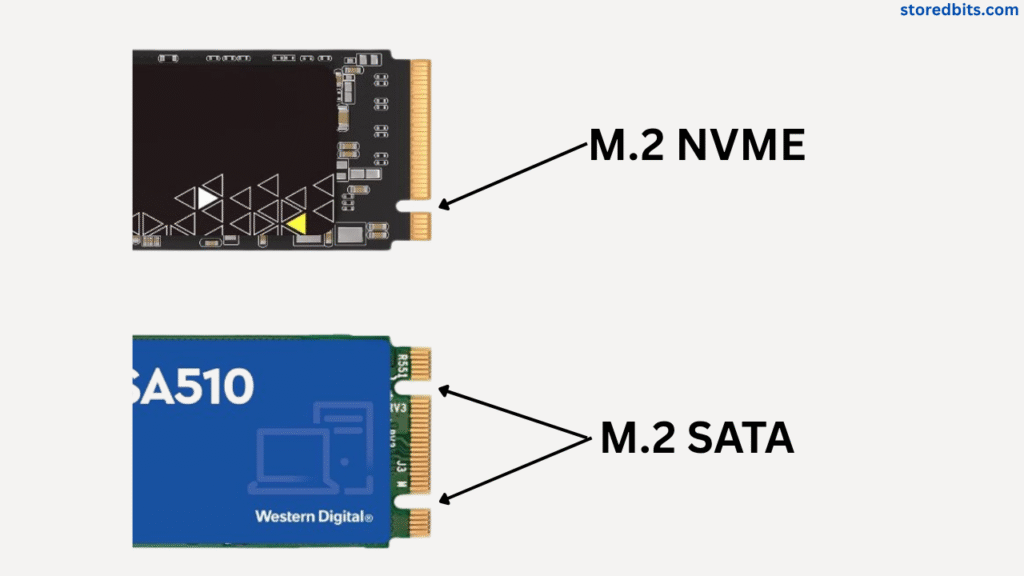
If your computer has an M.2 slot, do not assume that every M.2 SSD will work. M.2 describes the physical form factor, while SATA and PCIe describe different interfaces. An M.2 SATA drive and an NVMe drive are not automatically interchangeable.
2. Check the physical size
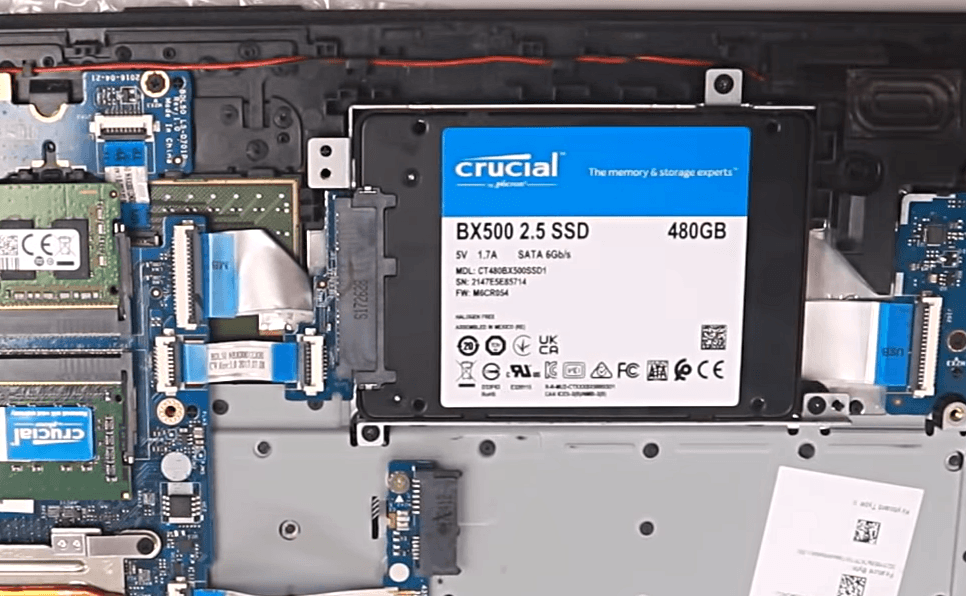
The common MX500 and BX500 models discussed here are 2.5-inch, 7 mm SATA SSDs. Make sure your laptop or desktop has the required space and connection.
Older laptops often use 2.5-inch SATA drives, which is one reason SATA SSDs remain relevant for upgrades.
3. Compare capacity and price
A 500GB drive can be enough for Windows and basic applications. A 1TB SSD is generally more comfortable if you also want to store games and personal files.
Do not automatically choose the MX500 just because it is the better drive on paper. Compare the price at the capacity you actually need.
4. Be more careful with used MX500 drives
If you are buying a used MX500, check its health status, total bytes written, power-on hours, and the seller’s return policy.
A used SSD with a good reputation is still a used SSD. Its actual condition matters more than the model name alone.
How to Upgrade from an HDD to an MX500 or BX500 Without Reinstalling Windows
If you are replacing your current system drive, you have two basic options.
You can perform a clean installation of Windows on the new SSD, then reinstall your applications and restore your files. This gives you a fresh system, but it also takes time.
Alternatively, you can clone the existing HDD or SSD to the new MX500 or BX500. This allows you to migrate your Windows installation, applications, files, and settings to the new drive instead of starting from scratch.
A disk cloning tool can help clone an existing system drive to a new SSD. Before starting, make sure the destination SSD has enough space for the data you want to migrate and that your computer supports the new drive.
Crucial MX500 vs BX500 FAQs
Is the Crucial MX500 better than the BX500?
Yes. The MX500 is generally the better overall SSD because it offers DRAM, higher endurance ratings at comparable capacities, and a longer warranty. However, the BX500 can be the better value when it is significantly cheaper and is used for light everyday tasks or secondary storage.
Is the BX500 good enough for gaming?
Yes. The BX500 can work well as a gaming SSD, especially when upgrading from an HDD. For most users, the improvement from moving from an HDD to any SATA SSD will be more noticeable than the difference between the MX500 and BX500.
Is the MX500 good for Windows?
Yes. The MX500 is the preferable choice for a Windows system drive when its price and condition are reasonable. Its overall specifications make it better suited to long-term primary-drive use than the more budget-focused BX500.
Is the Crucial MX500 discontinued?
The MX500 is no longer a current mainstream consumer product, and availability can be limited. If you find one, check whether it is new or used, compare the price with current SATA SSDs, and verify the seller’s warranty and return policy.
Can I clone Windows from my old HDD to an MX500 or BX500?
Yes. You can clone an existing Windows system drive to a compatible MX500 or BX500 instead of reinstalling Windows from scratch. The new SSD needs enough capacity for the data being migrated, and your computer must support the drive’s interface and form factor.
Final Verdict: MX500 or BX500?
The Crucial MX500 is the better SSD overall. It is the stronger choice for Windows, heavier workloads, and users who want a more capable SATA drive for long-term use.
The Crucial BX500 is the better budget option. If you are replacing an HDD, using the SSD for light everyday tasks, or simply finding a much better price on the BX500, it can still be a perfectly reasonable choice.
The most important point in 2026 is that the MX500 should not be purchased at any price simply because it has a better reputation. If you can find a new MX500 at a reasonable price, it remains attractive. If it is overpriced, used, or difficult to verify, a BX500 or another current SATA SSD may offer better value.
Once you have chosen your new SSD, cloning your existing drive can be a convenient way to upgrade without reinstalling Windows and all your applications from scratch.