It can be risky to clone BitLocker encrypted drives, especially when you’re upgrading to an SSD or replacing a failing disk. The main challenge comes from BitLocker’s full-disk encryption and its dependency on TPM and system configuration. The good news is that you can safely clone a BitLocker drive without losing data, as long as you use the right method.
Quick Answer: How to Clone a BitLocker Drive
The safest way to clone a BitLocker encrypted hard drive is to unlock the drive, suspend BitLocker protection, and perform a sector-by-sector clone using a compatible disk cloning tool. This ensures all encrypted data and system structures are copied correctly.
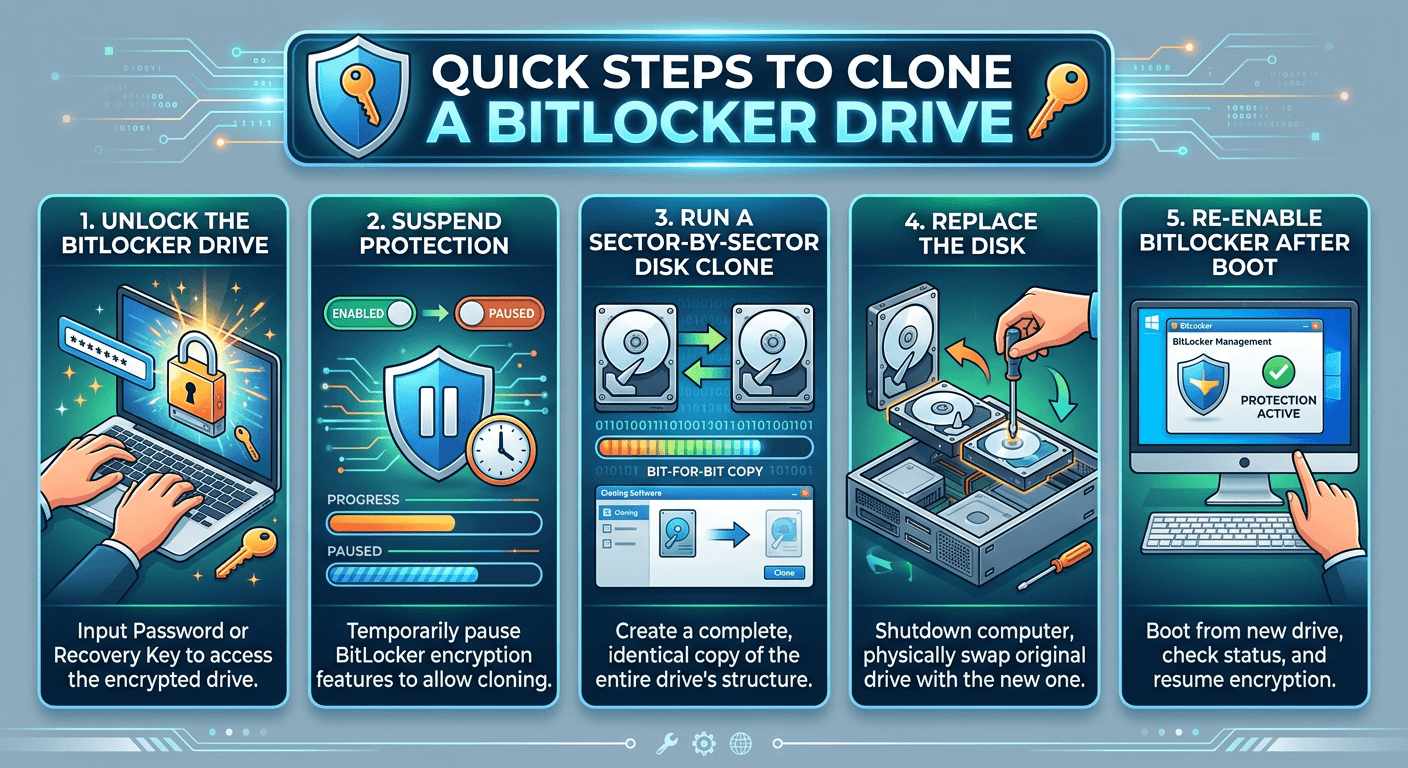
Here is a simplified guide:
- Unlock the BitLocker drive
- Suspend protection
- Run a sector-by-sector disk clone
- Replace the disk
- Re-enable BitLocker after boot
Can You Clone BitLocker Encrypted Drives?
Yes, you can clone a BitLocker encrypted drive, but the method matters. There are two main approaches:
- cloning after unlocking the drive (recommended)
- cloning the encrypted disk directly (advanced).
In both cases, you must use disk-level cloning rather than file-level copying. A sector-by-sector clone is the most reliable option. This ensures all encrypted data and system structures are copied correctly.
What Is a BitLocker Encrypted Drive?
BitLocker is a full-disk encryption feature built into Windows. Unlike file-level encryption, it encrypts the entire drive, including system files, partitions, and even unused space. It relies on components such as the Trusted Platform Module (TPM) chip, the recovery key, and the boot configuration. Because of this, cloning a BitLocker-encrypted drive is more complex than copying a normal disk.
When Do You Need to Clone a BitLocker Drive?
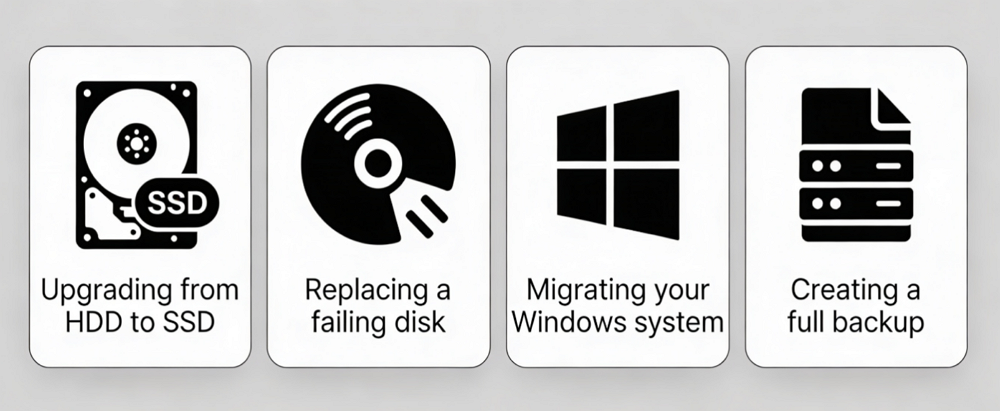
You may need to clone a BitLocker drive when upgrading from HDD to SSD, replacing a failing disk, migrating your Windows system, or creating a full backup. These are common scenarios where users search for ways to clone an encrypted hard drive without data loss.
Best Practices Before Cloning a BitLocker Drive
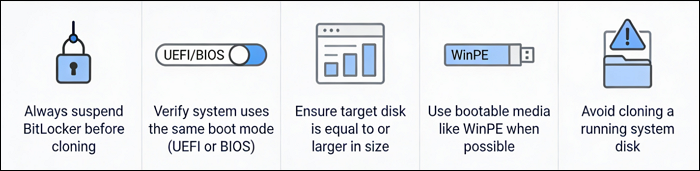
Always suspend BitLocker before cloning, verify your system uses the same boot mode (UEFI or BIOS), ensure the target disk is equal to or larger in size, use bootable media like WinPE when possible, and avoid cloning a running system disk.
How to Clone BitLocker Encrypted Drive Step by Step
Cloning a BitLocker encrypted drive safely requires a controlled process. The key idea is to make the encrypted drive temporarily “clone-friendly” by unlocking it and suspending protection, then performing a full disk clone. Follow the steps below carefully to avoid boot errors or recovery key issues.
Method 1. Clone BitLocker Drive After Unlocking (Recommended)
This is the safest and most reliable method. By unlocking the drive and suspending BitLocker, you allow cloning software to copy all data and system structures correctly without breaking encryption dependencies.
Step 1. Unlock the BitLocker Drive
First, make sure the drive is accessible.
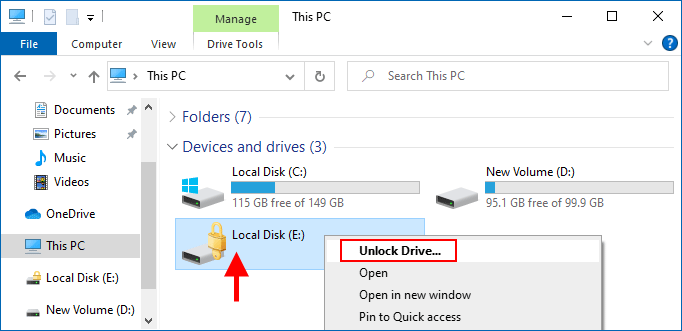
- Open “This PC” in Windows
- Right-click the BitLocker drive and select “Unlock Drive”
- Enter your password or recovery key
If your system drive (C:) is already unlocked (common), you can proceed directly to the next step.
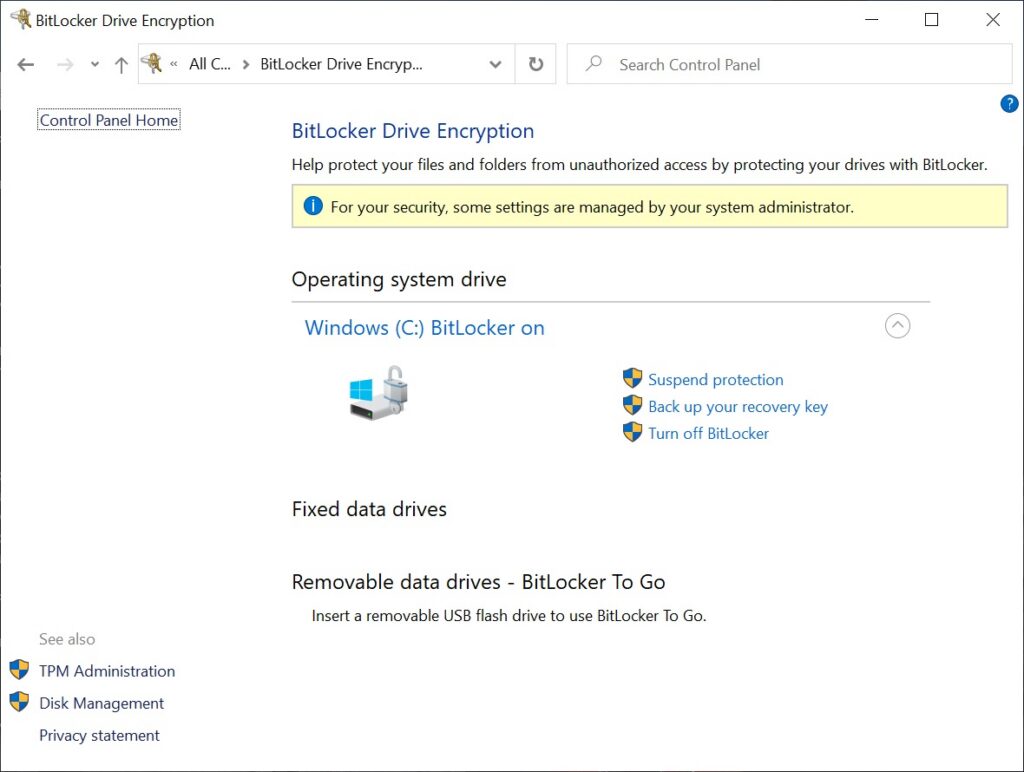
Step 2. Suspend BitLocker Protection
Suspending BitLocker prevents TPM-related issues after cloning.
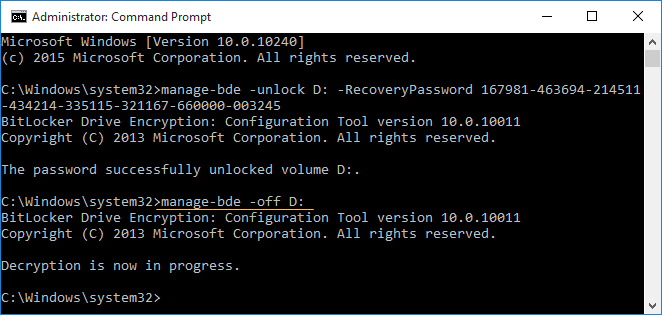
- Press Win + S and search for “Command Prompt”
- Right-click and select “Run as administrator”
- Enter the following command: manage-bde -off C: (Change C with the drive letter of the disk you want to decrypt)
You should see a confirmation that BitLocker protection is suspended.
Step 3. Prepare a BitLocker-Compatible Cloning Tool
Not all cloning tools support encrypted drives, so choosing the right one is critical.
- Install a disk cloning tool that supports sector-by-sector cloning. Popular options include Clonezilla, Acronis, and Macrium Reflect.
- Launch the software
- Select “Disk Clone” or similar feature
Step 4. Select Source and Target Disk
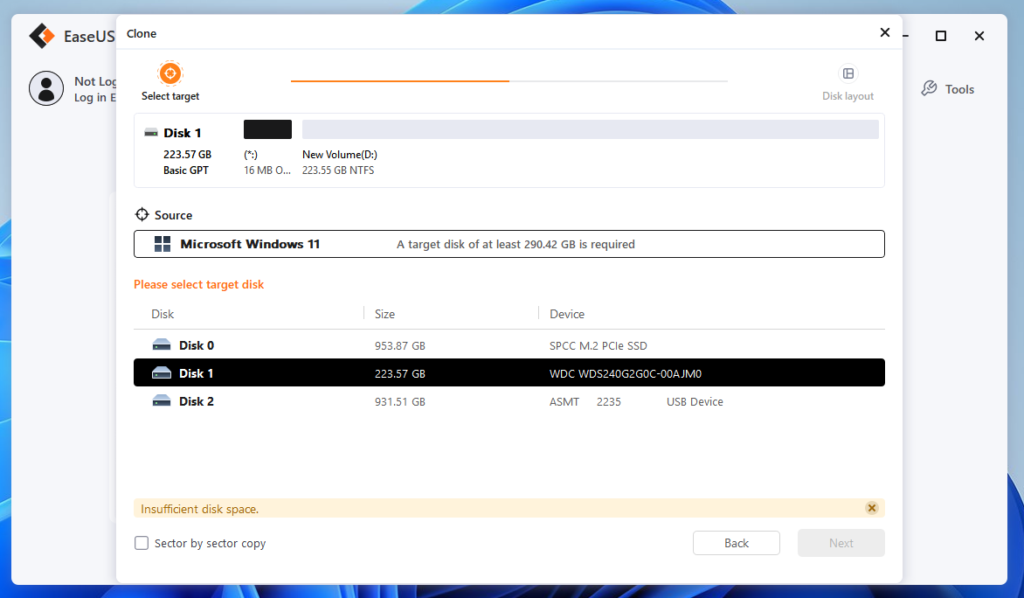
Now configure the cloning process.
- Choose your BitLocker-encrypted drive as the source disk
- Select your new SSD or target drive
- Double-check that the target disk is empty or backed up
Warning: All data on the target disk will be overwritten.
Step 5. Enable Sector-by-Sector Cloning
This ensures all encrypted sectors and metadata are copied.
- Look for an option like “Sector by sector clone” or “Forensic clone”
- Enable it before starting the process
This step is essential for cloning encrypted drives correctly.
Step 6. Start the Cloning Process
Run the cloning task.
- Click “Start” or “Clone”
- Wait for the process to complete (Cloning a 1TB hard drive to a solid-state drive typically takes between 1 and 3 hours for a standard setup)
Avoid using the computer during cloning to reduce risk.
Step 7. Replace the Drive and Boot
After cloning is complete:
- Shut down your computer
- Replace the old drive with the cloned SSD
- Boot your system
If everything is correct, Windows should load normally.
Step 8. Re-enable BitLocker
Once the system boots successfully, turn BitLocker protection back on.
- Open Command Prompt as administrator
- Run: manage-bde -on C: (Change C with the drive letter of the disk you want to encrypt)
Your system is now fully protected again.
Method 2. Clone BitLocker Drive Without Unlocking (Advanced)
This method copies encrypted data directly without unlocking the drive. It is faster in some cases, but significantly riskier and not recommended for most users.
Step 1. Use a Raw Disk Cloning Tool
Choose a tool that supports direct sector-level cloning of encrypted disks.
Step 2. Select Source and Target Disk
Pick the BitLocker drive as source and the new disk as target.
Step 3. Run Sector-by-Sector Clone
Start cloning without modifying encryption state.
Step 4. Handle Recovery Key Prompt
After cloning, Windows may request the BitLocker recovery key due to TPM mismatch.
Be prepared to enter your recovery key on first boot.
💡Important Note: This method may result in boot issues or recovery mode triggers, especially if hardware configuration changes. Only use this if you fully understand the risks.
💡Final Tip: For most users, Method 1 (unlock + suspend + clone) provides the best balance of safety, compatibility, and success rate. Using a reliable BitLocker-compatible cloning tool can significantly reduce errors and ensure a smooth migration to SSD.
Common Problems After Cloning
Recovery Key Required
Usually caused by TPM changes or hardware differences.
Cloned Drive Not Booting
Often related to bootloader or EFI partition issues. Startup repair may be needed.
Performance Issues
Incorrect SSD alignment can reduce performance after cloning.
Conclusion
Cloning BitLocker BitLocker-encrypted drives is completely possible, but it requires the right approach. A sector-by-sector clone after unlocking and suspending BitLocker offers the safest and most reliable results. For most users, using a trusted BitLocker-compatible cloning tool is the best way to ensure a smooth migration without data loss.