If your computer restarts when playing games, you’re not alone. This issue is widely reported across communities like Reddit and hardware forums-and it’s almost always tied to power delivery, thermal stress, or unstable system configurations.
The tricky part? It usually doesn’t show a clear error message, making troubleshooting harder. This guide breaks down real causes, step-by-step fixes, and advanced diagnostics.
Why Does My Computer Restart When Playing Games?
Gaming pushes your PC harder than almost anything else-especially GPU + PSU load. That’s why restarts often only happen during gaming, not normal use.
- 1. Power Supply Instability (Most Common) – From both Reddit and forums, this is the No.1 root cause. “Occurs in gaming where power spikes are highest… likely PSU issue.” GPU transient spikes can exceed PSU limits, cheap or aging PSUs fail under load, or sudden shutdown for protection trigger. Tom’s Hardware users also confirm that if temps are fine, suspect PSU first.
- 2. Overheating (CPU/GPU/VRM) – Gaming generates sustained heat, and the system auto-restarts to prevent damage. Common thresholds of CPU >90°C, GPU >85°C will cause the issue.
- 3. Overclocking/BIOS Instability – CPU/GPU/RAM OC may pass stress tests but fail in real games
- 4. RAM Errors or XMP Issues – Faulty or unstable RAM, and mixed RAM kits increase risk.
- 5. GPU Driver or Game Engine Conflicts – Some users report their directX version conflicts, or specific game crashes only
- 6. Loose Hardware / Connection Issues – Loose GPU, or the power cable instability
How to Fix Computer Restarts When Playing Games
Below are optimized, non-duplicated fixes, they are refactored from competitor content and real-world solutions.
Fix 1. Stress-Test Your Power Delivery (Pinpoint PSU Issues)
Before replacing hardware blindly, you need to confirm whether your power supply is actually the failure point. Many gaming-related restarts happen under peak load, which normal usage cannot replicate. That’s why stress testing is the most efficient way to validate PSU stability.
When to use:
- PC restarts only during gaming or heavy load
- No BSOD or error message
- The system works fine in normal tasks
- You recently upgraded GPU without upgrading PSU
How to do it:
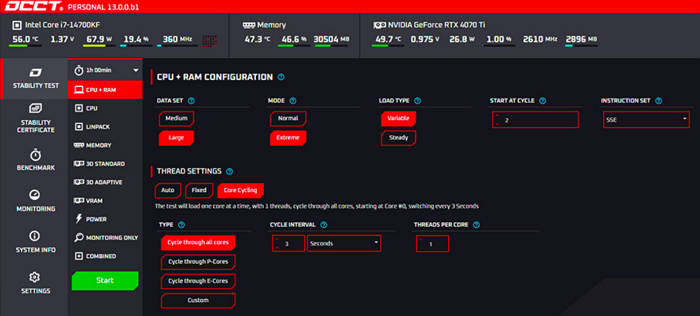
1. Download a stress-testing tool like OCCT
2. Open OCCT, Select Stability Test, which will simultaneously load CPU + RAM
3. Run the test for 10–15 minutes
4. Observe system behavior. If it shows a strong PSU issue indicator, instantly restart your computer. Shutdown without warning means power protection was triggered.
5. Monitor voltage stability.
Fix 2. Disable All Overclocking (Return to Baseline Stability)
Overclocking, manual or automatic, can introduce subtle instability that only appears under real-world gaming loads. Even if your system passes benchmarks, it may still fail during certain game engines or power spikes. Resetting to stock settings helps isolate whether instability is configuration-related.
When to use:
- You have any form of overclock enabled
- Restarts happen inconsistently across games
- System was stable before tweaking BIOS settings
- High-end CPU/GPU with aggressive boost behavior
How to do it:
1. Restart your PC and enter BIOS/UEFI
2. Locate and select Load Optimized Defaults (or similar)
3. Disable the following:
- CPU overclock / PBO (Precision Boost Overdrive)
- XMP / EXPO (RAM profiles)
- GPU overclock (via software like Afterburner)
4. Save changes and reboot
5. Launch the same game and test stability
Fix 3. Improve Cooling Efficiency (Thermal Stability Fix)
Monitoring temperatures is not enough, you need to actively reduce thermal load. Many systems hit thermal thresholds during gaming and trigger automatic restarts as a protection mechanism. This fix focuses on improving actual cooling performance, not just observing it.
When to use:
- Restarts happen after 10–30 minutes of gaming
- Fans are loud or airflow feels weak
- High ambient temperature environment
- Laptop or compact PC builds
How to do it:
1. Install monitoring tools HWMonitor / MSI Afterburner
2. Check temperatures while gaming:
- CPU > 90°C – overheating risk
- GPU > 85°C – potential instability
3. Physically clean your PC. Remove dust from fans, heatsinks, PSU intake
4. Reapply thermal paste (CPU):
5. Adjust fan curves by entering BIOS and increasing fan speed under load
Fix 4. Roll Back to a Stable GPU Driver
Not all driver updates are stable. In fact, many Reddit users report that new GPU drivers introduce crashes or computer restarts after shutdown, especially in newly released games. Rolling back to a known stable version often resolves unexplained restarts.
When to use:
- Issue started after updating GPU driver
- Restarts occur in specific games only
- No hardware changes were made
- GPU temperatures and PSU are normal
How to do it:
1. Download DDU (Display Driver Uninstaller)
3. Run DDU, select GPU, then Clean and restart
4. Install an older driver version and disable automatic driver update(Windows Update > Advanced settings)
Fix 5. Test RAM Stability (Hidden Crash Trigger)
RAM instability often causes instant restarts without any error message, making it one of the hardest issues to diagnose. This is especially common with high-frequency RAM or XMP profiles.
When to use:
- Random restarts with no clear pattern
- System recently upgraded with new RAM
- Using mixed RAM kits or high-speed memory
- Crashes occur outside gaming occasionally
How to do it:
1. Create a bootable USB with MemTest86
2. Boot into MemTest86
3. Run at least 2 full passes
4. Check results. Any error indicates RAM instability
5. If errors occur, disable XMP in BIOS, and lower RAM frequency manually.
6. Test again until stable
Fix 6. Reseat and Verify Hardware Connections
Loose or poorly seated components can interrupt power delivery under load. This is often overlooked but surprisingly common, especially after moving or upgrading a PC.
When to use:
- Issue started after moving the PC
- Random restarts without pattern
- PC sometimes fails to boot properly
- GPU or PSU was recently installed
How to do it:
1. Power off and unplug your PC
2. Open the case
3. Reseat components > remove and reinstall GPU > reinsert RAM sticks
4. Check all cables:
- CPU power cable (8-pin)
- GPU power cables
- Motherboard 24-pin connector
5. Ensure cables are fully inserted and secure
6. Plug into a stable wall outlet (avoid loose power strips)
Fix 7. Disable Automatic Restart to Capture Errors
By default, Windows restarts immediately after a crash, hiding valuable error information. Disabling this feature allows you to see BSOD codes, which can point directly to the root cause.
When to use:
- PC restarts instantly with no error message
- You need deeper troubleshooting
How to do it:
1. Open Control Panel
2. Go to System > Advanced system settings
3. Under Startup and Recover > click Settings
4. Uncheck Automatically restart
5. Apply and restart PC
Fix 8. Reduce System Load to Isolate the Problem
Instead of fixing blindly, you can reduce system demand to identify which component is failing. This method helps confirm whether the issue is tied to GPU, PSU, or thermals.
When to use:
- Restarts happen in high-end or demanding games
- System is mid-range or older
- You suspect GPU or PSU limitations
- Want quick confirmation before upgrading hardware
How to do it:
1. Launch the problematic game.
2. Lower graphics settings, set resolution (4K – 1080p), and disable ray tracing.
3. Limit FPS, use in-game cap or NVIDIA/AMD control panel (e.g., 60 FPS)
4. Play for 20–30 minutes and observe.
- Stable – hardware limitation issue
- Still crashes – deeper system issue
Advanced Diagnosis
If the issue persists:
1. Swap PSU, borrow or test with a higher-quality unit.
2. Check Event Viewer. Look for Kernel-Power 41 and LiveKernelEvent.
3. Test Components Individually, including GPU swap, RAM single-stick test, and motherboard inspection
Real User Summary
| Root Cause | Frequency |
| PSU failure / instability | ⭐⭐⭐⭐⭐ |
| Overclock instability | ⭐⭐⭐⭐ |
| Overheating | ⭐⭐⭐⭐ |
| RAM issues | ⭐⭐⭐ |
| Drivers / software | ⭐⭐ |
How to Prevent Computer Restart While Playing Games
Preventing random restarts during gaming comes down to maintaining system stability under sustained load, rather than reacting after failures occur.
The most critical factor is using a reliable power supply with sufficient headroom, ideally an 80+ Gold unit or better from a reputable manufacturer, so it can handle GPU power spikes without triggering protection shutdowns.
Alongside that, avoid pushing your hardware beyond stable limits; aggressive overclocking or even default “auto-boost” features can introduce instability that only appears during real gameplay.
Thermal management is equally important: keep your system clean, ensure proper airflow, and periodically replace thermal paste to prevent overheating under load.
Finally, take a conservative approach to updates. Install GPU drivers selectively rather than immediately adopting the latest version, as newer releases can sometimes introduce instability in specific games or configurations.
Final Takeaway
If your computer restarts when playing games, the issue is rarely random, it’s typically a sign that your system cannot maintain stability under peak load. In most cases, the root cause comes down to three areas: power delivery (PSU), system stability (overclocking or RAM), and thermal conditions.
Instead of trying scattered fixes, the most effective approach is to diagnose methodically. Start by validating your PSU, then eliminate unstable configurations, and finally address cooling efficiency. Once these core factors are under control, the majority of restart issues can be resolved or prevented entirely.