If your Windows PC keeps restarting after shutdown, you’re not alone. It’s really frustrating, wastes time, and can even risk data loss or hardware wear. What makes this issue even more frustrating is that it often seems easy to fix—but it isn’t. Many users try multiple solutions, only to find the problem either persists or comes back after a while.
Based on real user experiences from forums and verified solutions, this guide breaks down all possible causes and fixes, ranked by what actually works most often, so you can finally shut down your Windows 11 or 10 computer for good.
Quick Fixes for Computer Restarting After Shutdown
If your computer restarts after shutdown, you probably don’t want to start complex troubleshooting right away. The fixes below are the most effective solutions reported by users and also recommended by Microsoft and major PC brands. Try them first—many users fix the issue in just a few minutes.
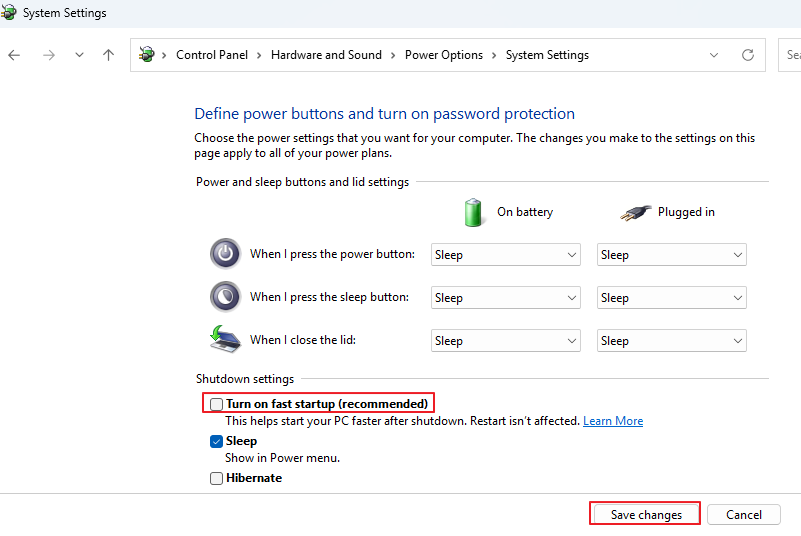
1. Turn Off Fast Startup (Most Effective)
Best for: PCs that restart immediately after clicking “Shut down”. This may also work if your Windows update stuck on restarting.
How to fix:
- Go to Control Panel < Hardware and Sound < Power Options
- Click Choose what the power buttons do
- Select Change settings that are currently unavailable
- Uncheck Turn on fast startup (recommended) → Save changes
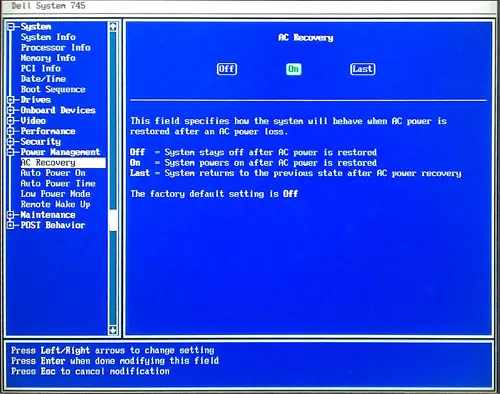
2. Check BIOS/UEFI Power Settings
Best for: Desktop PCs or branded laptops that turn back on automatically
What to look for (names vary by brand):
- Dell: AC Recovery
- HP: After Power Loss
- Lenovo: Power On with AC Attach
How to fix:
- Enter BIOS (press F2 / DEL during startup)
- Disable any Power On / Wake / AC Recovery options
- Set behavior to Stay Off
3. Disable Wake Devices (Mouse, Keyboard, Network)
Best for: PCs that turn back on a few seconds after shutdown
How to fix:
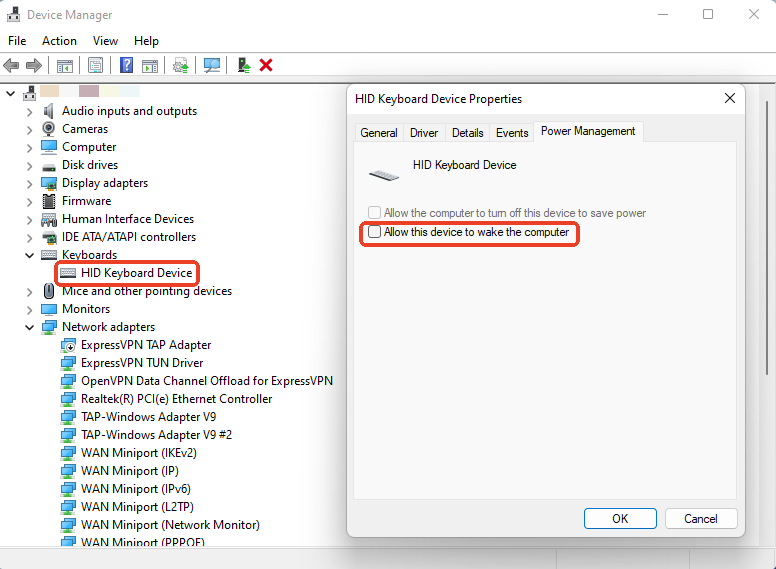
- Open Device Manager
- Expand Keyboards, Mice, and Network adapters
- Right-click each device → Properties → Power Management
- Uncheck Allow this device to wake the computer
4. Force a Full Shutdown via Command
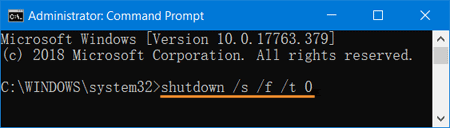
Best for: When normal shutdown behaves like a restart
How to use: shutdown /s /f /t 0
5. Disable Automatic Restart After System Failure
Best for: Systems that may be crashing instead of shutting down
How to fix:
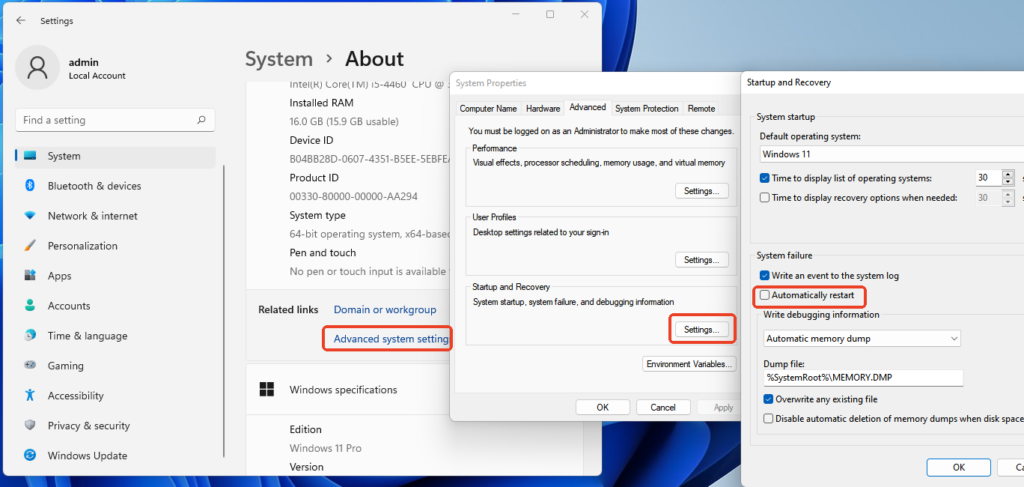
- Right-click This PC → Properties
- Go to Advanced system settings
- Under Startup and Recovery, click Settings
- Uncheck Automatically restart
👉 If your issue is fixed, you’re done.
👉 If not, follow the step-by-step troubleshooting guide below to find the exact cause.
Why Does My Computer Restart After Shutdown?
If the quick fixes didn’t solve the problem, it helps to understand what’s actually causing your computer to turn back on. In most cases, this isn’t a serious hardware failure—it’s usually a mix of Windows settings, firmware behavior, or external devices triggering a restart.
Here are the most common causes, explained in simple terms:
1. Fast Startup (Hybrid Shutdown)
Windows doesn’t fully shut down your PC: instead, it saves the system state to boot faster next time. This feature, recommended by Microsoft, can sometimes behave like a restart instead of a true shutdown.
2. BIOS/UEFI Power Settings
Your computer’s firmware may be set to automatically power on after shutdown or power changes. This is common in systems from Dell, HP, and Lenovo, where options like AC Recovery or Power On with AC are enabled by default.
3. Wake Devices (Mouse, Keyboard, Network)
Some devices are allowed to “wake” your computer. Even after a shutdown, slight input, like moving your mouse or network activity, can turn it back on.
4. System Errors or Automatic Restart Settings
If Windows encounters a hidden error during shutdown, it may automatically reboot instead of turning off completely.
5. Windows Updates or Background Tasks
Pending updates or system processes may interrupt shutdown and trigger a restart to complete installation.
6. Driver or BIOS Issues
Outdated or incompatible drivers (especially chipset or graphics drivers) can interfere with normal shutdown behavior. In some cases, BIOS bugs can also cause unexpected restarts.
7. Hardware or Power-Related Problems (Less Common)
Faulty power supplies, unstable connections, or motherboard issues can sometimes mimic restart behavior—but this is far less common than software-related causes.
How to Fix Computer Restarts After Shutdown
If the quick fixes didn’t work, your issue likely requires a more targeted approach. Instead of trying random solutions, follow the structured steps below. Each step helps you identify the cause and apply the right fix, avoiding unnecessary changes.
👉 Tip: If one fix works, you don’t need to try the rest. If none of these solve the issue, move on to the deeper troubleshooting steps below.
Fix 1: Perform a Clean Shutdown Test
Before changing system settings, first check whether your PC can shut down properly using a forced command. This helps determine if the issue is related to Windows features or something deeper.
How to do it:
- Press Windows + R to open the Run dialog
- Type the command below and press Enter: shutdown /s /f /t 0
What to expect:
- If your PC stays off → the issue is likely caused by Windows features (go to Fix 2)
- If your PC still restarts → move to Fix 3
Fix 2: Disable Fast Startup
Fast Startup is one of the most common causes of this issue, as confirmed by Microsoft. It doesn’t fully shut down your PC, which can cause a restart.
How to do it:
- Search for the Control Panel and open it
- Go to Hardware and Sound → Power Options
- Click Choose what the power buttons do
- Click Change settings that are currently unavailable
- Uncheck Turn on fast startup (recommended)
- Click Save changes
What to expect:
- Try shutting down again
- If fixed → you’re done
- If not → continue to Fix 3
Fix 3: Check BIOS/UEFI Power Settings
If your PC powers back on automatically, BIOS settings may be forcing it to turn on after a shutdown or a power change.
How to do it:
- Restart your computer
- Press F2 / DEL / ESC repeatedly to enter BIOS
- Look for power-related settings such as:
- AC Recovery (Dell)
- After Power Loss (HP)
- Power On with AC Attach (Lenovo)
- Set these options to Off or Stay Off
- Save and exit BIOS
What to expect:
- Shut down your PC again to test
- If the issue persists → go to Fix 4
Fix 4: Disable Devices That Can Wake Your PC
Some hardware devices can send signals that turn your PC back on, even after a shutdown.
How to do it:
- Right-click Start → select Device Manager
- Expand:
- Mice and other pointing devices
- Keyboards
- Network adapters
- For each device:
- Right-click → Properties
- Go to Power Management tab
- Uncheck Allow this device to wake the computer
- Click OK and repeat for other devices
What to expect:
- Shut down your PC again
- If still not fixed → continue
Fix 5: Check for Windows Updates
If your system is outdated, bugs or incomplete updates may interfere with the shutdown process.
Best for:
- The issue started recently
- Your system hasn’t been updated for a long time
- You see update-related activity during shutdown
How to do it:
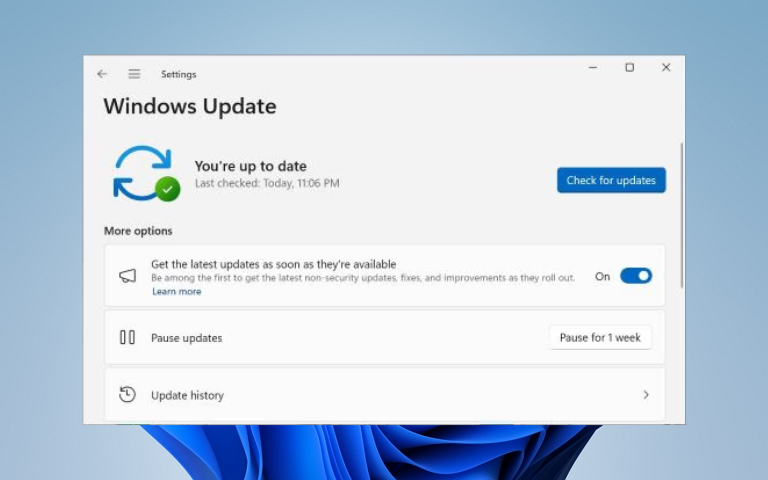
- Press Windows + I to open Settings
- Go to Windows Update
- Click Check for updates
- Install all available updates
- Restart your PC and test shutdown again
What to expect:
- If the issue is resolved → it was likely a system bug
- If not → continue to the next step
👉 Note: While updates can fix bugs, some users report the issue starting after an update. If that’s your case, consider rolling back updates or drivers.
Fix 6: Check for System Errors (Event Viewer)
Sometimes your PC isn’t restarting—it’s actually crashing and rebooting automatically.
Best for:
- Random or inconsistent behavior
- No clear trigger for the restart
How to do it:
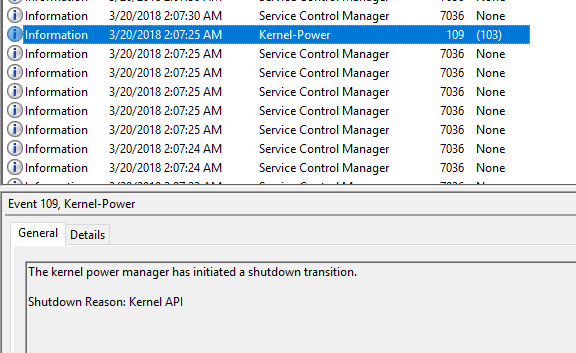
- Press Windows + X → select Event Viewer
- Go to Windows Logs → System
- Look for errors such as:
- Kernel-Power
- Unexpected shutdown
What to expect:
- Frequent errors → likely driver or system issue
- Move to fix 7
Fix 7: Update or Roll Back Drivers
Driver conflicts, especially with chipset or network drivers, can interfere with shutdown behavior.
Best for:
- The issue started after a driver update
- Errors found in Event Viewer
How to do it:
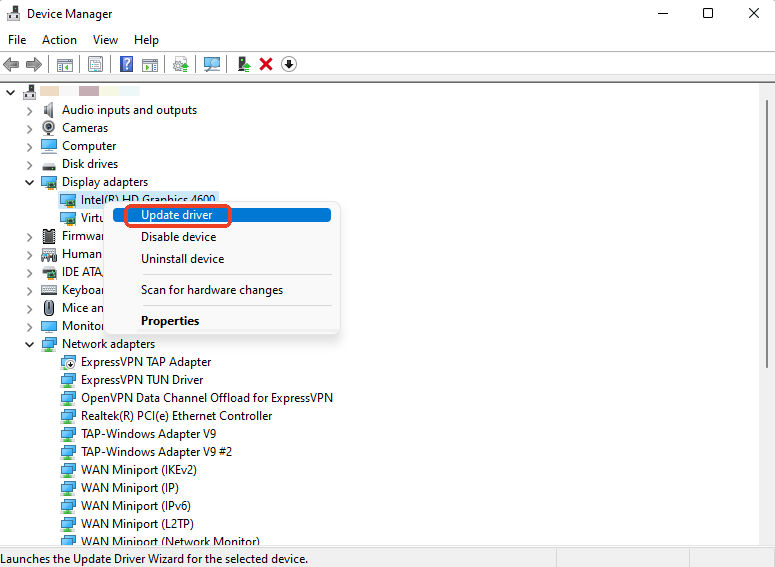
- Open Device Manager
- Focus on:
- Display adapters
- Network adapters
- System devices
- Right-click a device → choose:
- Update driver, or
- Roll Back Driver (if available)
What to expect:
- Restart your PC and test the shutdown
- If still not fixed → continue
Fix 8: Disconnect External Devices
External hardware can sometimes trigger power signals that cause your PC to restart.
Best for:
- The issue started after connecting new devices
- Using USB hubs, docking stations, or multiple monitors
How to do it:
- Disconnect all non-essential devices:
- USB drives
- External monitors
- Docking stations
- Leave only the keyboard and mouse connected
- Shut down your PC again
What to expect:
- If the issue stops → reconnect devices one by one to find the cause
- If not → move to the final approach
Fix 9: Update BIOS or Check Hardware (Advanced)
If none of the above solutions work, the issue may be related to firmware bugs or hardware problems.
Best for:
- Persistent issue after all software fixes
- Older systems or recently updated BIOS
How to do it:
- Visit your manufacturer’s support page:
- Dell
- HP
- Lenovo
- Download and install the latest BIOS update
- Follow official instructions carefully
📚For example: Dell BIOS and UEFI Update Download and Installation Guide
What to expect:
- If fixed → firmware was the cause
- If not → consider checking the power supply or motherboard
💡In rare cases where the issue persists despite all fixes, a temporary workaround, such as disconnecting power, may stop the restart—but it’s not a long-term solution.
Conclusion
If your computer restarts after shutdown, the key is not to try every fix blindly but to identify the pattern behind the behavior. In most cases, the issue comes down to system settings rather than hardware failure, which means it’s usually fixable with the right approach.
Start with the most common triggers, like Fast Startup or wake-on-device, then move into deeper checks, such as BIOS settings, updates, and drivers. Following a structured process not only saves time but also helps you avoid unnecessary changes that could create new issues.
If you’ve gone through all the steps and the problem still persists, it may be worth checking for firmware updates or hardware-related causes. Otherwise, keeping your system updated and your power settings properly configured will prevent this issue from recurring.