I have already reviewed the Free Stellar Data Recovery Software. The free version has a 1GB data recovery limit. In contrast, the professional version offers unlimited recovery with the same other features. The Professional version lets you create image files of your drives, so you can recover them if needed. However, this isn’t your regular backup; it’s a recovery point, just in case you need it.
Another option you get with this paid version is the ability to recover a non-booting PC. The software will create a recovery media for you, which you can use to recover the data if your computer fails for any reason. However, for pure data recovery, you get only the unlimited recovery cap. Most of the other features are the same as the Free variant.
So, I am going to test this software thoroughly using different file and drive types. I will simulate various scenarios to assess the software’s efficacy and determine its value for the price. By the way, the Professional variant is the first paid plan with the fewest features but the lowest price. By the time you read this article, it will be available for $89.99. The Professional and Premium plans offer significantly better value for money, with features such as partition recovery. However, I will focus on reviewing the data recovery capabilities, which I believe will be the same across all these paid plans. So, let’s get started.
Key Features of Stellar Data Recovery (Professional)
Comprehensive Data Recovery: Recovers files, folders, documents, emails, photos, audio, and videos from hard drives, SSDs, USB drives, SD cards, and optical media (CDs, DVDs, Blu-ray).
Advanced Scan Modes:
- Quick Scan: Rapid recovery of recently deleted files.
- Deep Scan: Thorough scan for recovering data from formatted, corrupted, or RAW drives.
File Preview: Allows users to preview recoverable files before restoration.
Drive Monitoring: Includes a utility to monitor drive health, temperature, and performance.
Disk Imaging: Create sector-based disk images.
BitLocker Recovery: Recovers data from BitLocker-encrypted drives.
Bootable Media: Create a bootable USB drive to recover data from non-bootable systems.
Test Setup
For this test, I am using three drives. One is my internal Gen 3.0 NVMe SSD, a USB 2.0 Flash drive, and a 2.5″ 5200 RPM hard drive. I will first securely erase all of them and confirm the deletion using a Hex editor. I securely erase the drives each time for testing, to ensure I properly check the recovery accuracy. A previously used drive, when used for these tests, may contain old data, making it harder to verify the recovered folders.
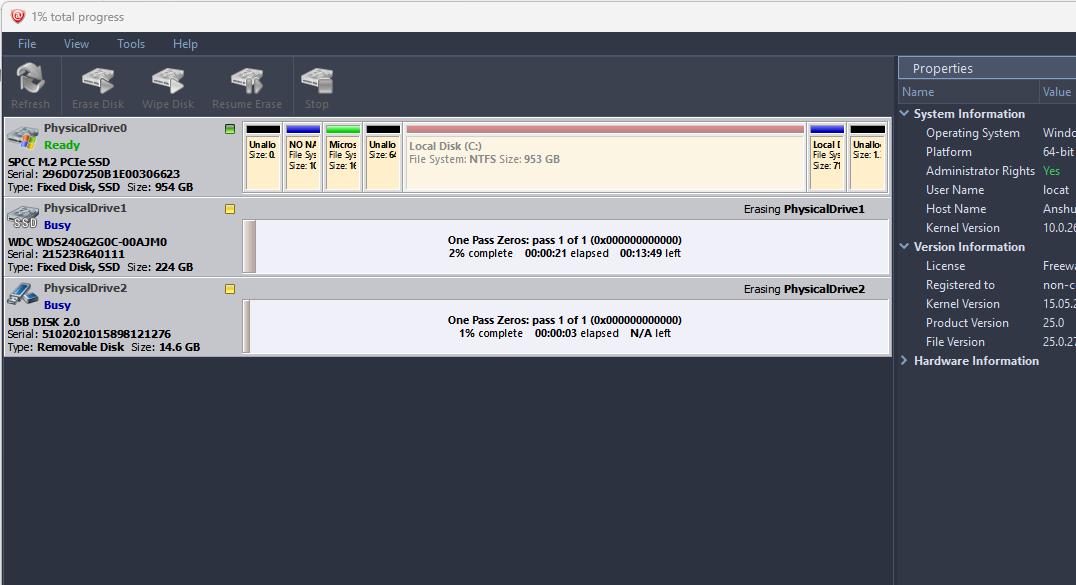
For this test, the test folder contains approximately 270GB of various file types, including images, videos, text files, PDFs, and audio files.
For verifying the recovered files, I would employ both manual and software methods. I will compare the hash and checksum data of the files. However, the test files will be small, allowing us to detect any irregularities in the recovery easily. So, without any further delays, let’s get started.
A Disclaimer
Since SSDs don’t immediately clear data after the recycle bin is emptied or the drive is formatted, the recovery process depends heavily on whether the data is physically erased from the memory cells. The SSDs come with the TRIM function, which helps garbage collection clear deleted data physically over time. Until then, it will be marked as deleted, but it will remain physically present in your drive. The recovery software can restore data marked for deletion, but not if it has been overwritten. If these commands have already been run, your data may be permanently lost and unrecoverable. If you have accidentally deleted data, it is best not to use the drive or unplug it immediately to increase the chances of recovery.
Scenario 1: Accidentally Deleted Files
Using the program is pretty simple. You can either select the specific type of data you want to recover or proceed with a complete scan of any drive of your choice. All the options are given in the left sidebar.
For this test, I moved the test data folder to my internal SSD and deleted it later. The folder was manually deleted via Windows Explorer, bypassing file-level protections. The Recycle Bin was subsequently emptied to simulate a true accidental deletion event.
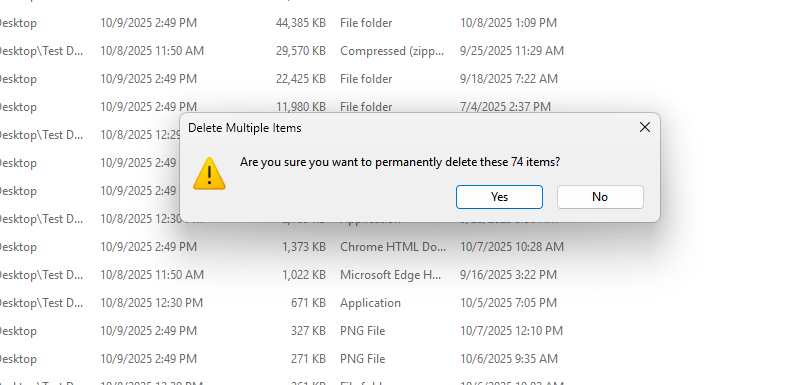
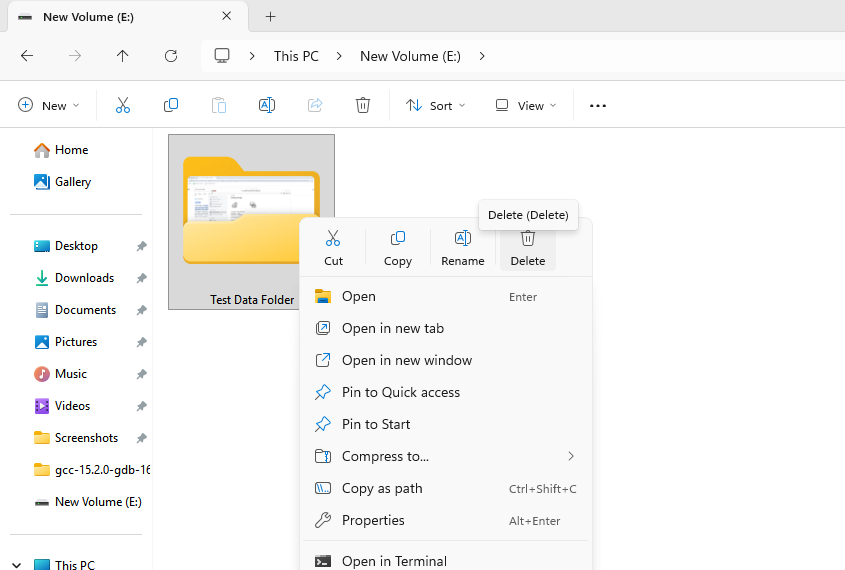
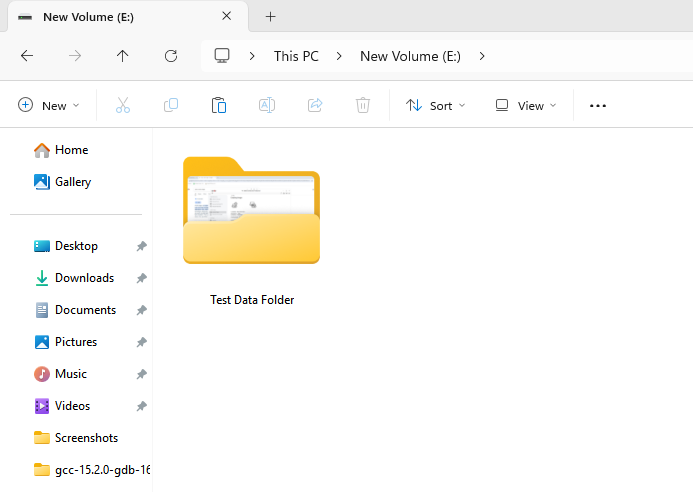
Now, I will run the program and scan the whole drive. I selected the Deep Scan option, which tends to take more time but tests the drive thoroughly.
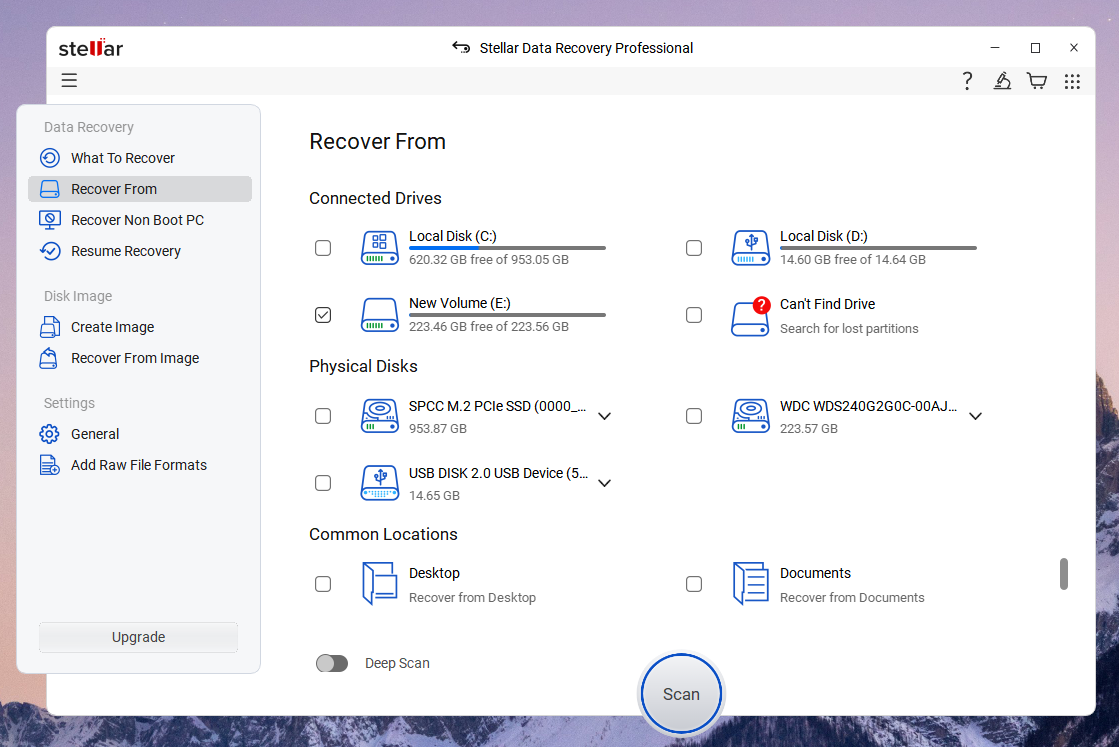
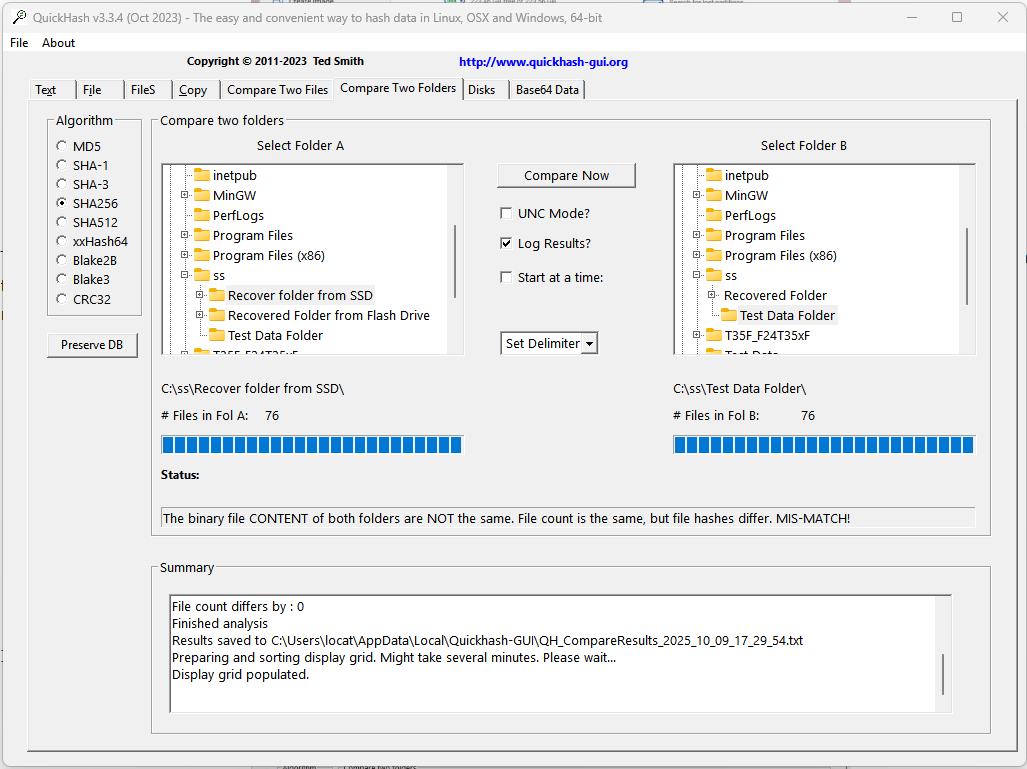
The scan took around 10 minutes to complete, and I was able to see most of the files recovered. So, I collected the files and moved them to a single folder for verification. However, I was surprised to see that the software recovered only the audio and video files, with no images recovered. I reran the Deep Scan, and almost everything was recovered, but with a catch. I opened everything except the pictures, assuming they had been recovered. But when I put the folder into the hash comparison, the hashes did not match. However, the number of files matched.
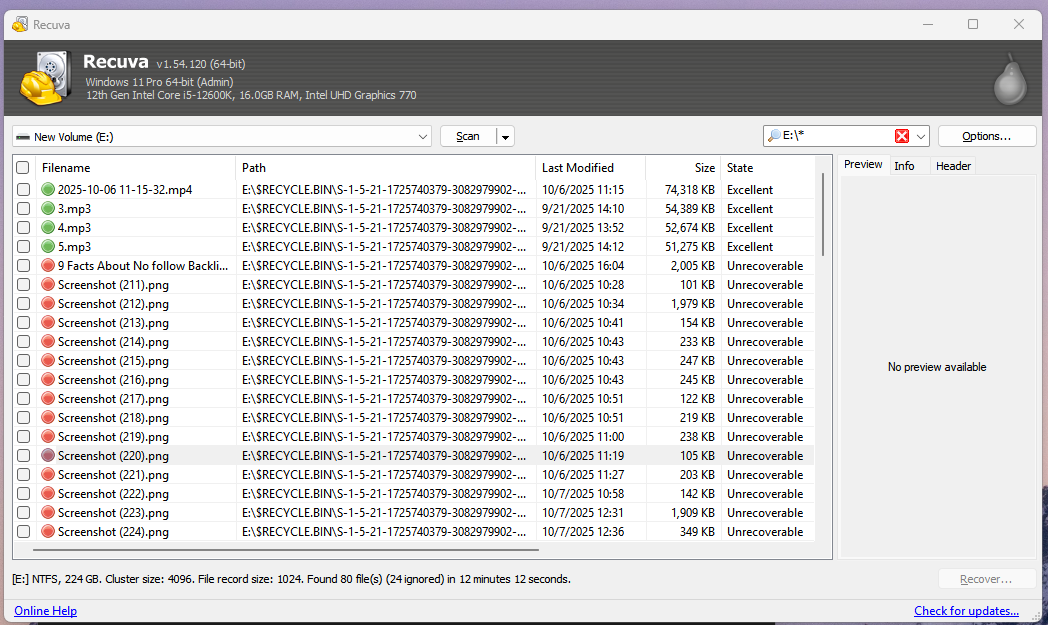
I then went into each file and opened every photograph. It was found that 20 of the photos were corrupted. The file name, format, and size were the same, but I believe it was just the metadata that was recovered. For verification, I ran the same drive through other programs, and the results were the same. See the screenshots from the Recuva program.
So, this was the final recovery result.
| Parameter | Hash Verification | Manual Verification | Checksum Verification |
|---|---|---|---|
| Accidentaly Deleted Data | 74% Recovery | 74% Recovery | 74% Recovery |
| Lost Files | 0 | 0 | 0 |
| Corrupted Files | 20 | 20 | 20 |
Scenario 2: Formatted Flash Drive
A USB 2.0 flash drive (16 GB) was prepared with a single FAT32 partition and loaded with the data. The drive was then formatted using the Windows “Quick Format” option to erase the file system metadata without performing a low-level overwrite.
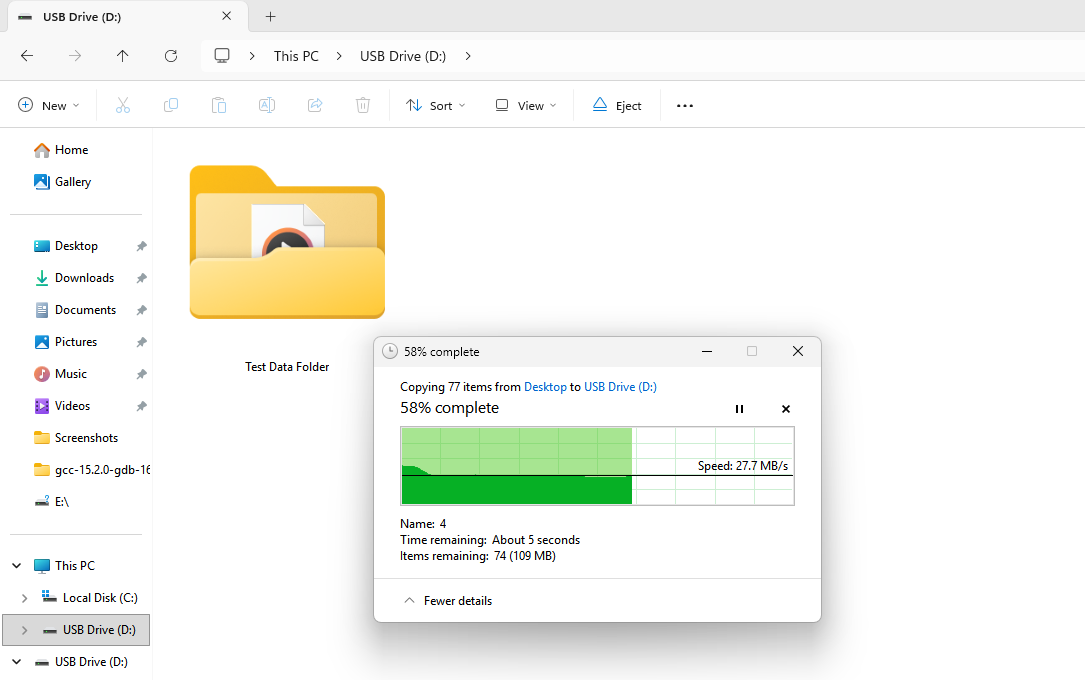
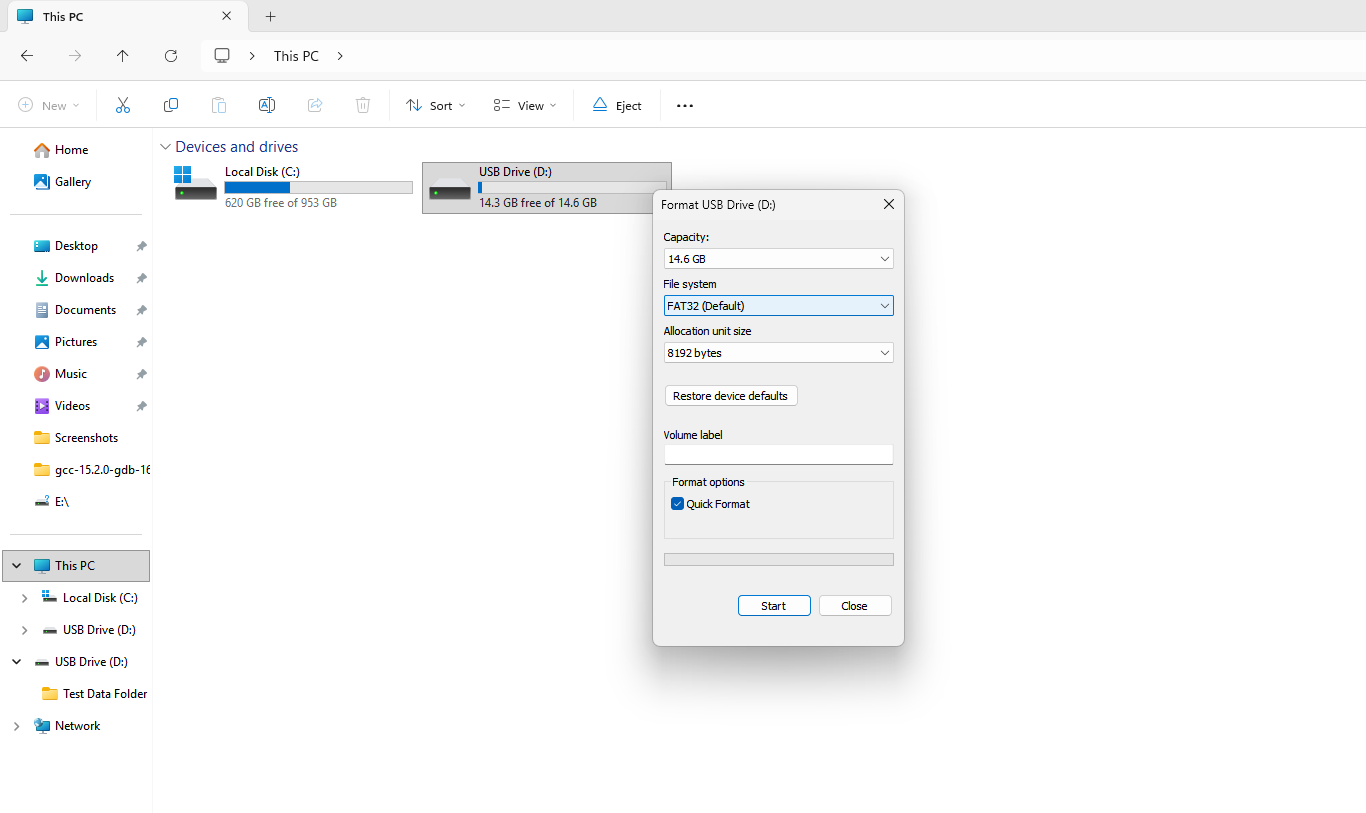
I did this test to test the software’s effectiveness in scanning for recoverable data from flash-based removable storage post-format. I again chose the Deep Scan method and let the software scan it properly. The scan took around 3 minutes to complete and gave me the recovered files separately in their folder. So, I collected them back into a single folder to compare the recovered files with the deleted ones. I also used the hash comparison tool again, along with a manual check. Three files were missing from the recovered folder. The hash comparison also yielded the same result. There were 76 files in the test data folder, but only 73 were recovered.
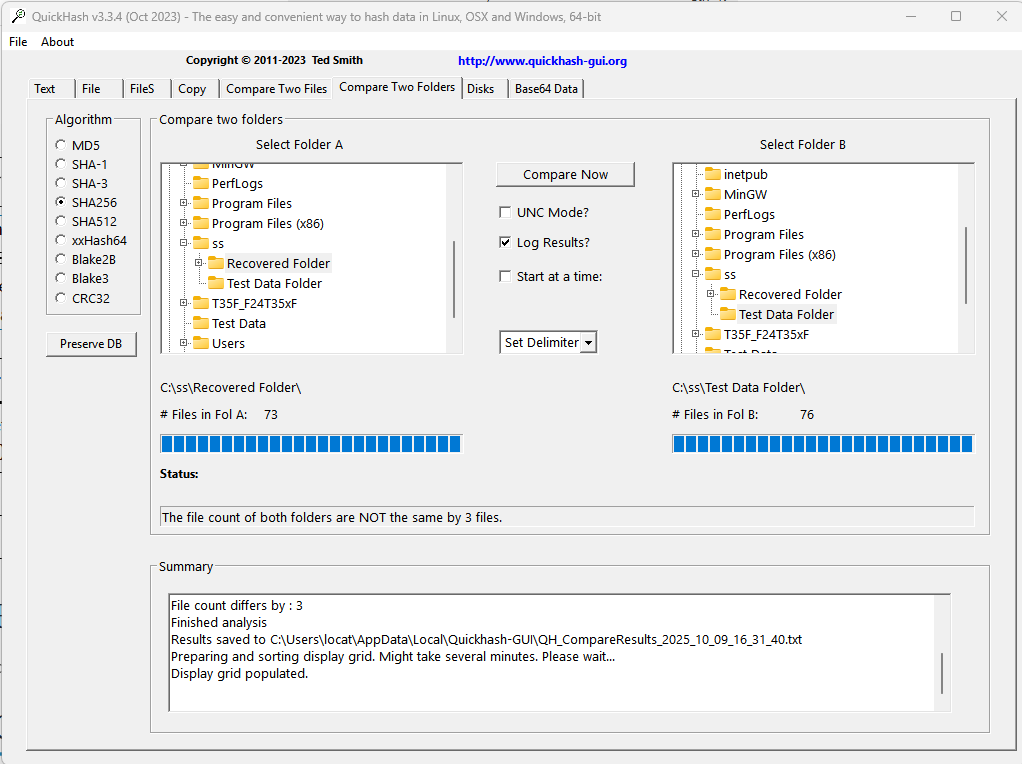
I also checked that all the files were working, including PDFs, images, and video, which opened and played correctly. So, everything was fine. There were no symptoms of file corruption.
| Parameter | Hash Verification | Manual Verification | Checksum Verification |
|---|---|---|---|
| Formatted Flash Drive | 96.05% Recovery | 96.05% Recovery | 96.05% Recovery |
| File Losses | 3 | 3 | 3 |
| Corrupted Files | 0 | 0 | 0 |
Scenario 3: Formatted Hard Drive
I used to store raw photos and video files on my hard drive, but I’ve since moved everything to the cloud. To test the software’s performance with the hard drives, I formatted them all and ran through the recovery process. It is a 1TB hard drive and is very old. So, the scan took a total of two hours to complete.
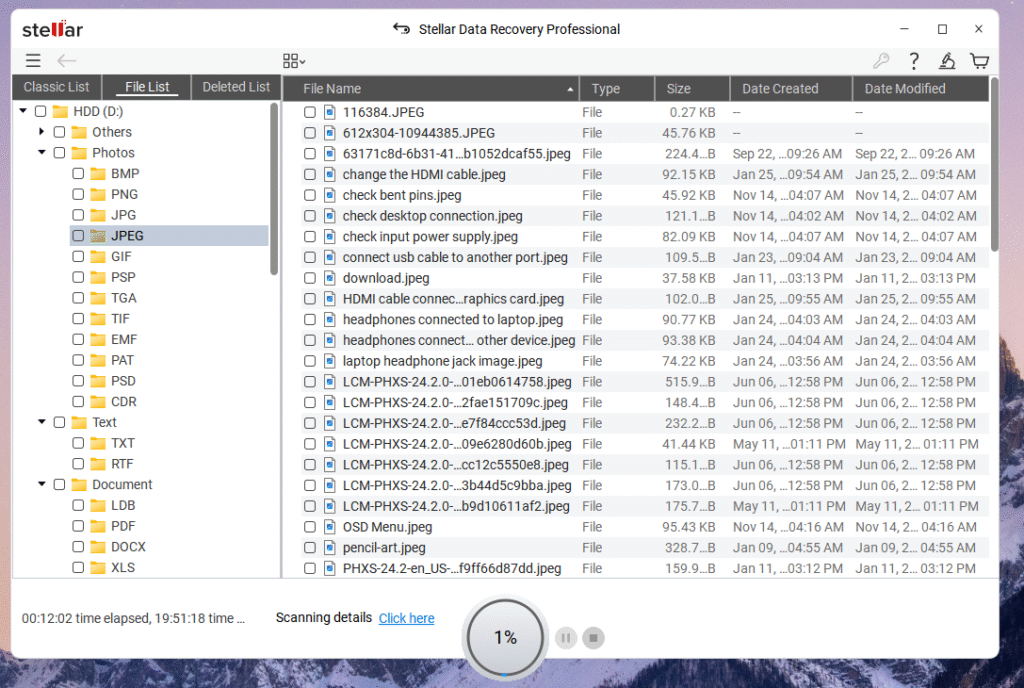
Impressively, all the data got recovered. Data recovery from hard drives is much more effective than from flash-based drives. Because there is no active garbage collection or TRIM algorithms running in the background, the deleted data mostly remains intact, allowing us to recover it when required easily. The same happened in this case, and I was able to recover everything.
Scenario 4: Corrupted Partition
A 500 GB HDD partition was intentionally corrupted to test recovery capabilities from damaged file systems. This was achieved by using a hex editor to alter sections of the partition table and MFT (Master File Table), rendering the partition unreadable by Windows. The drive appeared as “RAW” in Disk Management, preventing standard access. The scenario simulates logical corruption where partition information or file system structure is compromised while the underlying data remains intact.
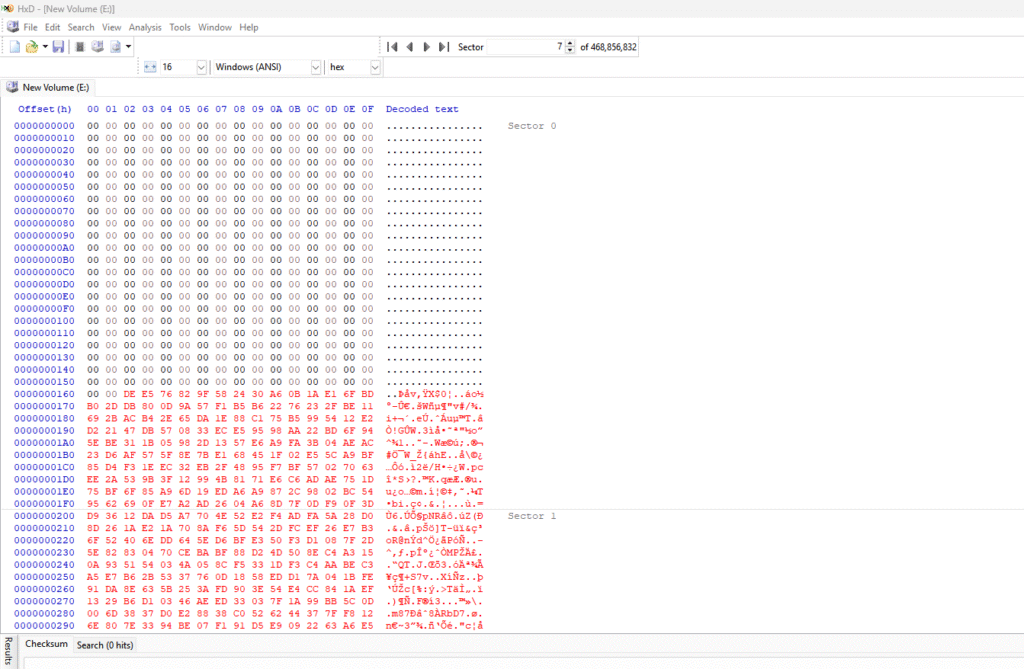
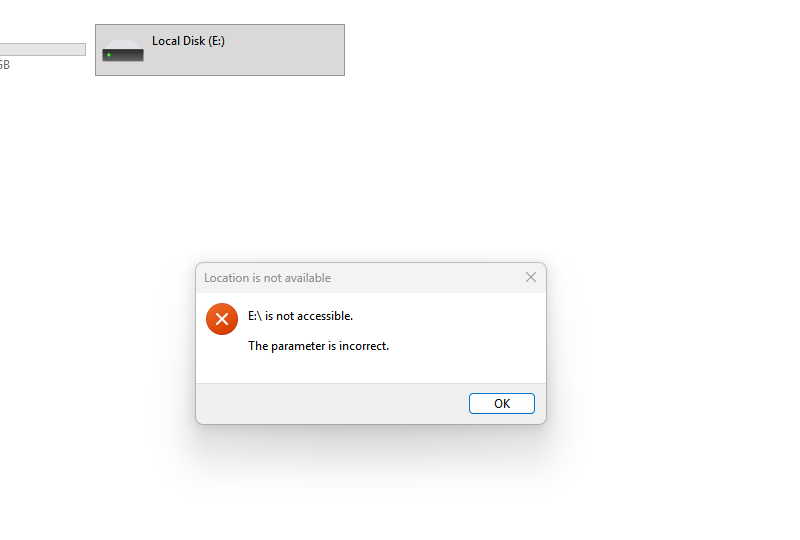
Now, when I open this drive, I get an error message: “The parameter is incorrect.”
Surprisingly, I can see the drive in Stellar’s main menu without any issues. The deep scan also gets started. It recovered some old files, including those that were there when I corrupted its partitions. But, again, the images were not recoverable. Only the text files and PDFs were opening; the pictures and videos only displayed thumbnails and file information. No real visual data was recovered. I had to format the entire drive to get it running again.
Resource Usage
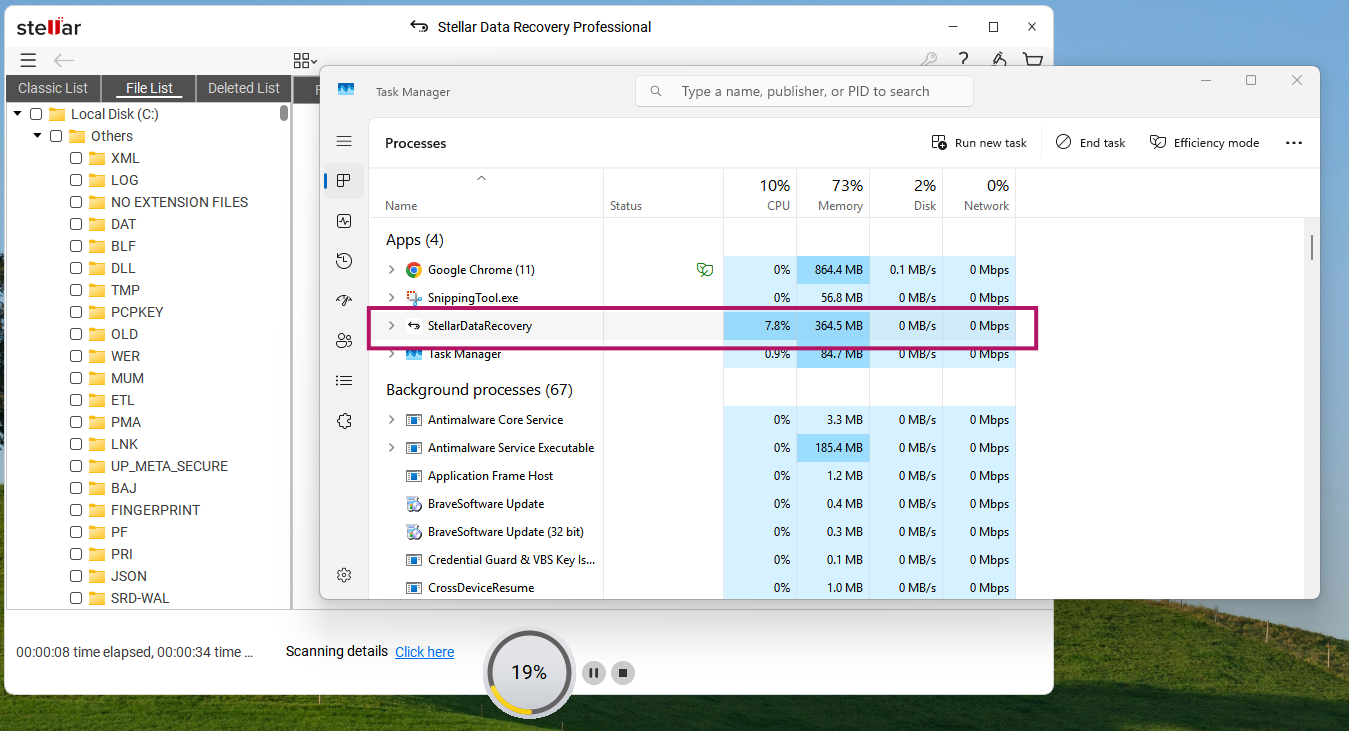
In the deep scans, this software can become a little resource hungry, using a lot more RAM than it generally does in the regular scans. My system has a 12600K CPU with 16GB of DDR5 RAM, and it peaked at 1.5GB of memory usage. However, the average was at around 750MB.
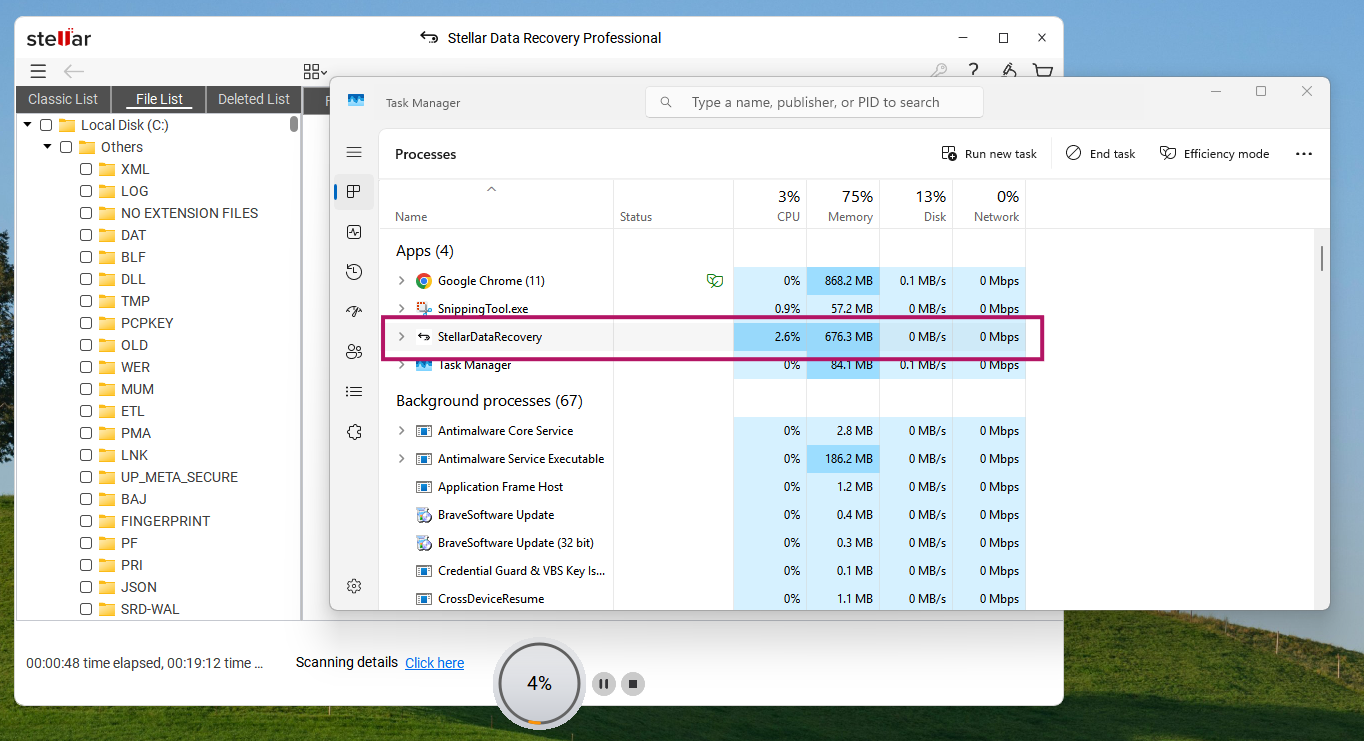
In the regular scans, the RAM usage is comparatively lower.
Creating an Image File
I also attempted to create a recovery drive for my computer’s C drive and then restore it. However, it is a sector-based imaging tool that requires setting a manual sector range to create the image. Now, you don’t know which sector is in use and which isn’t.
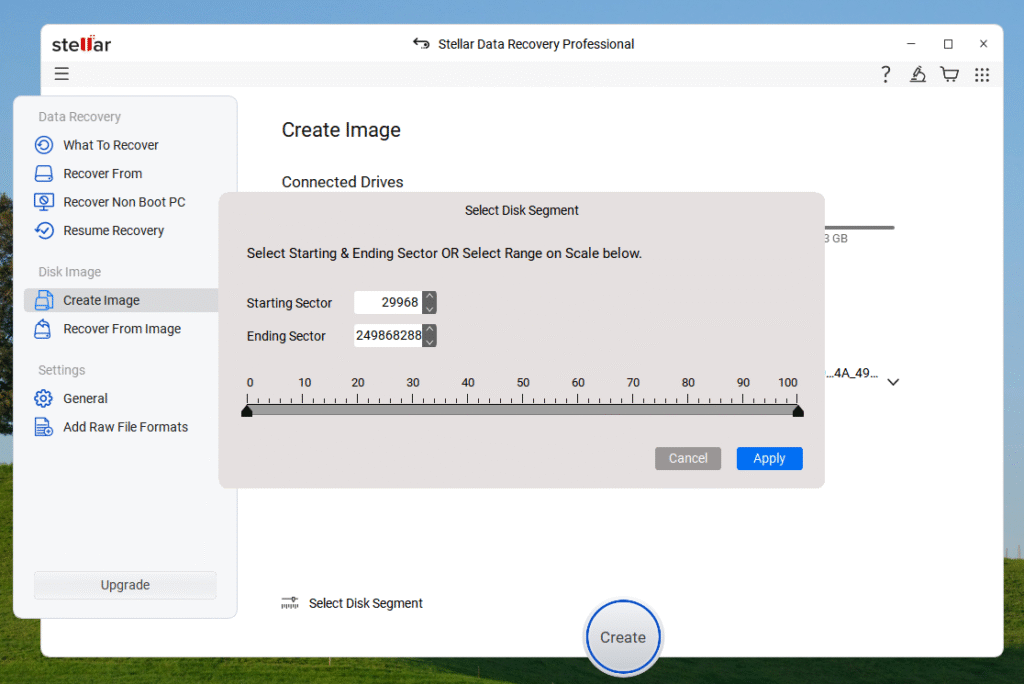
So, it is better to create the image of your entire drive, and for that, you will need the storage drive with the same space as your image drive. However, this seems to be just an additional feature, suitable for creating a full disk image. If you want more control over your image, consider using other dedicated imaging programs.
Creating Recovery Drive
This feature is exclusive to the paid variants. With this recovery drive, you can recover your data from a dead computer. It will basically let you run this program even if there is an issue with the operating system. This way, you can recover your data and do whatever you want with the system later on. This can be particularly helpful when you have created an image file of your system and need to recover your data from it. Recovering data from your main drive or any other drive is possible with this recovery drive. So, it’s a good feature overall, but it should be enabled and used when your system is running smoothly.
Recovery Performance: Goods and Bads
The recovery performance was pretty good across all drive types. Although not everything was recovered in my testing, it still performed well when compared to my experience with other data recovery software. The scanning speed is pretty good, I would say. The deep scans can take longer, but they often yield additional files that we can recover through the regular scans. The imaging feature isn’t beneficial if you only want to create an image file of your entire C drive. I like the recovery drive features, and overall, I would say this is a good data recovery program.
As we discussed above, although some files were properly recovered with all their metadata, they were not functioning correctly. So, the issue of fake recovery is there in some cases. However, most of the scanned data was correctly recovered. There should be an option to assess the recoverability of scanned files, so users can decide whether to invest in paid plans. I recommend reviewing the refund policy before making your purchase.
Final Verdict
If you’re an individual or small business experiencing typical data loss (accidental deletion, formatted partition, corrupted USB drive, non-booting system), Stellar Data Recovery Professional is a sensible choice. It offers a good balance of features, usability, and support compared with free tools.
Stellar Data Recovery Software (Professional)

Works with USB Flash Drives, SSDs, Hard Drive, and Optical Drives. Works well with most kind of data with above average recovery performance.
Price: 89.99
Price Currency: USD
Operating System: Windows
Application Category: Data Recovery
4.49

![5 Best SSD Wipe and Secure Erase Software in 2026 [With Guides]](https://storedbits.com/wp-content/uploads/2025/11/parted-magic-768x404.png)