Affiliate Disclosure: This post may include affiliate links. If you click and make a purchase, I may earn a small commission at no extra cost to you.
If Windows Update is not working, you’re not alone. Many users report issues like updates stuck at a certain percentage, error codes, endless restarting, or the update service not responding at all.
Whether you’re using Windows 11 or Windows 10, this guide will walk you through 8 proven solutions to fix the Windows Update not working issue and get your system back on track.
Why Is Windows Update Not Working?
Before we start fixing it, let’s briefly understand the common reasons behind update failures. Typically, Windows Update not working can be attributed to the following:
Corrupted System Files: Critical update components or system files are missing or damaged.
Windows Update Services Stopped: The background services responsible for updates are accidentally disabled or stuck.
Third-Party Software Conflicts: Antivirus software, firewalls, or VPN programs interfere with the update process.
Corrupted Cache Files: Data in the “SoftwareDistribution” folder, which stores temporary update files, becomes corrupted.
Insufficient Disk Space: The system drive doesn’t have enough space to download and install updates.
Registry Errors: Registry keys related to Windows Update have been incorrectly modified.
Preparation Before Fixing: Back Up Your Data
Before performing any repair operations, especially when dealing with system-level issues, backing up your data is a crucial step. Windows updates can sometimes lead to unexpected problems, causing system boot failures or data loss.
You can use Windows built-in backup tools, like Backup and Restore (Windows 7) or File History. You can also try professional data backup and recovery tools, such as EaseUS Todo Backup, to create a system image or back up important files. This way, even if problems arise during the update process, you can easily restore your system to a normal state.
8 Fixes for Windows Updates Not Working
The good news is that most Windows Update issues are not serious and can be fixed with a few simple troubleshooting steps. In the sections below, we’ll walk you through proven solutions.
Method 1. Restart Your Computer
Before trying complex repairs, start with the simplest method. Sometimes Windows Update fails due to temporary background service conflicts or unfinished update processes. A proper restart can refresh system services and clear minor errors.
- Click the Start button.
- Select Power.
- Click Restart (avoid “Shut down” if Fast Startup is enabled).
After reboot, go to:
- Windows 11: Settings > Windows Update
- Windows 10: Settings > Update & Security > Windows Update
Then, click Check for updates. If updates still don’t work, continue below.
Method 2. Check Internet Connection Stability
Windows Update requires a stable and unrestricted internet connection. Interrupted downloads or unstable Wi-Fi often cause update failures or stuck downloads.
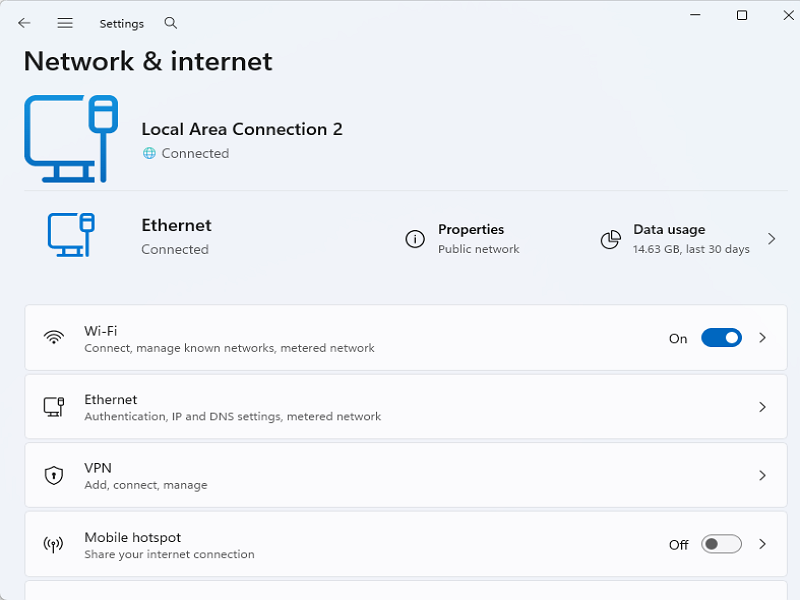
- Press Win + I to open Settings.
- Go to Network & Internet.
- Check your connection status.
If using Wi-Fi:
- Restart your router.
- Move closer to the router.
If your connection is stable, move to the next fix.
Method 3. Run Windows Update Troubleshooter
If basic checks don’t work, use Microsoft’s built-in troubleshooting tool, Windows Update Troubleshooter. It can automatically detect misconfigured services and repair common update-related issues.
On Windows 11:
Step 1. Press Win + I.
Step 2. Go to System > Troubleshoot > Other troubleshooters.
Step 3. Find Windows Update.
Step 4. Click Run.
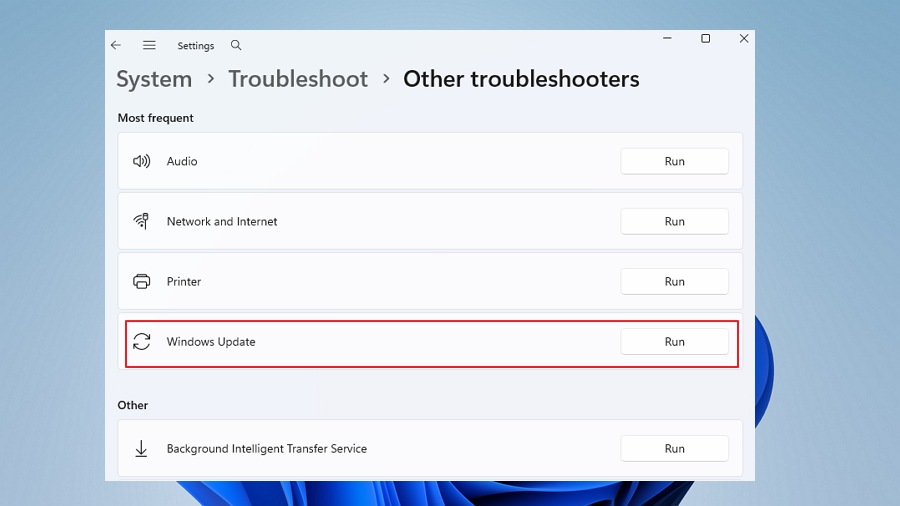
Wait for the scan to complete, then apply any recommended fixes and restart your computer.
On Windows 10:
- Press Win + I.
- Go to Update & Security > Troubleshoot.
- Click Additional troubleshooters.
- Select Windows Update.
- Click Run the troubleshooter.
- Apply fixes and restart.
Method 4. Free Up Disk Space
Windows updates need sufficient storage space to download and install properly. Low disk space often leads to installation failures.
You can free up disk space to fix the Windows not updating error by:
- Deleting temporary files
- Emptying the Recycle Bin
- Using Disk Cleanup
Ensure at least 20GB of free space if possible.
Method 5. Restart Windows Update Services
Sometimes the update service gets stuck or stops responding. Restarting the core services can restore functionality.
Step 1. Press Win + R, type services.msc, and press Enter.
Step 2. Locate these services:
- Windows Update
- Background Intelligent Transfer Service (BITS)
- Cryptographic Services
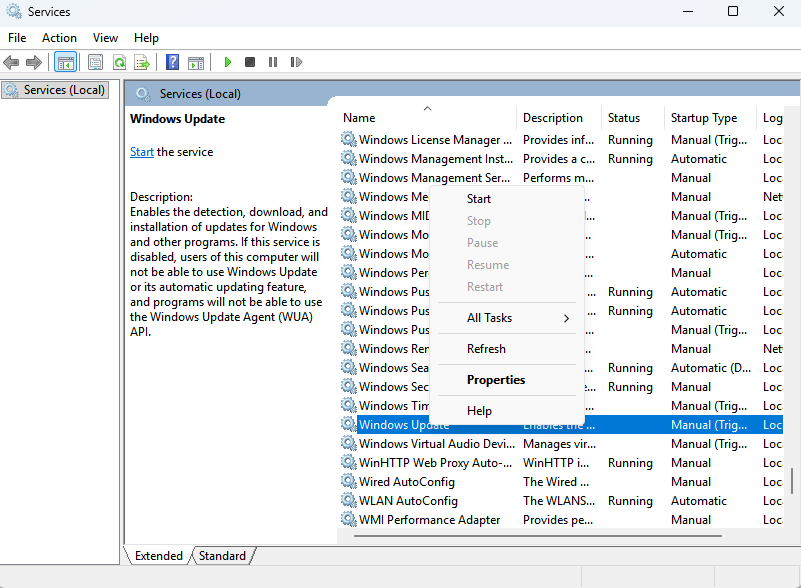
Step 3. For each service:
- Right-click > Select Restart
- If not running, click Start
Step 4. Close the Services window, and restart your PC.
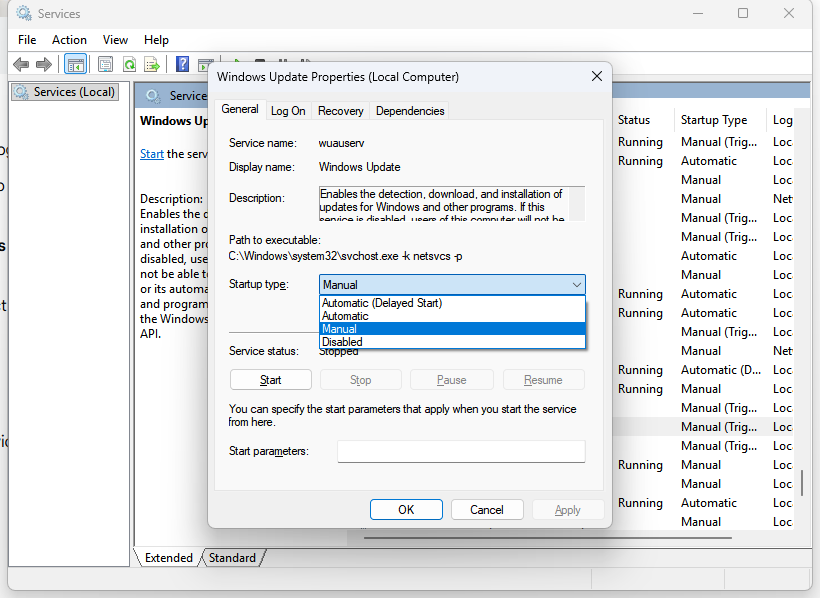
If the service is disabled, right-click it, select Properties, change the “Startup type” to Automatic (or Manual), and click OK.
Method 6. Reset Windows Update Components
If updates are stuck, you can stop the Windows Update services (BITS, CryptSvc, WuAuServ), delete the contents of C:\Windows\SoftwareDistribution, and restart the services. Here is how:
Step 1. Type cmd in the search bar, right-click on “Command Prompt”, and select “Run as administrator”.
Step 2. Enter the following commands one by one, pressing Enter after each line, to stop the services:
- net stop wuauserv
- net stop cryptSvc
- net stop bits
- net stop msiserver
Step 3. Rename (back up) the update cache folders:
- ren C:\Windows\SoftwareDistribution SoftwareDistribution.old
- ren C:\Windows\System32\catroot2 catroot2.old
Step 4. Restart the services that were stopped earlier:
- net start wuauserv
- net start cryptSvc
- net start bits
- net start msiserver
Step 5. Close the command prompt, restart your computer, and check for updates again.
Method 7. Run SFC and DISM Scans to Repair System Files
Corrupted system files are a deep-seated cause of update failures. The System File Checker (SFC) and Deployment Imaging Service and Management (DISM) tools can scan for and repair these corruptions.
Step 1. Open Command Prompt as administrator.
Step 2. Run the SFC command to scan all protected system files:
- sfc /scannow
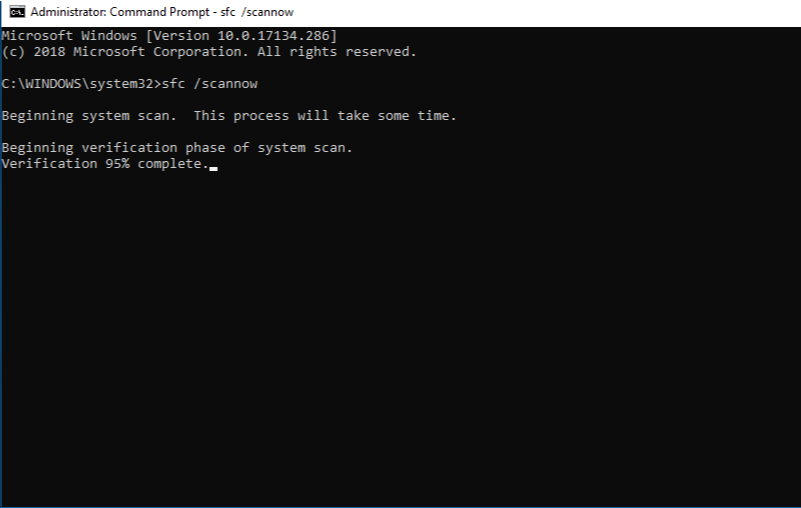
Step 3. Wait for the scan to complete. If SFC doesn’t resolve the issue, run the DISM command to repair the Windows image:
- DISM /Online /Cleanup-Image /RestoreHealth
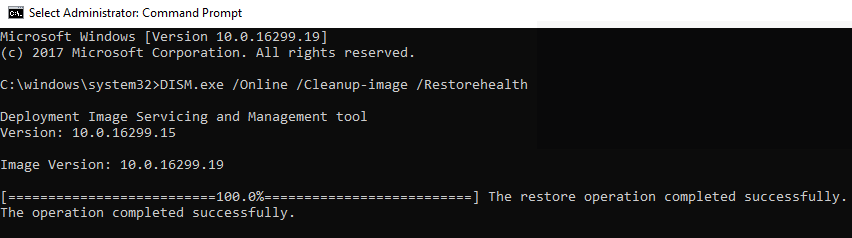
This process may take 15-30 minutes. Please be patient. Once complete, restart your computer and try updating again.
Method 8. Manually Install the Update from Microsoft
If only a specific update (e.g., a particular KB patch) is failing, you can try downloading and installing it manually from the Microsoft Update Catalog.
Step 1. In the “View update history” section of Windows Update, find the failed update and note its KB number.
Step 2. Visit the Microsoft Update Catalog website.
Step 3. Enter the KB number in the search box and find the update package suitable for your system version (32-bit or 64-bit).
Step 4. Download and double-click the .msu file to install it manually.
Conclusion
Windows Update not working is a common issue, but it’s usually one you can solve yourself. By following the order in this article—starting with the simplest, running the troubleshooter and restarting services, then moving to clearing the cache and repairing system files-90% of problems can be resolved. If you still encounter stubborn errors, manually downloading the update or performing an in-place upgrade or clean install are your ultimate weapons.
We hope this guide helps you successfully restore Windows Update functionality, keeping your system secure and running smoothly.