Choosing backup software usually starts with a simple question: which one should I install?
EaseUS Todo Backup and AOMEI Backupper are two of the better-known Windows backup tools, and on paper they look remarkably similar. How about EaseUS Todo Backup vs AOMEI Backupper?
Both can back up files, partitions, disks, and Windows itself. Both support scheduled backups, recovery, and disk cloning. That makes a simple feature checklist less useful than it sounds. The better choice depends largely on what you actually want to do with the software.
Neither is a bad choice for basic Windows backup. The differences become much more interesting when you get into SSD upgrades, system cloning, recovery, and free versus paid features.
Quick answer: EaseUS Todo Backup is the better fit if you want a straightforward backup and recovery experience with cloning and system migration built into the same workflow. AOMEI Backupper makes more sense if you prefer a feature-rich utility with plenty of configuration and synchronization options.
EaseUS Todo Backup vs AOMEI Backupper at a Glance
| Feature | EaseUS Todo Backup | AOMEI Backupper |
|---|---|---|
| File backup | Yes | Yes |
| System backup | Yes | Yes |
| Disk/partition backup | Yes | Yes |
| Full backup | Yes | Yes |
| Incremental backup | Yes | Yes |
| Differential backup | Yes | Yes, Professional version |
| Scheduled backup | Yes | Yes |
| Disk cloning | Yes, Home version | Yes, Standard version for data disks only |
| System cloning | Yes, Home version | Yes, Professional version |
| Bootable recovery | Yes | Yes |
| SSD migration | Yes, Home version | Yes, Professional version |
| Free version | Yes | Yes |
At a basic level, there is very little separating the two. Both are designed to cover the main backup jobs a Windows user is likely to encounter.
The important catch is that “supported” does not always mean “available for free.” Both vendors offer multiple editions, and some features-particularly system cloning and SSD migration-are restricted to paid versions.
What’s the Biggest Difference Between EaseUS Todo Backup and AOMEI Backupper?
The biggest difference between EaseUS Todo Backup and AOMEI Backupper isn’t really about one specific feature. Both can handle the basics, including backup, recovery, scheduling, and cloning. The difference is more noticeable in how each program is set up and used.
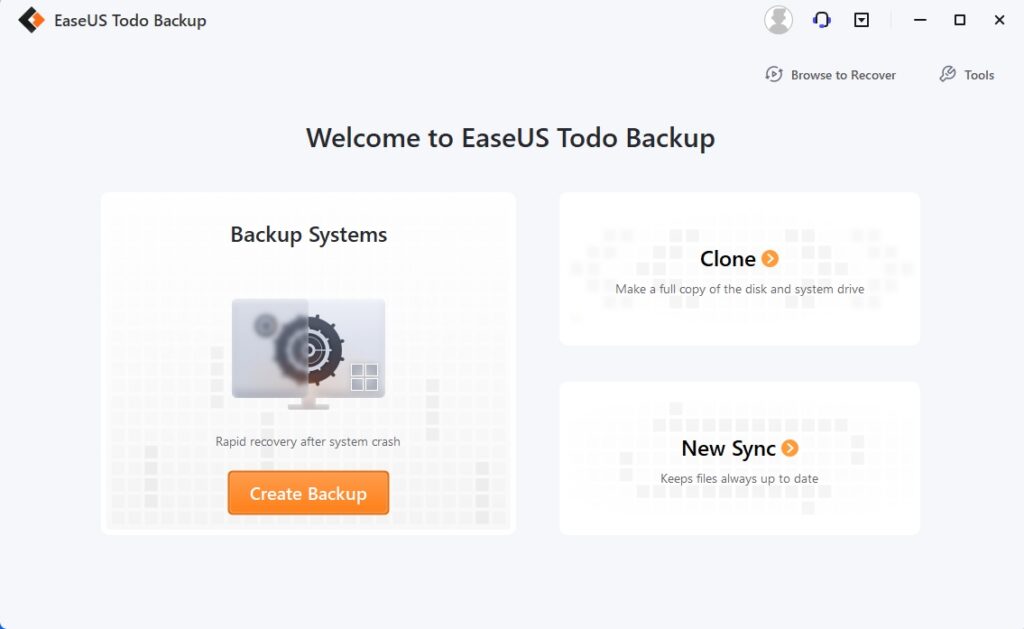
EaseUS Todo Backup keeps things fairly simple. You can use it for file, disk, partition, and system backups, as well as scheduled backups, full, incremental, and differential backups, recovery, sync, and cloning. The main options are easy to find, so you don’t have to dig through too many settings to start a backup or recovery task.
AOMEI Backupper covers much of the same ground, but gives you more ways to configure and manage your backups. It also includes file and folder synchronization, along with cloning and other data management tools. AOMEI offers several editions, including Standard, Professional, Workstation, Server, Technician, and Technician Plus, with features varying between editions.
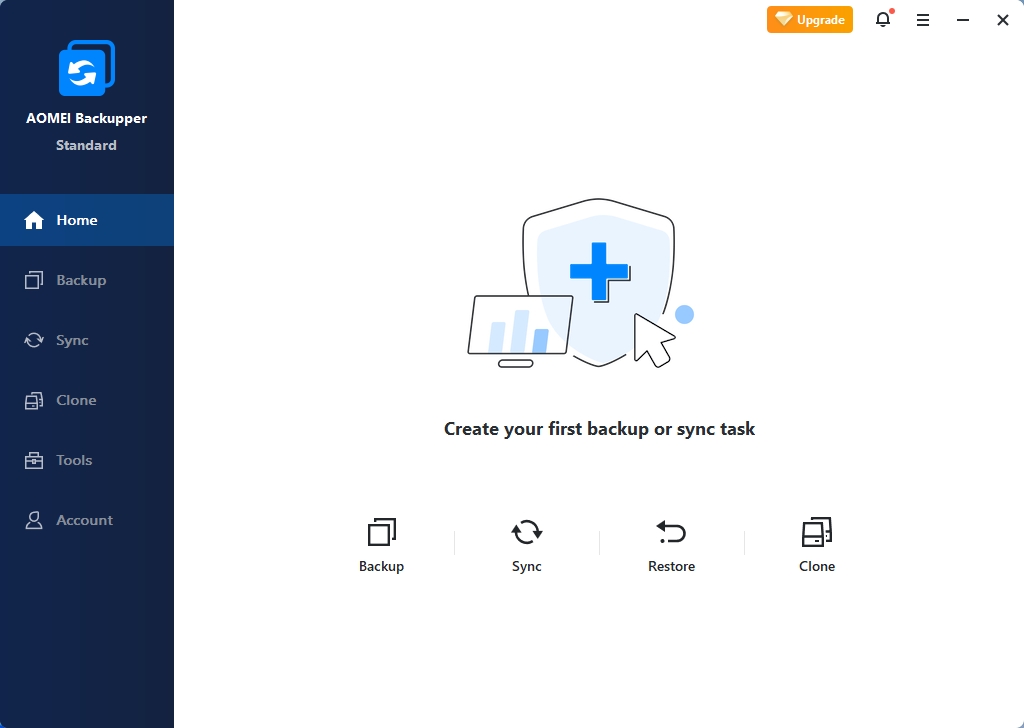
For most home users, EaseUS is probably the easier one to pick up and use. AOMEI makes more sense if you want more control over how backups, synchronization, and cloning are set up.
EaseUS Todo Backup vs AOMEI Backupper: What Actually Matters?
Backup and Recovery: They’re More Similar Than Different
For everyday backups, EaseUS Todo Backup and AOMEI Backupper are quite similar.
EaseUS supports file, system, disk, and partition backups, along with full, incremental, and differential backup methods. You can also schedule recurring backup tasks and use retention options to automatically manage older backup images.
AOMEI Backupper covers much the same ground. It can back up Windows, entire disks, partitions, and individual files, and it also supports scheduled and incremental backups. Some of the more advanced backup options depend on the edition you use.
For a basic backup routine, there’s not much reason to choose one over the other based on feature count alone. If you simply want to protect important files or create a Windows backup before a major update, either program can handle the job.
Disk Cloning Is a More Interesting Comparison
This is where the differences become more noticeable.
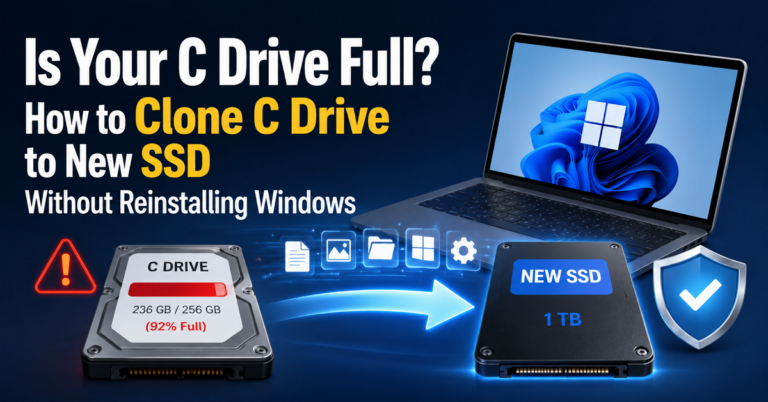
A backup creates an image that you can restore later. A clone copies the contents of one drive directly to another, which is why cloning is often used when replacing an old HDD or SSD.
EaseUS Todo Backup supports disk and partition cloning, and its higher editions also include System Clone for moving the Windows system to another drive. Its cloning workflow includes options such as SSD optimization, sector-by-sector cloning, and adjusting the destination partition layout.
AOMEI Backupper also supports disk, partition, and system cloning, but which edition you have matters. The free Standard edition supports data disk cloning, while System Clone and the more advanced cloning options are available in the Professional edition and above. AOMEI specifically positions Disk Clone and System Clone for tasks such as replacing an old drive with an SSD or moving Windows to a larger drive.
That distinction matters if you’re looking for a free way to migrate a Windows system to an SSD. Don’t just ask, “Does it clone drives?” Check whether the version you plan to install can clone the type of drive you actually want to migrate.
Incremental, Differential, and Scheduled Backups
Both programs can handle scheduled backup jobs, but their editions differ when you get into the more advanced options.
EaseUS Todo Backup supports full, incremental, and differential backups, along with daily, weekly, and monthly schedules. It also provides image retention options for automatically removing or managing older backup images.
AOMEI Backupper Standard supports scheduled and incremental backups, while differential backup and some of the more advanced backup-scheme features are available in higher editions. Its Professional edition, for example, supports daily, weekly, and monthly incremental or differential backups, as well as automatic cleanup of older backup images.
For a simple backup routine, both are capable. The differences become more useful when you want more control over backup cycles, retention, and how old images are cleaned up.
Recovery and Bootable Media
A backup is only useful if you can restore it when something goes wrong.
Both programs provide recovery tools and bootable-media options. EaseUS includes an emergency disk and a recovery environment for restoring a system when Windows can no longer start normally.
AOMEI Backupper also provides backup restoration and bootable-media functionality, alongside its backup, synchronization, and cloning features.
This is one area where a feature list doesn’t tell the whole story. If you’re preparing for a serious system failure, create the recovery media before you need it. Better yet, boot from it once and make sure the backup can actually be found and restored from that environment.
Pricing and Free Versions: This Is Where Things Get Tricky
Both companies offer free editions, but they don’t give you exactly the same set of features.
EaseUS Todo Backup Free currently supports system, disk/partition, and file backups, along with full, incremental, and differential backup methods and scheduled backups. Some of the more advanced features, including system cloning, are included with the Home edition. EaseUS’s current documentation also shows some differences between its Free and Home editions, so it’s worth checking the exact feature you need before deciding which version to install.
AOMEI Backupper Standard is also free. It supports Windows, disk, partition, and file backups, as well as incremental backups and data disk cloning. System Clone and other advanced features are available in higher editions.
That makes the question of which software has the better free version harder than it first appears.
For basic backups, both are perfectly usable without paying.
For Windows migration, though, the difference between the free and paid editions becomes much more important. If your main goal is to move an existing Windows installation to a new SSD, check the cloning features of the specific edition before you start.
For more information about the pricing plan, please visit the website.
Ease of Use: EaseUS Has the Edge
EaseUS has the simpler argument for beginners.
Its main workflow is relatively easy to follow, and common tasks such as creating a backup or starting a cloning job are straightforward. The software is built around the tasks most home users are likely to perform, rather than making you work through a long list of settings first.
AOMEI takes more of a toolbox approach. Once you know where everything is, that can be useful. You get backup, synchronization, cloning, and more configuration options in the same application, but there are also more settings to work through.
I’d choose EaseUS for someone who says, “I just want to back up my PC.” I’d lean toward AOMEI for someone who says, “I want more control over how my backups work.”
Performance: Don’t Expect a Clear Winner
There isn’t a useful universal answer to “Which one is faster?”
Backup and cloning speeds depend heavily on the source and destination drives, the amount of data being processed, compression settings, and the connection you’re using. SATA, NVMe, USB, and network storage can all produce very different results.
AOMEI’s current 8.4.0 release added real-time transfer speed and estimated time-remaining information to the task execution page. That’s useful when you’re monitoring a long-running job, but it doesn’t show that AOMEI is inherently faster than EaseUS.
Unless you’re comparing both programs on the same hardware with the same settings and the same workload, claims that one is dramatically faster should be treated with caution.
EaseUS vs AOMEI: Pros and Cons
| Category | EaseUS Todo Backup | AOMEI Backupper |
|---|---|---|
| Pros | Easy workflow, broad backup and recovery tools, strong cloning options | Broad feature set, flexible configuration, backup + sync + clone |
| Cons | Some useful cloning and migration features depend on the edition | More options can make it feel less straightforward |
| Best for | Beginners and general home users | Users who want more control and configuration options |
Neither program is a clear winner for every user. EaseUS is easier to recommend if you want to get a backup job done without spending much time on configuration. AOMEI is more interesting if you want backup, synchronization, and cloning options in one place and don’t mind spending a little more time setting them up.
Which One Is Better for Different Users?
For Beginners, EaseUS Has a Small Advantage
EaseUS is the easier recommendation for someone who has never used backup software before.
The main tasks are easy to find, whether you’re creating a backup, restoring one, or cloning a drive. You don’t need to understand every backup method before creating a basic system image.
AOMEI isn’t difficult, but it exposes more functionality. That’s useful once you know what you’re doing, but it can make the first few sessions feel a little busier.
For Advanced Users, AOMEI Is Worth a Look
If you like tweaking backup schedules, synchronization tasks, backup schemes, and other settings, AOMEI’s broader toolkit can be attractive.
That doesn’t make it objectively better. It simply gives users who like more control more things to configure.
For SSD Cloning, Check the Edition First
This is probably the most important scenario-specific recommendation.
If you’re replacing a hard drive with an SSD or moving Windows to a larger SSD, both products can be relevant. But the free editions are not equivalent.
AOMEI Standard currently limits its free cloning feature to data disks, while System Clone is available in the paid editions. EaseUS also separates some cloning capabilities between its Free and Home editions.
So if SSD migration is the reason you’re comparing the two, check the exact feature list for the edition you’re planning to use before deciding.
For Windows System Backup, It’s Basically a Tie
Both can create system backups that capture Windows and the system data needed for recovery.
For a home PC, either is capable of handling the job. The decision comes down more to the interface, recovery workflow, scheduling, and the other features you expect to use.
For Home Users, Don’t Overcomplicate It
If all you need is a weekly backup of your documents and a system image before major Windows changes, you don’t necessarily need the software with the longest feature list.
Pick the one whose interface makes sense to you and whose free or paid edition includes the functions you actually need.
Which One Should You Choose?
If you want a simple answer, it comes down to what you’re trying to accomplish.
Choose EaseUS Todo Backup if you want:
- A straightforward backup experience
- Easy access to backup, recovery, and cloning tools
- A beginner-friendly workflow
- One application for common Windows protection tasks
- A strong focus on system migration and cloning
Choose AOMEI Backupper if you want:
- More configuration options
- Backup, synchronization, and cloning in one toolbox
- More control over backup schemes
- A free solution for basic backup and data-disk cloning
For ordinary Windows backup, I’d call it close to a tie.
For beginners, EaseUS gets the edge. For users who like to configure and experiment, AOMEI has the more interesting toolkit.
For SSD migration, neither should get an automatic win. Check the exact edition and cloning features you need before you start.
Final Verdict
EaseUS Todo Backup and AOMEI Backupper are close competitors because they solve many of the same problems. Both can protect a Windows PC, create system backups, schedule backup jobs, and handle disk-related tasks.
The choice gets easier once you stop comparing feature counts.
EaseUS Todo Backup is the better starting point if you want something straightforward and don’t want to spend much time configuring your backup strategy. AOMEI Backupper is the more interesting option if you want a larger toolbox and more control over how your backups and synchronization tasks work.
And if you’re buying either one specifically to move Windows to a new SSD, don’t choose based on the product name alone. Check the current edition restrictions first. That’s where the two products differ in ways that can actually affect whether you can complete the job without upgrading.
Frequently Asked Questions
1. Is EaseUS Todo Backup better than AOMEI Backupper?
Not across the board. EaseUS is easier to recommend for beginners and users who want a straightforward backup and cloning workflow. AOMEI is a strong alternative for users who want more configuration and synchronization options.
2. Which is better for cloning Windows to an SSD?
Both can be used for system migration, but the edition matters. AOMEI Backupper Standard currently supports data disk cloning rather than System Clone, while EaseUS also has differences between its Free and Home editions for cloning-related features. Check the current feature list for the specific edition you plan to use before starting a migration.
3. Can both clone an SSD?
Yes, but “SSD cloning” can mean different things. Both product lines support disk and partition cloning, while system cloning and some advanced migration options depend on the edition. AOMEI Standard, for example, specifically limits its free Disk Clone feature to data disks.
4. Which is easier for beginners?
EaseUS Todo Backup has a slight edge. Its interface and workflow are easier to approach if you’ve never used dedicated backup software before.