A lot of people assume that clone 1TB HDD to 500GB SSD is impossible simply because the destination drive is smaller. That’s not really how disk cloning works. The real limitation is not the total drive size, but the amount of used data sitting on the old HDD.
I recently helped migrate an older gaming PC from a 1TB Seagate hard drive to a 500GB SATA SSD. On paper, it looked risky because the original drive was much larger. But once we checked the actual storage usage, the HDD only contained around 440GB of real data. The clone completed normally, Windows booted immediately, and the SSD ended up feeling dramatically faster than the old hard drive ever did.
This is the part many tutorials skip. Most cloning failures don’t happen because the software is bad. They happen because people don’t prepare the source drive correctly before starting the migration.
If you want to migrate Windows from HDD to SSD without reinstalling the OS or losing files, this guide explains what actually matters.
Can I clone a 1TB HDD to a 500GB SSD?
Yes, absolutely.
As long as the used space on the 1TB HDD is smaller than the usable capacity of the 500GB SSD. This is the most important concept people miss.
The original HDD capacity does not matter nearly as much as:
- actual used storage
- partition size
- filesystem layout
- boot configuration
For example, if your 1TB hard drive only contains 280GB of real data, cloning to a 500GB SSD is usually straightforward. But if the HDD contains 700GB of files, no cloning software can magically compress that into a smaller SSD. This is why many SSD too small for clone errors happen.
Modern disk cloning software uses intelligent cloning technology that copies only used sectors instead of duplicating the entire drive sector-by-sector. That’s what makes smaller SSD migration possible today.
What to Do Before Migrating to Smaller SSD
1. Check the Actual Used Space Before Cloning
If you plan to clone a larger hard drive to a smaller SSD, reducing used storage beforehand dramatically improves the success rate.
Many older Windows systems contain years of accumulated files: Steam libraries, downloads folders, OBS recordings, Adobe cache, ISO images, Windows.old folders, virtual machines, backup archives, etc.
What surprises many users is that their important data is often much smaller than expected once unnecessary files are removed.
Personally, I try to leave at least 15-20% free space on the SSD after migration. SSDs generally perform better and stay healthier long-term when they are not completely full.
2. Shrink the HDD Partition Before Migrating to SSD
One of the biggest reasons cloning fails has nothing to do with the files themselves. Even if your HDD only contains 300GB of data, the Windows partition might still be allocated as 900GB or larger. Some cloning tools interpret the partition size literally and refuse to clone to a smaller SSD. That’s why shrinking the partition before cloning is often necessary.
You can usually do this directly in Windows Disk Management:
- Step 1. Press “Win + X” to open Disk Management.
- Step 2. Right-click the main partition, and choose “Shrink Volume”.
- Step 3. Reduce the partition size below the SSD capacity.
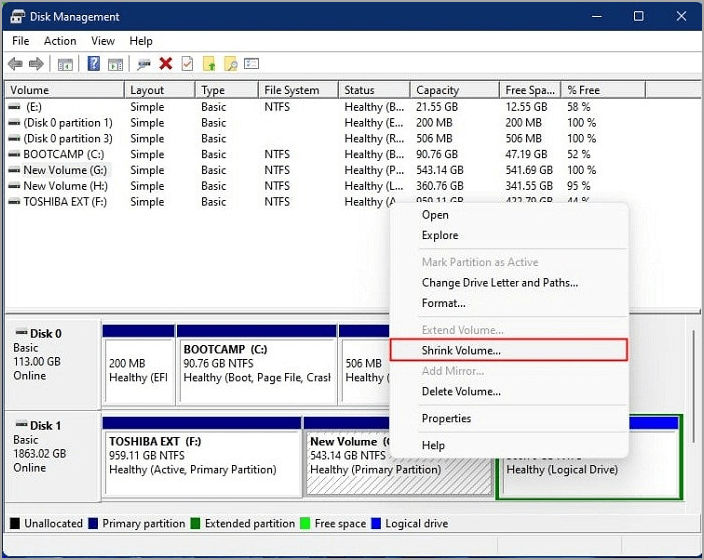
This step is especially important when cloning a laptop HDD to SSD because OEM recovery partitions sometimes create unusual layouts. Once the partition fits comfortably within the SSD size, most modern cloning tools can migrate the system normally.
3. Best Disk Cloning Software for Smaller SSD Cloning
When searching for HDD to SSD disk cloning software, several names appear repeatedly:
- EaseUS Disk Copy
- Macrium Reflect
- Clonezilla
- Rescuezilla
- DiskGenius
Realistically, the brand matters less than the cloning mode itself. For smaller SSD migration, the software should support intelligent clone, SSD 4K alignment, partition resizing, and UEFI/GPT compatibility. This is much more important than flashy marketing features.
Sector-by-sector cloning is usually a poor choice for migrating from a larger HDD to a smaller SSD because it attempts to copy empty sectors and deleted space unnecessarily. Intelligent cloning works better because it transfers only active data.
Among PC enthusiasts, Clonezilla is respected for flexibility, while tools like EaseUS Disk Copy and Rescuezilla are more beginner-friendly for Windows users.
4. Check HDD Health Before Cloning
If the old HDD is already failing, cloning becomes far more complicated. Symptoms of a dying hard drive may include extremely slow file transfers, clicking sounds, freezing during reads, corrupted files, SMART warnings. In these situations, cloning software may stall for hours while retrying damaged sectors.
Clone 1TB HDD to 500GB SSD: Step-by-Step
Once the used space on your 1TB HDD is smaller than the 500GB SSD capacity, the actual cloning process is usually straightforward.
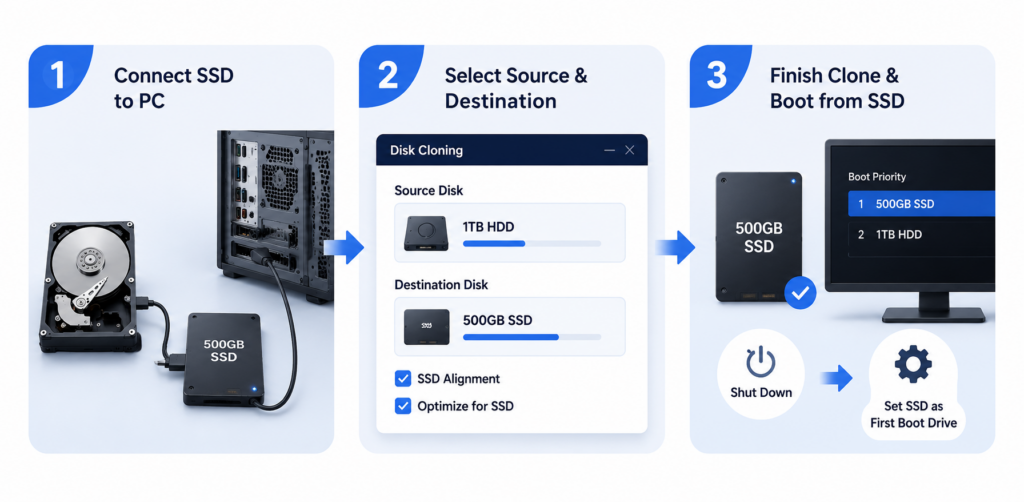
Step 1. Connect the SSD to your PC. Desktop users can connect it through an additional SATA port, while laptop users often use a USB-to-SATA adapter or external SSD enclosure during the migration process.
Step 2. After the SSD is detected in Windows, open your preferred disk cloning software and select the old 1TB HDD as the source disk. Then choose the new 500GB SSD as the destination disk.
Most modern cloning tools automatically resize partitions during migration, but it’s still worth reviewing the disk layout before starting. If the software includes options like “SSD Alignment” or “Optimize for SSD,” keep them enabled.
Step 3. Once the clone finishes, shut down the PC, replace the old HDD with the SSD if necessary, and boot into BIOS to set the SSD as the primary boot drive.
SSD Alignment and Boot Mode Still Matter
A successful clone does not always guarantee a successful boot. One of the most common post-cloning problems is SSD not booting, Windows boot manager errors, black screen after clone, and an inaccessible boot device.
In many cases, the actual issue is not the clone itself but the boot configuration.
- Modern systems typically use GPT partition style nad UEFI boot mode.
- Older systems may still rely on MBR and Legacy BIOS.
If these settings become mismatched during migration, the SSD may fail to boot correctly even though all files were cloned successfully.
SSD alignment is another important factor. Proper 4K alignment improves SSD performance and reduces unnecessary write amplification. Most modern cloning tools include an “Optimize for SSD” or “SSD Alignment” option, and it should usually remain enabled.
Should You Reinstall Windows Instead?
Some users wonder whether it’s better to perform a clean Windows installation instead of cloning. Honestly, it depends on the condition of the existing system.
If the current Windows installation is stable, properly activated, and already configured the way you like, cloning is usually much faster and more convenient.
But if the system has years of accumulated junk, malware issues, registry corruption, unstable drivers, or boot issues, a clean installation may yield better long-term results.
For most normal users, though, cloning remains the easiest way to upgrade from HDD to SSD without reinstalling Windows or applications.
Final Thoughts
Cloning a 1TB HDD to a 500GB SSD is completely possible, but the success of the migration depends heavily on preparation. The most important things are:
- keeping the used data below SSD capacity
- shrinking oversized partitions
- using intelligent clone mode
- checking HDD health
- preserving the correct boot configuration
Once those pieces are handled correctly, the actual HDD to SSD clone process is usually straightforward.
And honestly, even upgrading from an old SATA hard drive to a basic SSD still feels like one of the biggest real-world performance improvements you can make to an aging PC.