

2. WinRAR (Best for RAR)
WinRAR is another pretty popular archive utility introduced in 1995 by Eugene Roshal (WinRAR GmbH). It is a commercial trialware with a 40-day free trial. It is available for Windows officially, while command-line RAR is available for Linux and macOS as well. The native format in WinRAR is .rar and .rar5. RAR is a proprietary and closed format, while RAR5 came recently with a larger dictionary size of up to 1GB and improved encryption and multithreading.
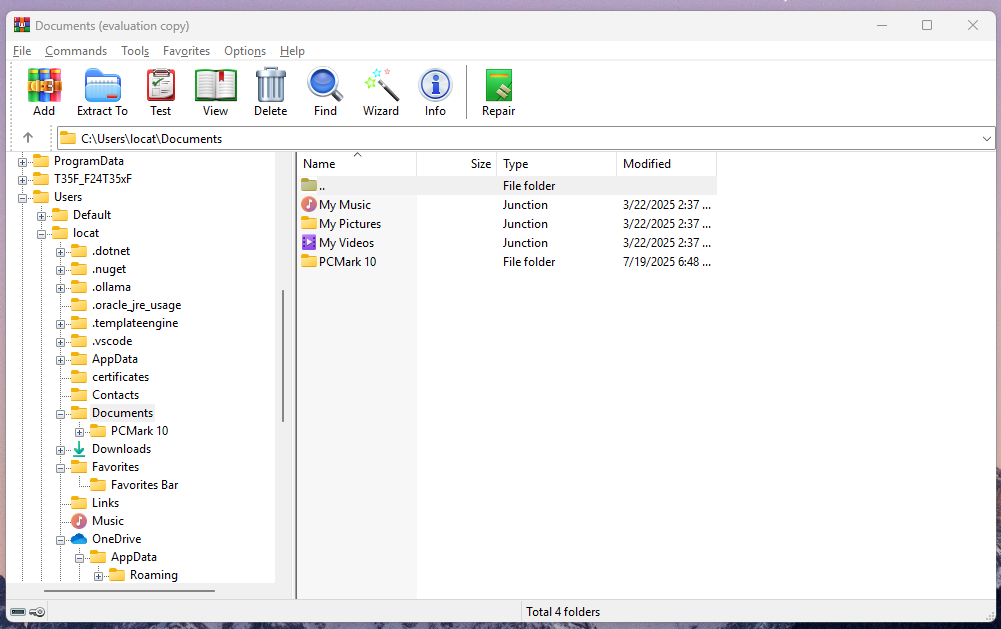
WinRAR uses a proprietary compression algorithm that is designed for both binary and text-based data. WinRAR is known for its high compression ratio in the RAR5 archives. It provides a good balance between speed and compression ratio with support for multithreading in the RAR5. You can also adjust memory usage and enable solid compression. AES-256 encryption is available as usual and can be used to encryption both data and filenames. It also supports command line and scripting for automation and server environments.
Virus scanning, archive conversion, Wizard interface (for novice users), repair, and test are some of the advanced features of WinRAR.
| Pros | Cons |
|---|---|
| High Compression Ratio with RAR5 | Proprietary Software/Closed-Source |
| Recovery and Error Handling | Only free for 40-day trial |
| User-Friendly Interface | Limited Format Support |
| Powerful Archiving Features | |
| Shell Integration |
Supported Archive Formats in WinRAR
Read + Write (Compress & Extract):
.rar (RAR4 & RAR5) and .zip
Read-Only (Extract Only):
.7z, .cab, .arj, .lzh, .ace (v2), .tar, .gz, .bz2, .xz, .iso, .z, .udf, .img, .001, and .jar
Key Features of WinRAR
- Supports compression to RAR (RAR4, RAR5) and ZIP formats
- Can extract from a wide range of formats: RAR, ZIP, 7z, TAR, GZ, BZ2, ISO, CAB, and more
- Uses a proprietary RAR5 compression algorithm for high performance
- Supports solid compression for improved ratios on similar files
- Lock archives to prevent modification
- Adds recovery records and can repair damaged archives
- Creates multi-volume (split) archives
- Generates self-extracting archives (SFX) for Windows
- Features a user-friendly GUI with drag-and-drop and wizard mode
- Includes benchmarking tools to test system performance
WinRAR Compression and Extraction Test
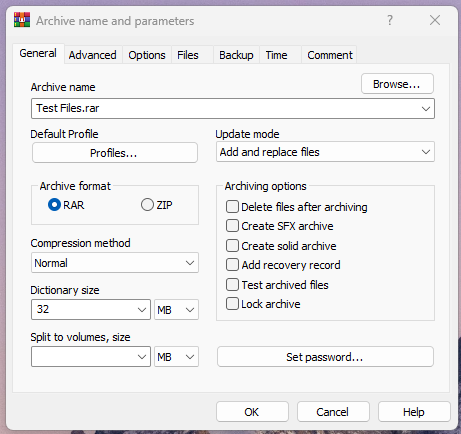
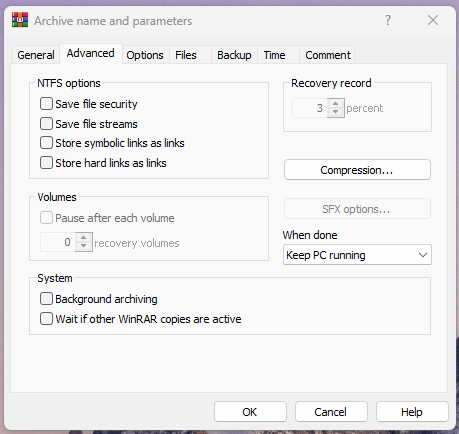
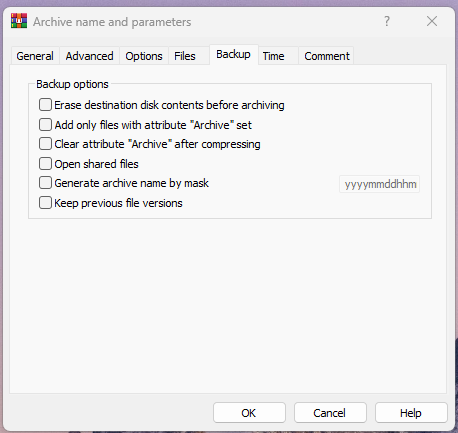
WinRAR gives more options for archives as compared to 7-Zip. So, as I add my folder to the archive, I get the options to change the archive name, location, and apply any compression profile if I want. Then, you get to select between two archive formats, i.e., RAR and ZIP. Then, you can choose the compression method, dictionary size, and split sizes. On the right-hand side, you can choose different options for solid archive, recovery records, and setting a password. In the advanced tab, you can choose to enable some NTFS options like save file security, etc. You also have some backup options.
WinRAR took a comparatively longer time to compress this folder (around 5 minutes). The total file size was almost similar to that of 7-Zip, i.e., 5.57 GB. All in all, the compression size of 7-Zip and WinRAR is almost same.
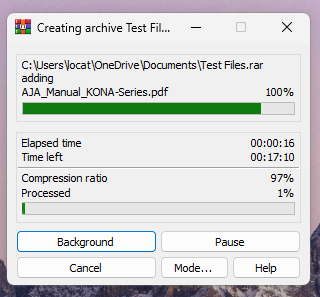
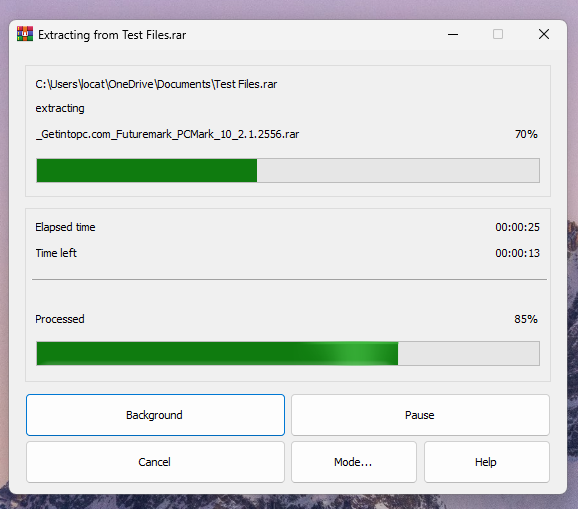
To extract this file, WinRAR took around 25 seconds, and everything was extracted properly without any issues.

“WinRAR has the best GUI and no overwhelming features to tweak. It simply takes your file or folder and compress it using the most suitable settings automatically. It cloud storage integration makes it best for professional and business applications. The ZIP and ZIPX are known for their performance and security. However, it is a paid software and the trial expires in just 21 days. The compression ratio is lower than both 7-Zip and WinZip. This way, WinRAR becomes the best choice for casual users, business users, and those who need seamless cloud backup, file sharing features”
Are you sure you didn’t mean here WinZip instead of WinRAR
Hi Shved!
Thanks for pointing out. I mistakenly wrote WinRAR instead of WinZip. I appreciate your time for commenting. I have fixed it.