

7-Zip (Best Open-Source)
7-Zip was first released in 1999 by Igor Pavlov. It is under the GNU LGPL licence with unRAR restrictions. It comes with a full-featured graphical interface and a powerful command-line interface as well. The native format is .7z, but it has an open architecture, which means the developers can easily plug in new compression methods. For the .7z format, it uses the LZMA and LZMA2 compression algorithms. The dictionary size can be up to 4GB. The program supports multithreading, allowing for performance and a very high compression ratio. It also supports PPMd (Prediction by partial matching), BZip2, Deflate, Zstandard, and AES-256 encryption (for 7z format only).
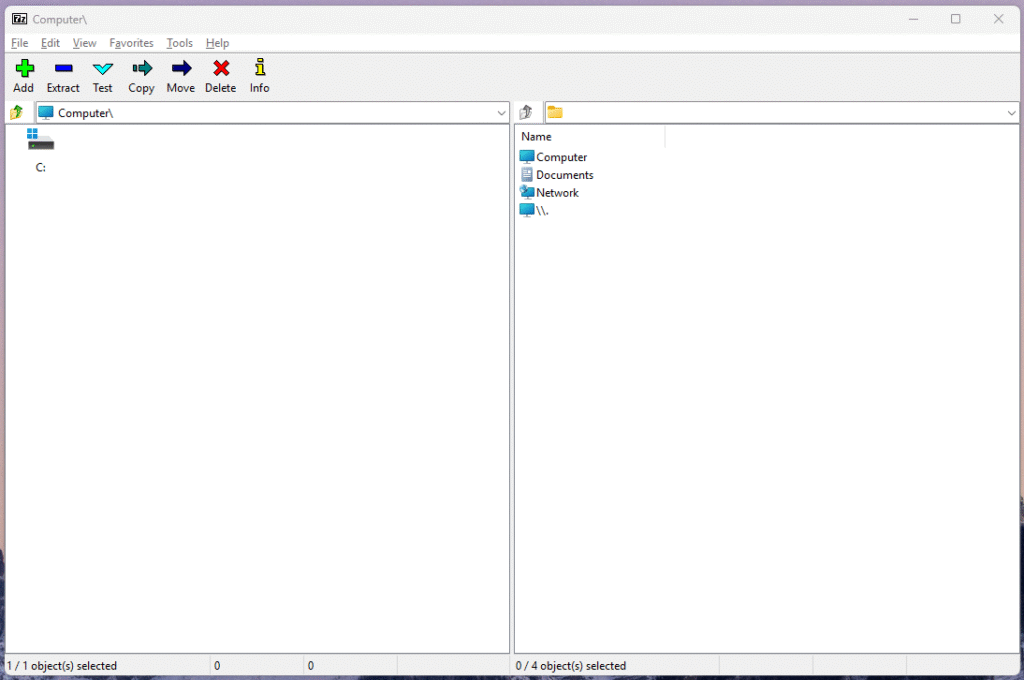
7-Zip is fully scriptable and which is useful for automation, batch jobs, and server-side compression. Another great thing is that it achieves integrity using the built-in testing tools. You can also split large volumes into smaller ones.
I use 7-Zip because of its fairly enough list of supported formats and lightweight. It does the job without any cost. I am an avid user of its AES-256 encryption to create secure archives. So, I would recommend it to someone looking for basic compression/extraction software.
| Pros | Cons |
|---|---|
| High Compression Ratio | Slow Compression (at High Settings) |
| Free and Open Source | Basic and Outdated GUI |
| Wide Format Support | No Native RAR Creation |
| Powerful Command-Line Interface | |
| Lightweight and Efficient |
Key Features of 7-Zip
- Supports compression to 7z, ZIP, GZIP, BZIP2, TAR, XZ, and WIM formats
- Can extract from 7z, ZIP, RAR, ISO, TAR, CAB, ARJ, LZH, VHD, VMDK, and many more
- Uses high-ratio compression algorithms: LZMA and LZMA2
- Offers AES-256 encryption
- Supports solid compression to improve ratios for similar files
- A Built-in file manager with drag-and-drop support
- Command-line interface for scripting and automation
- Integrates into Windows Shell
- Creates self-extracting archives (SFX) using the 7z format
Supported Archive Formats in 7-Zip
Read + Write:
.7z, .ZIP, .GZIP, .BZIP2, .TAR, .XZ, .WIM
Read-Only (Extract):
.RAR, .CAB, .ISO, .ARJ, .LZH, .CHM, .NSIS, .UDF, .DMG, .CPIO, .RPM, .DEB, .Z, .VHD, .VMDK, and more.
7-Zip Compression and Extraction Test
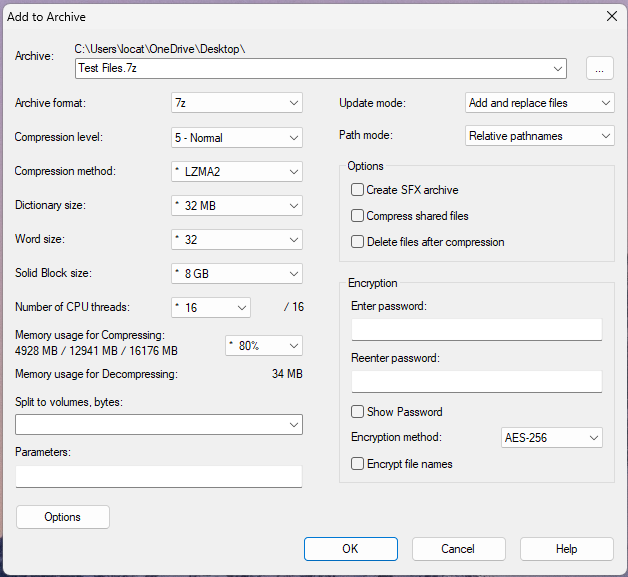
As I added the folder to the 7-Zip archive, I see these options. Here, I can select archive formats like 7z, tar, zip, and WIM. Then, I get to see the compression levels. After that, I can select compression methods like LZMA or LZMA2. Then, we see the option to select dictionary size, word size, and solid block size. You can also change the number of threads from the total threads. For encryption, you can set your password, and the only encryption method you can select is AES-256. I like to keep everything default except the compression level. But here I am keeping it normal.
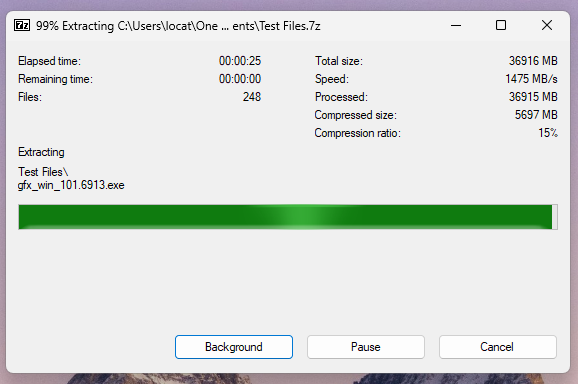
As you can see in the screenshot below, the total size of the folder was 36916MB, and the compression size became 5607MB at a compression ratio of 15%. The total time it took was 3 minutes and 16 seconds.

When I extracted the same file, it took just 25 seconds to complete. However, I have seen 7-Zip perform a little slower with other compression formats
![The Best Disk Cloning Software of 2026 [Free/Paid]](/wp-content/uploads/2025/03/best-drive-cloning-software-768x432.png)


“WinRAR has the best GUI and no overwhelming features to tweak. It simply takes your file or folder and compress it using the most suitable settings automatically. It cloud storage integration makes it best for professional and business applications. The ZIP and ZIPX are known for their performance and security. However, it is a paid software and the trial expires in just 21 days. The compression ratio is lower than both 7-Zip and WinZip. This way, WinRAR becomes the best choice for casual users, business users, and those who need seamless cloud backup, file sharing features”
Are you sure you didn’t mean here WinZip instead of WinRAR
Hi Shved!
Thanks for pointing out. I mistakenly wrote WinRAR instead of WinZip. I appreciate your time for commenting. I have fixed it.