Affiliate Disclosure: This post may include affiliate links. If you click and make a purchase, I may earn a small commission at no extra cost to you.
While moving to a new computer, it often raises one critical question: how do you transfer everything to the new computer without reinstalling Windows or losing data? This is where PC cloning software becomes essential. It allows you to copy your entire system, or specific data, quickly and reliably, making migration seamless even for non-technical users.
What Is PC Cloning Software / Clone App for PC
PC cloning software is a specialized tool designed to create an exact, bootable copy of a computer’s storage device. Instead of manually reinstalling the operating system, applications, and files, cloning replicates everything, including system files, settings, and partitions, in one process.
At a technical level, cloning operates in two primary ways:
Disk cloning: Copies the entire drive (OS, apps, files, partitions)
System cloning: Focuses only on the operating system and boot-related data
PC cloning software is the most efficient way to duplicate an entire system, but it is not designed for granular app-level transfers. Understanding this distinction helps users choose the right tool and avoid common migration failures.
Best PC Cloning Software (Top Picks)
1. EaseUS Disk Copy
- Beginner-friendly with clean UI (best for non-technical users)
- Supports sector-by-sector cloning and SSD migration
- Paid tool with strong stability for one-time upgrades
EaseUS Disk Copy is a dedicated PC cloning software designed for fast and reliable disk duplication. Unlike backup-focused tools, it emphasizes straightforward cloning workflows, making it ideal for users upgrading from HDD to SSD or replacing drives. The software supports full disk cloning, system cloning, and sector-by-sector copy, ensuring bootable results even with complex disk layouts.
Its interface is minimal and task-oriented, reducing the learning curve significantly. Compared to more complex tools, EaseUS focuses on simplicity and execution speed, which makes it particularly suitable for home users and small-scale migration tasks.

Pros
- Compatible with almost all types of HDDs/SSDs from various manufacturers
- Supports SSD 4K alignment and sector-by-sector clone
- Clean workflow with minimal setup
Cons
- Paid license required for full functionality
User Feedback
Very easy to use, only requires several simple clicks to copy all data from one disk to another.
2. Macrium Reflect
- Highly reliable cloning engine (trusted by advanced users)
- Offers previously free version
Macrium Reflect is a well-established disk cloning and imaging solution widely used by both home users and IT professionals. It combines backup and cloning capabilities into one platform, offering features like intelligent sector copy and Rapid Delta Cloning to speed up repeated operations.
The interface is structured but slightly technical, making it better suited for users who want more control over partitions and imaging processes. While the free version has been discontinued, a trial version is still available, positioning it as a premium-grade tool for users seeking reliability and flexibility.

Pros
- Extremely stable and reliable
- Advanced cloning technologies (e.g., delta cloning)
- Flexible disk and partition control
Cons
- No longer fully free
- Slight learning curve for beginners
- Slower than some competitors in certain scenarios ([EaseUS][2])
User Feedback
Works like a charm every time.
3. Acronis True Image
- Feature-rich (backup + cloning + cybersecurity)
- Built-in ransomware protection
- Subscription-based premium solution
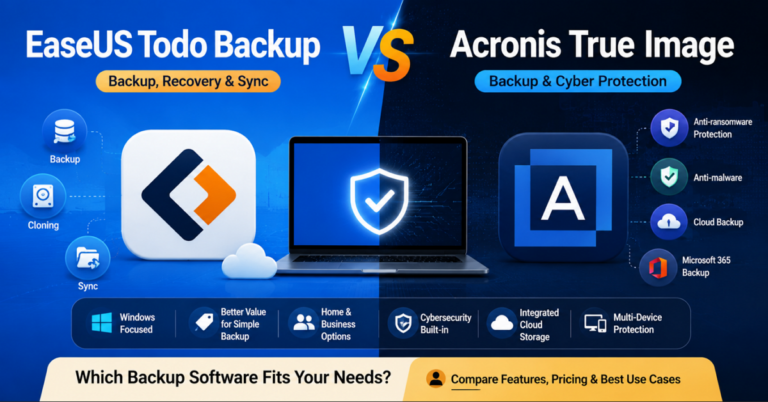
Acronis True Image is a comprehensive data protection suite that combines disk cloning, backup, and cybersecurity into a single platform. It supports full disk imaging, cloud backups, and advanced ransomware protection, making it a strong choice for users who prioritize data security alongside cloning.
The software is widely adopted by both individuals and businesses due to its reliability and extensive feature set. However, its subscription pricing model and relatively heavy system resource usage may not appeal to users seeking a lightweight cloning-only solution.

Pros
- All-in-one solution (clone + backup + security)
- Strong ransomware protection
- Reliable performance across systems
Cons
- Expensive subscription model
- Can be resource-heavy
- Interface may feel complex for beginners
User Feedback
Outstanding product with great support.
4. Clonezilla
- 100% free and open-source
- Extremely powerful (enterprise-level capabilities)
- Best for IT professionals and advanced users
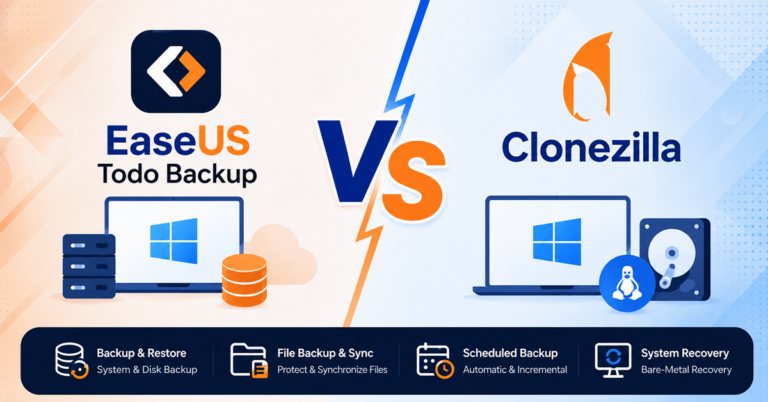
Clonezilla is a free, open-source disk cloning tool widely used in IT environments for large-scale deployments and system imaging. It supports a wide range of file systems and can clone disks, partitions, and even deploy images to multiple machines. Unlike most modern tools, Clonezilla operates through a text-based interface and runs from bootable media, making it independent of the installed OS. While it offers exceptional flexibility and reliability, its lack of a graphical interface and steep learning curve make it less suitable for beginners.

Pros
- Completely free with no feature restrictions
- Supports multiple file systems and advanced cloning modes
- Highly reliable for large-scale operations ([Stored Bits][5])
Cons
- Command-line interface (not beginner-friendly)
- Steep learning curve
- Limited official support
User Feedback
Free and reliable, but more technical and slower.
4. Hasleo Disk Clone
- Free Windows-native cloning tool
- No bootable USB required for basic cloning
- Simple interface for quick migrations
Hasleo Disk Clone is a lightweight and free disk cloning solution designed specifically for Windows users. It allows users to clone disks, partitions, and operating systems without requiring complex setup or bootable media in many cases.
Compared to more feature-heavy tools, Hasleo focuses on simplicity and accessibility, making it a practical choice for users who want a quick and free cloning solution. While it lacks advanced enterprise features, it performs well for basic migration tasks such as SSD upgrades or system transfers.

Pros
- Free to use with no major restrictions
- Simple and clean interface
- Supports system and disk cloning
Cons
- Limited advanced features
- Less widely tested than major competitors
- Fewer enterprise-level capabilities
User Feedback
A solid free option for Windows cloning without complexity.
What to Consider While Choosing PC Cloning Software
Choosing the right PC cloning software depends on your specific use case and technical level. First, check compatibility with your system (Windows version, disk type, GPT/MBR).
Second, evaluate ease of use—beginners should prioritize a simple interface, while advanced users may need partition control and sector-level cloning.
Third, consider performance and reliability, especially for bootable clones.
Additional factors include SSD optimization, support for different disk sizes, and whether the tool is free or paid. A mismatch here can lead to failed clones or unbootable systems.
Can You Clone APPs on PC
Strictly speaking, you cannot “clone apps” on a PC the same way you clone a disk. Most Windows applications depend on registry entries, shared libraries, and system-level configurations, which makes simple copying ineffective. This is why cloning means full system duplication, not individual app transfer.
When users search for “clone app for PC,” they usually mean migrating programs without reinstalling. This can be achieved either by cloning the entire system or using dedicated application migration tools, which are specifically designed to handle dependencies and ensure apps work properly after transfer
How to Clone a PC: Step-by-Step
After selecting your PC cloning software, it’s time to clone and move you computer to a new one. Follow the stepwise guide below to clone a PC.
Step 1. Prepare the target drive
Connect the new drive (SSD or HDD) to your PC. Ensure it is properly detected in Disk Management and has enough capacity to hold the source data.
Step 2. Install and launch cloning software
Open a disk cloning tool and select the cloning feature from the main interface.
Step 3. Select the source & target disk
Choose the current system disk (the one containing your operating system, apps, and files) as the source, and the new drive as the destination. Be aware that all existing data on the target disk will be erased.
Step 4. Adjust disk layout (optional)
Resize partitions or optimize layout if needed, especially when cloning to a different-sized drive (e.g., HDD to smaller SSD).
Step 5. Enable SSD optimization (if applicable)
If cloning to an SSD, enable alignment or optimization options to improve performance.
Step 6. Start the cloning process
Confirm the operation and begin cloning. Wait for the process to complete without interruption.
Step 7. Shut down and replace or reconfigure boot drive
After cloning, power off the PC. Replace the old drive with the new one or adjust the boot order in BIOS/UEFI to prioritize the cloned disk.
Step 8. Boot from the cloned drive
Restart your PC and verify that the system boots correctly from the new drive and all data is intact.

Common Problems & Fixes for Cloning PC
Even with reliable PC cloning software, issues can occur due to system configuration, disk structure, or compatibility mismatches. Below are the most common problems and how to fix them.
1. Cloned SSD Won’t Boot
This is usually related to incorrect boot configuration, missing boot partitions, or mismatch between BIOS mode (UEFI vs Legacy) and disk type (GPT vs MBR).
Fix:
- Enter BIOS/UEFI and set the cloned SSD as the primary boot device
- Ensure boot mode matches the disk type (UEFI ↔ GPT, Legacy ↔ MBR)
- Check if EFI/System Reserved partition was cloned
- Run Startup Repair using Windows recovery media if needed
2. Missing Partitions After Cloning
Partitions may not be copied correctly due to improper cloning mode or disk size differences (e.g., cloning to a smaller SSD without resizing).
Fix:
- Use disk management tools to check unallocated space
- Extend or manually assign missing partitions
- Re-run cloning with proper disk layout adjustment enabled
- Avoid skipping hidden/system partitions during cloning
3. Apps Not Working After Clone
Applications may fail due to broken registry links, missing dependencies, or hardware/environment changes after cloning.
Fix:
- Restart the system to allow services to reinitialize
- Reinstall affected applications if necessary
- Update drivers and system components
- For selective app transfer needs, consider using dedicated application migration tools instead of full disk cloning