

Affiliate Disclosure: This post may include affiliate links. If you click and make a purchase, I may earn a small commission at no extra cost to you.
Most free disk cloning software isn’t actually free. Some tools won’t clone your operating system. Others block full disk cloning unless you upgrade. And a few only work with specific hardware.
So we tested the most popular disk cloning tools in 2026 to answer one simple question: Which free disk cloning software actually works – without hidden limitations? Let’s break it down!
What Is Free Disk Cloning Software?
Disk cloning software allows you to copy everything from one drive to another, including your operating system, files, and partitions, without reinstalling Windows. It’s commonly used for:
- Upgrading from HDD to SSD
- Replacing a failing drive
- Migrating your system to a larger disk
What “Free” really means. After testing, we found most tools fall into three categories:
1. Truly Free (No Restrictions)
- Full disk + OS cloning supported
- No paywall
➡️Rare, but exists (often open-source)
2. Free with Limitations
- OS cloning locked
- Disk cloning restricted
- Advanced features require an upgrade
➡️Most tools fall into this category
3. Vendor-Locked Tools
- Only work with specific SSD brands
➡️Good – but only in the right scenario
Which Free Cloner Should You Use?
Not sure where to start? Answer these three questions, then jump to the tool that fits.
1. What are you cloning?
- System disk (Windows C: drive) → You need software that supports hot cloning(cloning while Windows is running) or a bootable USB.
- Data disk (external, secondary) → Most tools work fine; focus on simplicity.
2. What’s your motherboard/boot mode?
- UEFI with Secure Boot (most Windows 11 PCs) → Avoid older tools based on Linux (e.g., Clonezilla requires extra steps).
- Legacy BIOS → Almost any tool works.
3. Are the source and target drives the same size?
- Target is larger → Almost all tools can handle this, but some require manual partition resizing.
- Target is smaller → You need a tool that supports sector-by-sector cloning.
Best Free Disk Cloning Software (Tested & Ranked)
Here are the tools that actually matter in 2026:
1. Clonezilla – Best Truly Free Powerful Tool
- 100% free
- Supports full disk & OS cloning
- Highly reliable
Clonezilla is what most “free cloning tools” wish they could be – but few actually match. It’s widely used in IT environments because it has no artificial limitations. In our test scenario, Clonezilla successfully cloned a Windows 11 system with multiple partitions and boot records intact, with zero data loss. Clonezilla is the gold standard for free cloning — but it’s not for beginners.
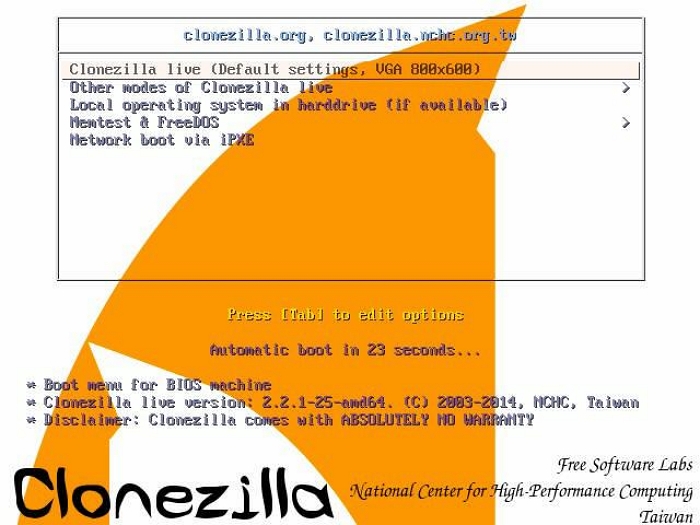
Why it stands out:
- No artificial limits
- Works on almost any system
- Enterprise-level capabilities
- Supports advanced cloning modes (sector-by-sector, partition-level)
Downsides:
- Command-line interface
- Steep learning curve
Real-world takeaway:
- Clonezilla is incredibly powerful, but it’s closer to a professional tool than a consumer app.
Best for: Advanced users and IT professionals.
2. Rescuezilla – Best Free GUI Alternative to Clonezilla
- Fully free & open-source
- Disk + OS cloning supported
- Beginner-friendly interface
If you’ve ever tried Clonezilla and felt overwhelmed, Rescuezilla is the tool you were actually looking for. It brings a modern graphical interface to the same powerful cloning engine, making it dramatically easier to use for everyday users. In our testing, Rescuezilla handled a full 512GB SSD-to-SSD clone without errors, and the step-by-step wizard reduced most of the friction typically associated with open-source tools.
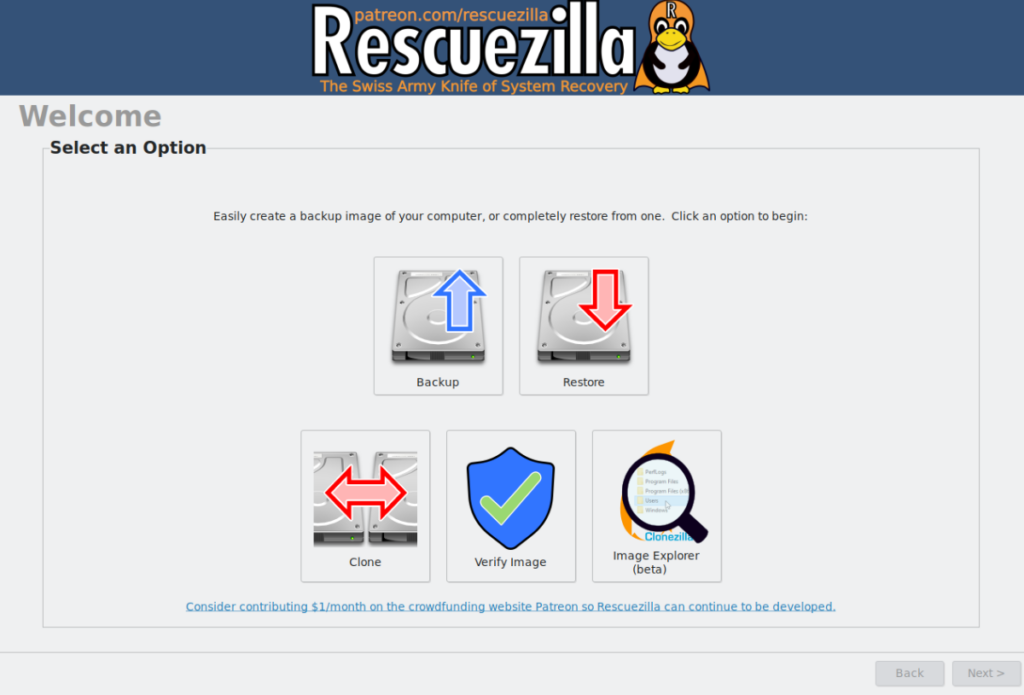
Why it stands out:
- Live USB environment
- Clean UI compared to traditional open-source tools
- Reliable full disk cloning
Downsides:
- Requires reboot into live environment
- Slower than commercial tools
Real-world takeaway:
- If you want something truly free but still usable without technical knowledge, this is one of the best options available right now.
Best for: Users who want a balance of power and usability.
3. DiskGenius – Best All-in-One Disk Cloning Tool
- Disk cloning + partition management
- Data recovery features
- Supports SSD migration
DiskGenius stands out because it’s not just a cloning tool – it’s a complete disk toolkit. During testing, it performed well in cloning tasks, but its real strength showed when dealing with problematic drives. For example, if a disk has bad sectors or corrupted partitions, DiskGenius provides tools to repair or recover data before cloning.
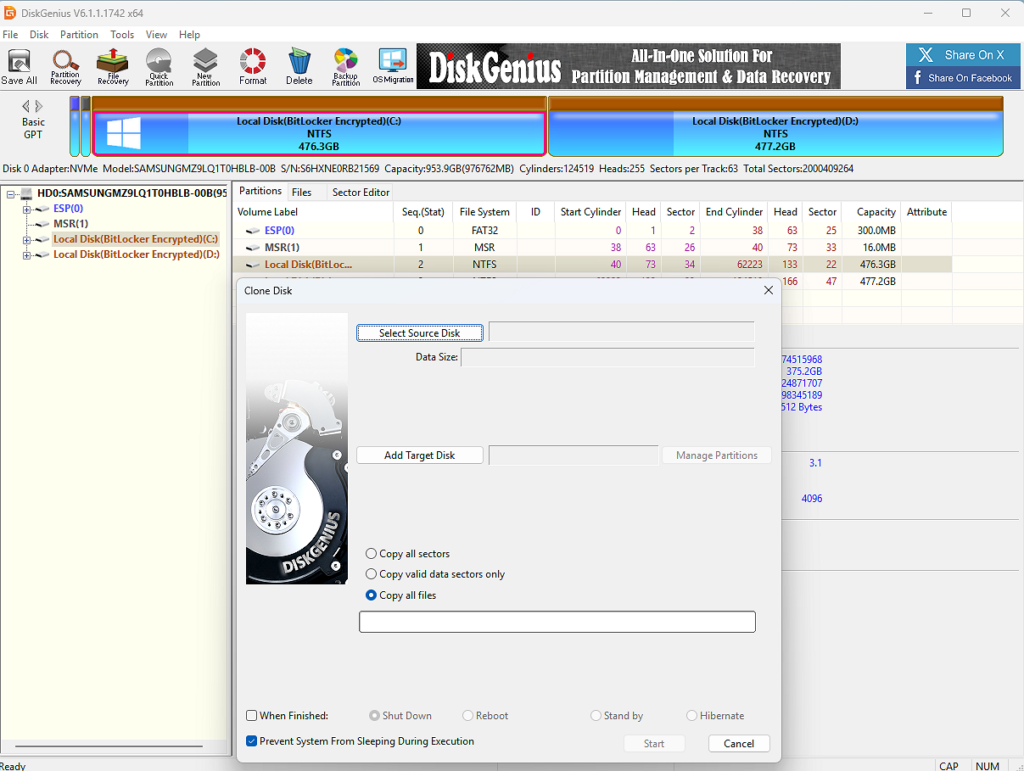
Why it stands out:
- Combines cloning, recovery, and partitioning
- Useful for troubleshooting failed drives
- More control over disk structure
Downsides:
- Free version has limitations
- Interface feels technical
Real-world takeaway:
- This is the tool you use when things don’t go perfectly – not just for straightforward cloning.
Best for: Users who want more than just cloning.
4. Hasleo Disk Clone – Best Lightweight Free Option
- Simple interface
- Fast cloning performance
- Supports SSD migration
Hasleo Disk Clone is one of the easiest tools to get started with, especially if you’re doing a simple upgrade like moving from HDD to SSD. In testing, it delivered solid performance with minimal setup. The interface is straightforward, and the cloning process is mostly guided, making it suitable even for less experienced users.
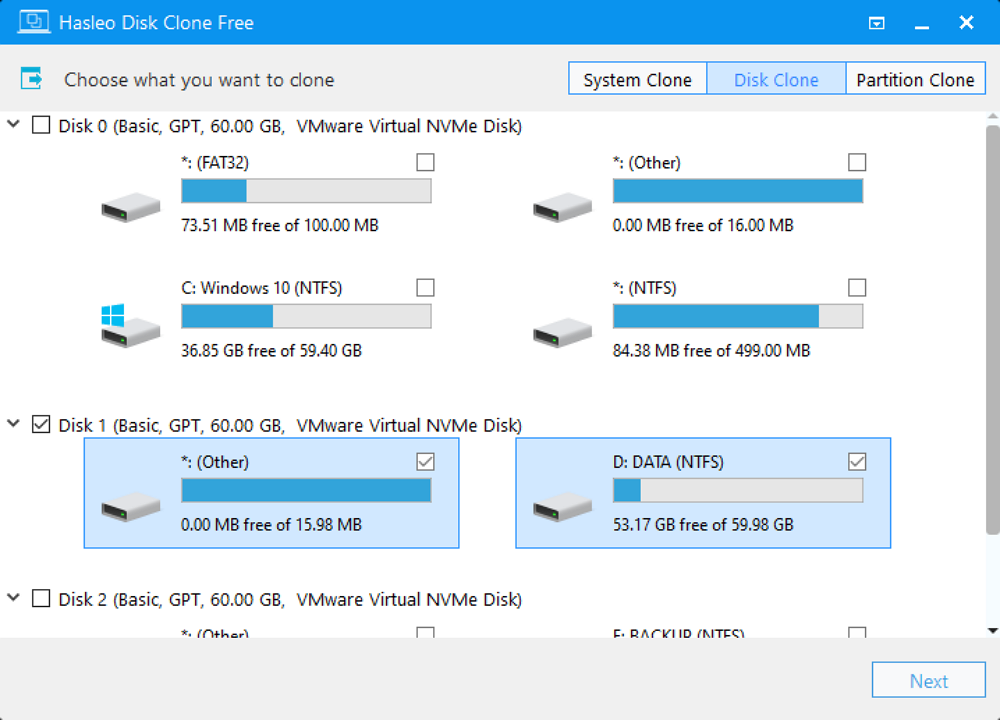
Why it stands out:
- Easy to use
- Minimal setup
- Fast execution for basic tasks
Downsides:
- Limitations on full disk cloning scenarios (Free edition can only clone partitions or clone an internal disk to an internal disk)
- Fewer advanced features
Real-world takeaway:
- If you just want to clone your drive quickly without digging into settings, this is one of the simplest solutions.
Best for: Basic cloning needs without complexity.
5. Macrium Reflect Free – Reliable but Phasing Out
- Strong reputation
- Stable cloning engine
- Good for imaging
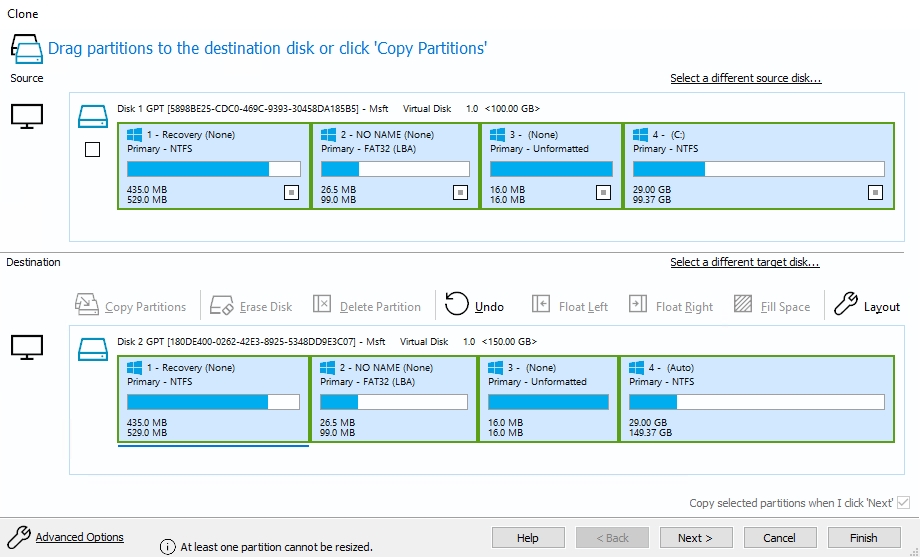
Macrium Reflect Free used to be one of the top recommendations across nearly every tech site – and for good reason. Its cloning engine is extremely reliable, and in our testing, it consistently delivered accurate system clones with proper boot configuration. However, its free version is being phased out. You can download its free version from MajorGeeks.
Why it stands out:
- Enterprise-grade reliability
- Trusted by professionals
- Great for disk imaging
Downsides:
- No longer actively developed as free
- Limited long-term value
Real-world takeaway:
- Still excellent if you already use it – but not ideal for new users looking for long-term support.
Best for: Existing users familiar with the tool
6. Samsung Magician & Acronis True Image – Best Vendor-Specific Tools
- Free with supported hardware
- Optimized for specific SSDs
- Easy migration process
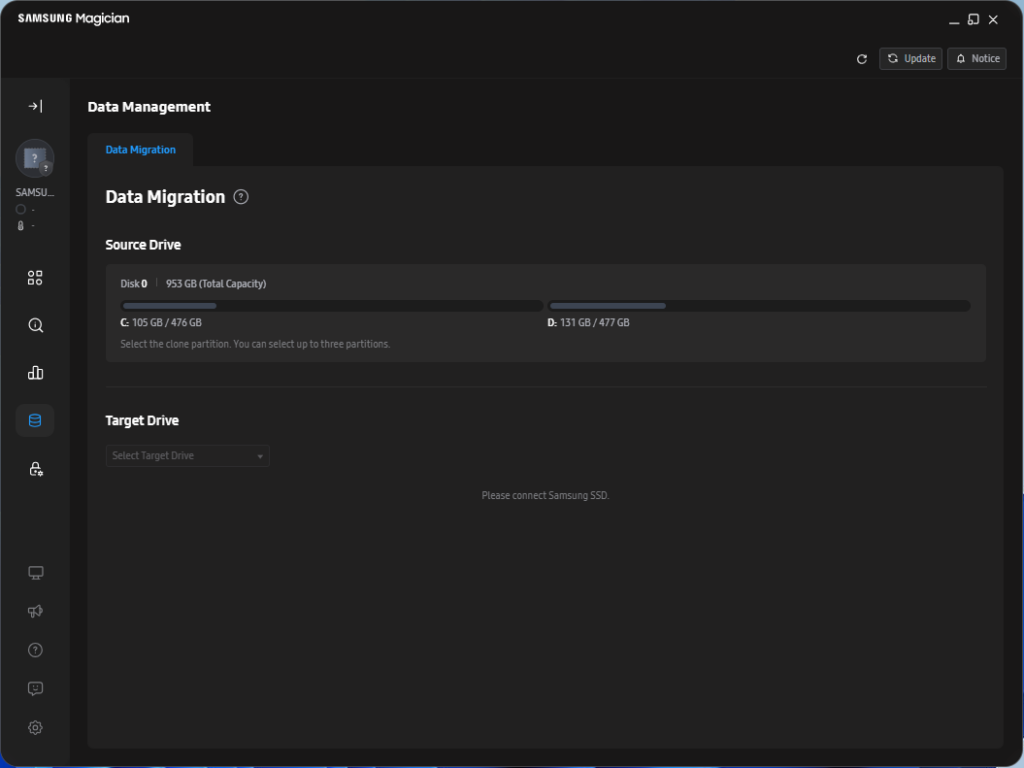
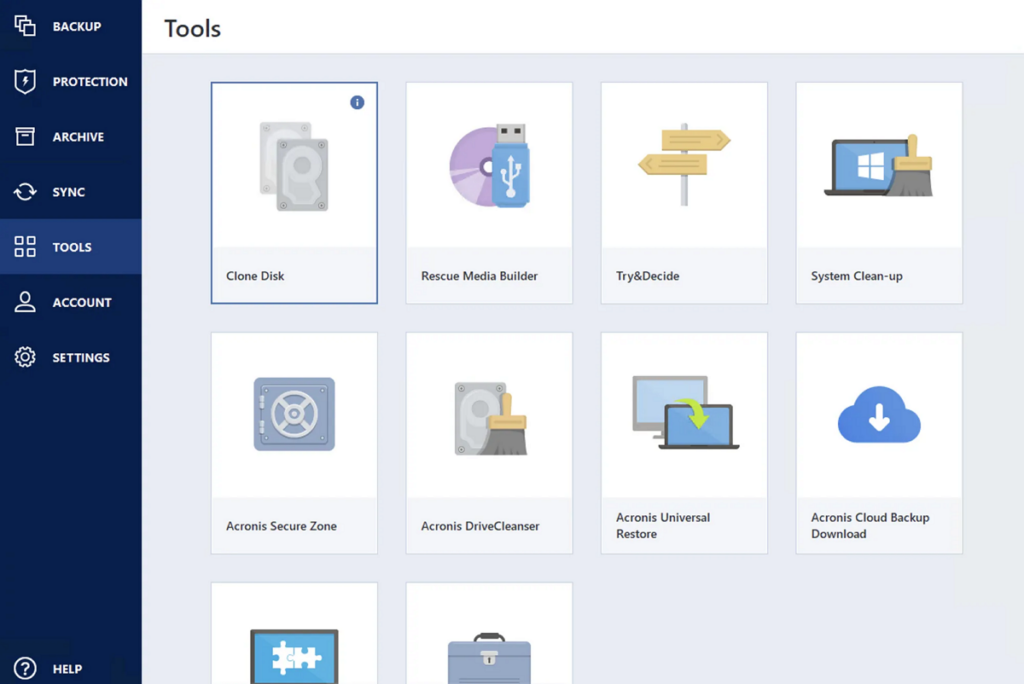
If you’re upgrading to a branded SSD, this is often the easiest path. Tools like Samsung Magician and OEM versions of Acronis are specifically designed to work with their hardware. In testing, they delivered some of the smoothest cloning experiences – especially for OS migration – because compatibility is tightly controlled.
Examples:
- Samsung SSD → Samsung Magician
- WD/SanDisk → Acronis OEM version
Why it stands out:
- Only works with that brand’s drives
- Minimal setup required
- High success rate for OS cloning
Downsides:
- Only works if the correct brand drive is detected
- Limited flexibility
Real-world takeaway:
- If you’re using a Samsung or WD SSD, don’t overcomplicate things – these tools are often the fastest solution.
Best for: Users upgrading within the same brand ecosystem
7. MultiDrive – Emerging Disk Cloning Tool
- Supports multiple drive operations
- Designed for batch cloning
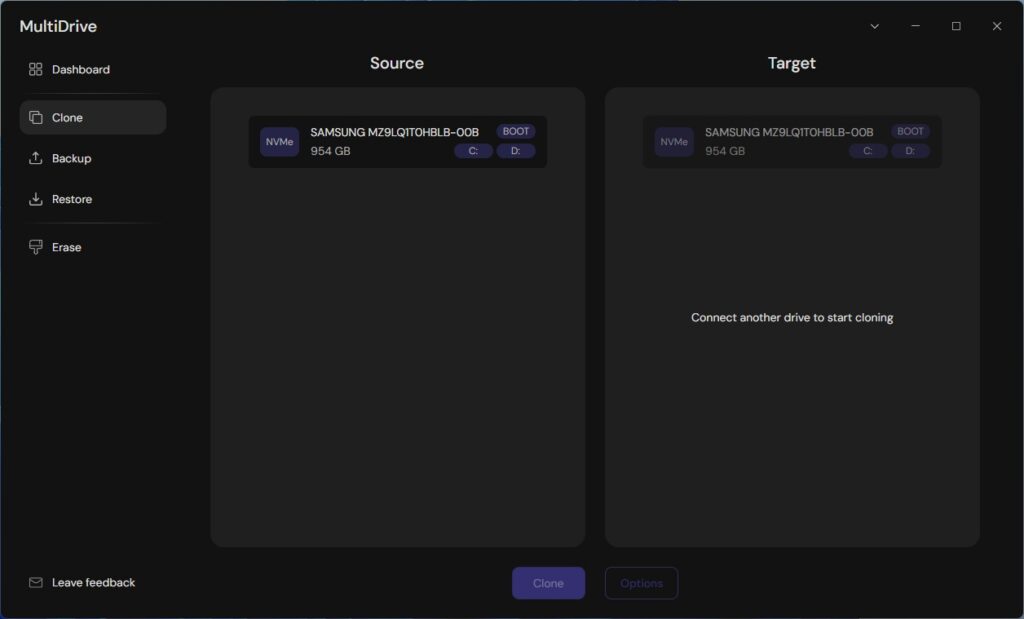
MultiDrive is a newer entry focused on handling multiple disks at once – something most traditional tools don’t prioritize. While it’s not as widely tested as other options on this list, it offers useful features for users who need to manage multiple drives simultaneously.
Why it stands out:
- Batch cloning capabilities
- Efficient workflow for multiple drives
- Growing feature set
Real-world takeaway:
- Interesting tool with potential – but not yet a mainstream choice.
Downsides:
- Less proven than competitors
- Limited community support
Best for: Niche use cases involving multiple drives.
Comparison Table: What You Can Actually Do for Free
Here is a comparison table of the above-mentioned free disk cloning tools.
| Software | Hot Clone | UEFI Support | Portable Version | Ease of Use | Current Free Status |
| Clonezilla | ❌(Bootable only) | ✅ | ✅(USB) | ⭐⭐ | Open‑source free |
| Rescuezilla | ❌(Bootable only) | ✅ | ✅(USB) | ⭐⭐⭐ | Open‑source free |
| DiskGenius | ✅ | ✅ | ✅(USB) | ⭐⭐⭐ | Limited free features |
| Hasleo Disk Clone | ✅ | ✅ | ❌(Unavailable in Free Version) | ⭐⭐⭐⭐ | Limited free features |
| Macrium Reflect Free | ✅ | ✅ | ❌(Unavailable in Free Version) | ⭐⭐⭐⭐ | Discontinued |
| Samsung Magician | ✅ | ✅ | ❌ | ⭐⭐⭐⭐⭐ | Brand-locked |
| Acronis (OEM) | ✅ | ✅ | ✅(USB) | ⭐⭐⭐⭐ | Brand-locked |
| MultiDrive | ✅ | ✅ | ✅(USB) | ⭐⭐⭐⭐⭐ | Free but less mature |
Note: This article focuses on free and open-source disk cloning tools. Other commercial disk cloning solutions, including EaseUS Disk Copy, exist for users with different workflow preferences or who prefer a more guided, user-friendly experience.
Final Verdict
If you’re looking for free disk cloning software in 2026, here’s the truth:
- Most “free” tools come with limitations
- Only a few offer full functionality without paywalls
- The best choice depends on your experience level
Simple recommendation:
- Beginners → Rescuezilla
- Advanced users → Clonezilla
- Brand SSD users → Samsung Magician/Acronis
- General users → Hasleo or DiskGenius

RescueZilla did something I have never had happen in the hundreds of disk clones and upgrades I have done over the years. It rendered both the clone and the source disk unbootable. Should have bit the bullet and just gone with Macrium – has never failed me and NEVER eff’d up the source drive.
Great roundup. I upgraded from a nearly full 512GB SSD to a 2TB drive last month and spent way too much time comparing cloning tools. Ended up using EaseUS Disk Copy because it handled the partition resizing automatically. Everything transferred over, including apps and settings, without needing to reinstall Windows.
I was using Clonezilla before, but after discovering Rescuezilla, I’ve been sticking with it. Much easier workflow and solid reliability so far.