Affiliate Disclosure: This post may include affiliate links. If you click and make a purchase, I may earn a small commission at no extra cost to you.
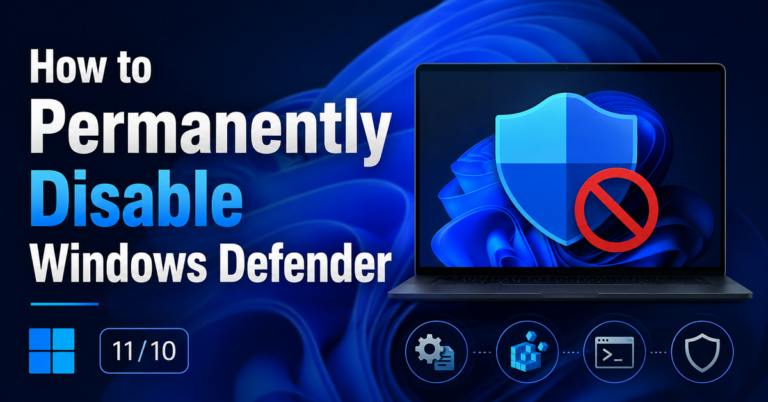
Unexpected Windows updates can interrupt work, consume bandwidth, or even cause software and driver conflicts. Whether you are in the middle of an important project, gaming online, using specialized applications, or connected to a limited-data network, these situations often push users to look for ways to turn off Windows updates in Windows 10 or 11, at least temporarily.
However, permanently disabling updates carries real risks. Security patches and stability fixes are a key part of keeping Windows protected, and running an unpatched system for long periods can expose your PC to malware, data loss, or compatibility problems. This guide focuses on how to disable Windows Updates safely and explains the trade-offs.
Method 1. Pause Windows Updates in Settings (Temporarily)
This method works on Windows Home, Pro, and Enterprise and is designed for short-term control rather than turning off Windows updates permanently. That means it is not suitable for long-term blocking. It is often chosen by users who search for “disable Windows updates” but do not actually need to stop the update engine entirely.
Microsoft allows automatic updates to be paused for 1 to 5 weeks before resuming. This mechanism is an officially supported control method.
✨Important: Security patches are also delayed. If you use this repeatedly, schedule manual update checks and create restore points.
Steps on how to turn off Windows Update in Windows 10/11 via Settings:
Step 1. Go to Settings > Windows Update > Pause updates.
Step 2. Choose a duration (for example, 1–5 weeks, depending on the version). Confirm that Windows Update now shows a paused status.

Step 3. To resume updates early, return to the same screen and select Resume updates.

Method 2. Disable Windows Update Service Permanently
Supported on Windows Home, Pro, and Enterprise, this approach targets the core Windows Update service.
Windows relies on a background service called wuauserv to scan for and download updates. Disabling this service in the Services console can immediately halt update activity, which makes it attractive to users trying to block unexpected restarts or large downloads. But feature upgrades or system repairs can re-enable the service automatically.
Leaving this disabled long-term blocks all security fixes and can expose the system to exploits. Re-enable it periodically to install critical updates.
Steps on how to stop Windows Update Permanently:
Step 1. Press Win + R, type services.msc, and press Enter or hit the OK button.

Step 2. Scroll down and locate Windows Update. Then, double-click it.

Step 3. Change Startup type to Disabled. And click Stop under Service status.
Step 4. Click Apply, then OK.

To restore updates later, reopen the same dialog and set Startup type back to Manual or Automatic, then click Start.
Method 3. Turn Off Windows Updates with Group Policy
This method is available only on Windows Pro and Enterprise, not for the Home version. Group Policy lets administrators define how Windows handles updates at a system level. When configured properly, Windows will stop automatically downloading and installing patches and instead wait for manual approval. In domain-managed environments, however, corporate policies may override local settings.
✨Tip: Pair this with WSUS or Intune in business setups so updates are delayed, not forgotten.
Steps to stop Windows 11 updates with the way to change the settings of the Group Policy Editor:
Step 1. Press Win + R, type gpedit.msc, and click OK.

Step 2. Navigate to Computer Configuration > Administrative Templates > Windows Components > Windows Update. And double it.

Step 3. Double-click Manage end user experience, then double-click Configure Automatic Updates and select Disabled.

Step 4. Click Apply, then OK. Restart the computer.
If the PC is domain-joined and updates still install, the domain administrator may be enforcing policies remotely. If you are a Windows Home user, you can use the registry method instead. How to turn Windows updates back on? If you decide to re-enable updates, reverse the steps above or reset Windows Update components to default settings.
Method 4. Disable Windows Updates via Registry
This approach works on Windows Home, Pro, and Enterprise and is commonly used by Home Edition users who lack Group Policy.
The Registry stores Windows Update policy values. Editing these keys can block automatic updates, but mistakes may destabilize the system or make updates difficult to restore. Always back up the Registry or create a restore point before proceeding, such as using backup software like EaseUS Todo Backup to back up your data.
Steps to disable Windows update registry on your Windows PC:
Step 1. Press Win + R, type regedit, and press Enter.

Step 2. Navigate to: HKEY_LOCAL_MACHINE\SOFTWARE\Policies\Microsoft\Windows
Step 3. Right-click Windows > New > Key > name it WindowsUpdate. If this item already exists, skip this step.

Step 4. Right-click WindowsUpdate > New > Key > name it AU.
Step 5. Inside AU, right-click > New > DWORD (32-bit) Value > name it NoAutoUpdate.

Step 6. Double-click it and set the value to 1.
Step 7. Restart the PC.
To undo this later, delete NoAutoUpdate or set its value back to 0.
Method 5. Use Metered Connections to Limit Updates (All Editions)
This option works on Windows Home, Pro, and Enterprise and is mainly intended for users who want to reduce bandwidth usage rather than completely disable Windows Updates. When a network is marked as metered, Windows limits background downloads, including many update packages, although critical security patches may still be delivered.
The restriction only applies to the specific network profile currently in use and, in most cases, is effective primarily on Wi-Fi connections rather than Ethernet. If your PC is connected via Wi-Fi, setting the network as metered can help slow or temporarily stop Windows 10/11 automatic updates.
Guide on how to disable Windows updates:
Step 1. Open Settings > Network & Internet.
Step 2. Select your active connection (Wi-Fi or Ethernet).
Step 3. Click the network name.
Step 4. Turn on Metered connection.
Step 5. Repeat this for any other networks you frequently use.

Method 6. Use Third-Party Tools to Disable Windows Updates
This approach works on Windows Home, Pro, and Enterprise and is commonly used by those seeking a one-click way to disable Windows Updates. Tools such as Win Update Stop or enterprise patch-management platforms automate service shutdowns, registry edits, and scheduled-task blocking through a simple interface, making advanced system changes accessible even to non-technical users.
The convenience comes with trade-offs: relying on third-party software requires long-term trust in the vendor, some antivirus products may flag update blockers, and major Windows feature upgrades can reverse these changes and cause updates to resume.
Use only reputable vendors and keep full system backups. In corporate environments, managed patch-deployment platforms are usually safer than consumer-grade tools.
Is It Safe to Disable Windows Updates Permanently
For most everyday users, permanently disabling Windows Updates is not recommended.
Windows updates do more than add features, they regularly patch security vulnerabilities that attackers actively exploit once they become public. If a computer stays connected to the internet, downloads software, opens email attachments, or uses USB drives, running without updates for long periods significantly increases the risk of malware infections, data theft, or system compromise.
In practical terms, this means that home users and small-office workers are usually better off delaying updates rather than shutting them off completely. Features like Pause Updates, scheduled restart times, and managed update settings let you stay productive without sacrificing critical security fixes.
When Might Long-Term Disabling Be Acceptable?
In professional IT environments, some systems operate on frozen versions of Windows for stability or compliance reasons. These situations are relatively rare and typically involve strict controls, such as:
- Industrial or manufacturing machines that rarely connect to the internet
- Laboratory or test systems used for controlled experiments
- Specialized devices that require vendor certification before upgrades
- Fully offline computers
- Corporate environments where updates are centrally managed by IT teams instead of individual users
Even in these cases, administrators do not usually ignore updates forever. Patches are tested in isolated environments first and then deployed during maintenance windows once compatibility is confirmed.
Practical Advice for Most Readers
If you are managing your own PC, the safest approach is:
- Avoid permanently disabling Windows Updates unless you fully understand the risks
- Use temporary methods to pause or delay updates when needed
- Re-enable updates periodically to install security patches
- Create backups or restore points before changing system-level settings